
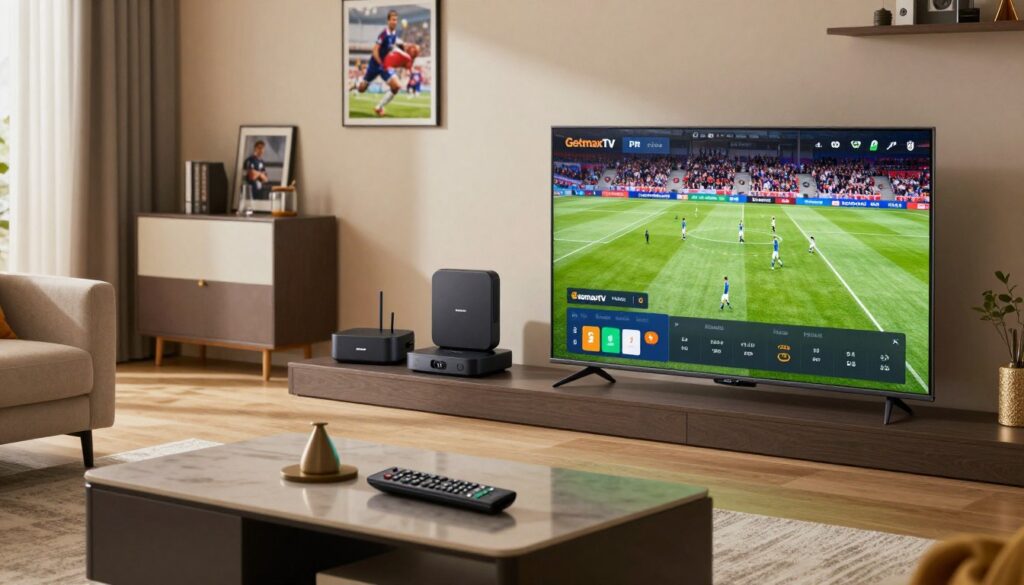
Wonder if a lightweight IPTV plan can truly deliver fast channel changes, low lag, and clear replays for big matches?
This guide shows what matters when you want reliable live viewing across TV and mobile in Canada. You’ll learn how IPTV works, simple checks for legality, and how to build a sports-ready setup that keeps match night smooth. Focus areas include channel availability, picture quality, speed, and responsive support.
Briefly: GetMaxTV is mentioned as an example to compare against other providers without oversell. The path ahead is practical — pick a plan, choose a player app, link a playlist and EPG, then run a real match-night test. This is educational and not legal advice; verify licensing before subscribing.
Key Takeaways
- Learn how IPTV works for live match viewing and replays.
- Use simple checks to evaluate legality before you pay.
- Prioritize low latency, fast channel switching, and EPG/catch-up.
- Follow a clear setup path: plan, player, playlist/EPG, test.
- Compare providers, including GetMaxTV, and confirm support options.
- Always verify licensing and choose a compliant subscription.
What IPTV is in Canada and why sports fans are switching in 2025
IPTV 2025 means television delivered over your home internet instead of a coax cable or a roof dish. This model sends live channels and on-demand shows to your devices, often with an EPG and catch-up options.
How IPTV delivers live sports plus on-demand replays
Live channels stream real-time games while on-demand content stores highlights and full-match replays. That makes it simple to watch a late highlight or replay a key moment on the same service.
How IPTV differs from cable and satellite for game-day viewing
Activation is usually faster and there’s less hardware. You can add apps to multiple devices and give different rooms access without extra set-top boxes.
Why latency and fast channel switching matter
Latency is the delay between live action and your screen. Lower delay keeps a goal or buzzer-beater feeling immediate.
Quick channel switching helps when you flip between games or check scores. The best services focus on reliability, correct channels, and a stable internet connection—not hype.
- Practical tip: Verify channel rights and regional availability before subscribing.
| Feature | IPTV | Cable | Satellite |
|---|---|---|---|
| Activation time | Minutes | Hours–days | Hours–days |
| Device flexibility | High (apps on many devices) | Medium (set-top boxes) | Low–Medium (boxes, dishes) |
| Channel switching speed | Fast (depends on service) | Moderate | Moderate |
| On-demand | Common | Often available | Often available |
Legal IPTV in Canada versus illegal streams: what you need to know
Licensing and transparency shape the viewing experience more than the delivery tech itself. When a provider has lawful rights to content, channels stay stable and takedowns are rare. That reliability matters most during big events.
Why licensing matters for stable channels and fewer takedowns
Licenses mean the service has agreements with rights holders. That reduces sudden removals and server overloads during peak match time.
Licensed services typically manage regional access correctly and offer clear channel lists. That leads to fewer surprises on game night.
Common signs a provider is operating transparently
- Published terms, refunds, and a visible billing record.
- Clear answers about where channels and content originate.
- Reasonable channel counts and no claims of “all premium apps included.”
- Accessible support channels and public reviews that match promises.
Beware anonymous sellers, reseller-style DMs, or huge channel bundles with vague ownership. These options often mean no accountability and inconsistent access.
Next: a short compliance checklist will help you evaluate any IPTV provider consistently before subscribing.
Quick compliance checklist before you subscribe to any IPTV service
Before you subscribe, run a quick checklist that flags transparency and reduces surprises.
Terms, privacy, refunds, and clear billing records
Start with written policies. Look for published terms, a privacy policy, and a clear refunds page. Confirm a dated receipt is provided after payment.
Clear billing records should show plan length, renewal terms, and a transaction ID you can save.
Proof of lawful content and questions to ask
Request a current channel list in writing and ask simple questions like, “Which agreements cover these channels for this region?”
Prefer providers that explain licensing instead of vague claims. Get answers by email or support ticket.
Support availability and realistic response times
Expect basic customer support hours and a stated response window. “24/7” should mean live chat or ticket replies within reasonable hours; typical first responses take a few hours during busy periods.
Secure payment options and receipts
Use traceable payment methods and keep receipts. Avoid irreversible cash or anonymous transfers if you want dispute options.
- Run the checklist before any trial or paid plan.
- Document all replies so you have a record if access changes.
GetMaxTV for sports in Canada: what you get and who it’s best for
Before you pick a plan, check the real mix of live channels and replay options offered during peak match hours.
Live channels and on-demand content: reading the lineup
Look at the balance between live channels and VOD libraries. A solid package pairs regular live feeds with replays and highlights so you can catch missed action.
Check during peak times: channel availability and server stability matter more when many fans tune in.
Practical HD/4K expectations
HD or 4K tags are useful only if playback holds steady. Judge quality by startup time, motion handling, and audio sync rather than badges.
A consistent bitrate and clean motion during fast play are signs the label matches real performance.
Multi-device viewing and concurrent streams
Most services let you register several devices but limit simultaneous streams. Think about how many people watch at once and which screens they use.
Pick a plan that fits big-screen viewing for living rooms and mobile viewing for on-the-go replays.
- Evaluate match-night needs: number of watchers, big-screen vs mobile, and catch-up needs.
- Use a short trial period to confirm live channel performance during busy events.
- Compare a compliant example option that lists HD/4K channels, VOD, flexible terms, and 24/7 customer support before committing; verify details for your case via the provider page: service details & plans.
| Criteria | What to check | Why it matters |
|---|---|---|
| Live channels | Current channel list, peak-hour stability | Ensures the games and feeds you want are available |
| On-demand content | Replay library depth and catch-up windows | Lets you watch highlights or full replays after kickoff |
| HD/4K quality | Bitrate consistency, motion handling, audio sync | Real viewing experience, not just marketing |
| Devices & streams | Supported devices and simultaneous streams | Matches household viewing patterns without surprises |
Channels and sports coverage: how to confirm you’ll actually get the games you want
Start by matching your must-watch list with a provider’s current lineup and peak-hour availability.
Create a must-watch list by league, team, and local kickoff time. Note your time zone so schedules line up. This makes verification quick and precise.
Create your league and team checklist
List the leagues and teams you follow. Add blackout-prone fixtures and evening events that matter most.
Regional feeds and blackout basics
Feeds can vary by province because rights differ. Ask the provider how they handle blackouts and regional substitutions.
French-language options
If you need French commentary, confirm French channels and EPG language tags. This matters for Quebec viewers and bilingual households.
Request a dated channel list in writing
Use a short script: “Please send the current channel list, last updated date, and change frequency.” Save their reply.
- Cross-check claims against independent reviews and your trial during a real match window.
- Document gaps: record the channel name, date, and a timestamp so support can act fast.
| Check | What to request | Why it matters |
|---|---|---|
| Must-watch coverage | Dated channel list with leagues/teams | Confirms availability during your peak events |
| Regional feeds | Province-specific feed notes | Prevents surprise blackouts or substituted feeds |
| Language options | French channel and EPG metadata | Ensures commentary and guides match your preference |
Key features that matter most for live sports streaming

A solid match-night experience depends on practical features, not flashy sales copy. Pick items that reduce surprises and keep action live and clear.
EPG accuracy so you don’t miss puck drop or kickoff
Accurate guides let you find the right channel fast and avoid missed starts. Ask for a dated EPG sample and confirm time zones match your local listing.
Catch-up and time-shift for overlapping fixtures
Catch-up and time-shift mean you can start late, rewind a key play, or follow two games without losing context. Test these during real match hours, not quiet periods.
Fast, stable streams over flashy “zero buffering” promises
Ignore marketing claims. What matters is consistent bitrate, low latency, and quick channel zapping. A good provider shows honest limits and offers responsive support when a feed falters.
“Reliability beats a huge channel list every time.”
Use a short sports packages trial during peak hours to confirm real-world performance before committing long term.
Internet speed and stability: the least Mbps you need for smooth match nights
Smooth game viewing starts with realistic speed targets and a quick pre-game check.
Practical targets: aim for about 10 Mbps per HD stream and 25 Mbps+ for each 4K stream. If you plan multiple concurrent streams, add those values together as your baseline. For a household with two HD viewers and one 4K main screen, a safe target is ~45–50 Mbps.
Wi‑Fi vs Ethernet for big screens
Use Ethernet for the main TV when possible. Wired connections cut interference and keep startup times low. Wi‑Fi is fine for phones and tablets, but place the router close or use a mesh system for better coverage.
Peak-time load and shared bandwidth
Buffering often shows up during major events because many homes load networks at once. Shared household downloads, cloud backups, or other streams reduce available bandwidth and hurt quality.
Simple pre-game test routine
Run a speed test on the viewing device about 30 minutes before kickoff. If results fall below your safe target, reboot the router, pause large downloads, and switch the device to Ethernet if possible.
- Write down the speed result, time, device, and channel when issues happen.
- Keep a short trial during peak hours to verify real performance.
Realistic expectation: even with good internet numbers, service capacity and player app performance also affect final viewing quality. Device choice and app selection are the next steps.
Device compatibility: what to check before you start setup
Confirming which devices will run your chosen apps saves time and avoids last-minute swaps.
Start with a short audit of your main TV, any streaming stick, and the phones or tablets that will share access. Note model names and OS versions so you can match them against player requirements.
Smart TVs, Fire TV, Android, iOS, MAG and common setups
Smart TVs are convenient but app updates vary by maker and model. A Fire TV or Android box often gives steadier app support and faster channel switching.
iOS and Android phones are fine for on-the-go viewing and quick checks. MAG boxes still work in niche setups; confirm the provider lists MAG compatibility in writing when you plan to use one.
Older Smart TVs and missing app support
If a TV no longer receives app updates, add a compact streamer. A small stick or box modernizes access without replacing the screen.
- Pre-setup checklist: list each device, model, OS, and the player app you prefer.
- Compare pros/cons: built-in apps versus dedicated devices for stability and zapping speed.
- Family check: number of concurrent devices, room locations, and Wi‑Fi reach.
Tip: Ask the provider for written device compatibility and support notes before purchasing. If you need more guidance for tablets, see the Android tablet guide.
Choosing an IPTV player app: what works best for sports viewing
The right player app makes fast zapping and quick replays feel effortless on any screen.
TiviMate, IPTV Smarters Pro, VLC, Kodi — quick fit guide
TiviMate excels on Android TV and set-top boxes with a fast EPG grid and quick channel zapping. It suits big-screen viewing and multi‑channel fans.
IPTV Smarters Pro is flexible across phones and Fire TV sticks. It offers account logins and decent on-demand content handling on many devices.
VLC is simple and stable for single-playlist use on PCs and phones. Kodi is powerful but needs more setup and add-ons, which can slow zapping speed.
M3U vs Xtream Codes: which login method matters
M3U is a plain playlist file you paste into an app. Xtream Codes uses username/password and often gives faster EPG linking and account control. Match the provider’s login type with an app that supports it for quicker setup.
EPG speed, favorites, and fast zapping
Prioritize apps that load EPG quickly, let you build favorites, and switch channels without delay. These features matter most during tight game moments.
- Best practice: install apps from official stores and avoid random APKs.
- Run a short trial with more than one app to compare real performance.
- Look for good on-demand content handling (resume, search, categories) for replays.
For regional lineup checks, see the SportsNet coverage page as part of your trial verification.
Before you install: prep your network and devices for fewer headaches
Small network and device checks cut support calls and save your game time.
Pre-flight checklist: update the streaming device OS, TV firmware, and the player app. These updates fix EPG bugs and reduce crashes that often show up during busy match windows.
Know your plan limits: most plans allow several devices, but only a set number of simultaneous streams. If you exceed that, expect logouts or “too many devices” errors and possible account locks.
Router placement and quick tweaks
Place the router central in the home and avoid thick walls or microwave interference. Keep the main TV on the strongest connection—prefer Ethernet when possible for the biggest screen.
Optional QoS: enable Quality of Service to prioritize the main streaming device during peak viewing. This helps keep playback steady when other household traffic runs.
- Decide which device gets priority (usually the big-screen TV).
- Pause large downloads and cloud backups during live viewing windows.
| Check | Action | Why it matters |
|---|---|---|
| Firmware & app updates | Install latest versions before installing | Reduces EPG errors and unexpected crashes |
| Concurrency limits | Confirm simultaneous streams allowed | Prevents lockouts during match time |
| Router tweaks | Place centrally; enable QoS if available | Improves stability and reduces buffering |
How to set up GetMaxTV step by step on your main devices
Follow a simple, official-store-first walkthrough so your plan activates cleanly and your main screens are ready for match night.
Activate your plan and store your credentials securely
Choose the plan, complete checkout, and expect an email with login credentials and a dated receipt. Save that receipt separately from the account login.
Credential hygiene: store usernames and passwords in a password manager. Don’t share login details outside your household. Keep billing records and app credentials in different folders for quick support reference.
Install the recommended app from an official app store
Download the player app from Google Play, Amazon Appstore, Apple App Store, or the TV maker’s store. Official sources reduce crash and malware risk and ensure timely updates.
Check device compatibility before installing. If an app isn’t available, use a supported streaming stick or box for the main TV.
Add your playlist/credentials and connect the EPG
Open the app, choose the login method (M3U or Xtream), and paste the playlist or enter username/password exactly as sent. Then import the EPG file or link and confirm the guide shows correct local times.
Build favorites for your sports channels and test channel switching
Create favorite lists by league or a single “game night” folder for fast access. Practice rapid channel changes and note any slow zaps or buffering so you can report them to support.
Turn on catch-up and confirm your time zone settings
Enable catch-up features and verify the app’s time zone matches your local listing. This ensures replays and VOD appear at the expected times and reduce missed segments.
Quick confirmation routine: open two or three live channels, check EPG accuracy, try a catch-up clip, and confirm streams start quickly on your main device. If issues appear, save timestamps and contact support with device model and app version.
| Step | Action | Why it matters |
|---|---|---|
| Activation | Complete purchase; save credentials and receipt | Prevents scrambling during troubleshooting |
| App install | Use official store and check device compatibility | Reduces crashes and ensures updates |
| Playlist & EPG | Enter credentials; import guide with local time | Keeps schedules accurate for live channels |
| Favorites & test | Group channels and test fast switching | Speeds access on game night and reveals issues |
How to test your setup during a live game (your real-world performance check)
Turn a scheduled match into a practical trial that checks startup, stability, and sync.
Start with one live feed on your main device and time the startup. Note how many seconds until picture and sound begin.
Next, watch for buffering. Time interruptions and count how often playback stalls during the match or commercials.
What to measure: startup time, buffering frequency, and audio sync
Startup time: record seconds from tap to visible action.
Buffering frequency: tally interruptions per hour and their duration.
Audio sync: watch a spoken moment and check if audio lags video by more than a second.
How to validate HD/4K labels versus actual playback quality
Confirm your device output matches the stream setting in the app. Compare motion clarity during fast plays and look for compression artifacts or dropped frames.
Don’t accept a label alone—verify bitrate, sharpness, and audio clarity during live action.
How to test multi-device streaming without triggering lockouts
Begin with the number of streams allowed by your plan. Add one extra device at a time while watching the same match.
Pause between adds and note any “too many streams” or login errors. If problems occur, stop and record timestamps and device names.
Repeat tests: run the same routine during a peak evening and again on a weekend event. Keep a short log (time, channel, device, speed test) so support can act quickly if access drops.
| Test | What to record | Pass/fail check |
|---|---|---|
| Startup time | Seconds to first frame | <5s = good; >10s = problem |
| Buffering | Interruptions per hour and seconds lost | 0–1/hr = acceptable; 2+ = needs review |
| Audio sync | Seconds offset between audio and video | <0.5s = good; >1s = issue |
| Multi-device | Device names and any lockout messages | No login errors while at plan limit = pass |
For a playlist or player checklist and setup tips, see the IPTV playlist guide.
Troubleshooting common IPTV issues when streaming sports
Most channel problems have simple causes you can isolate in under five minutes.
Buffering fixes that work fast
Start with a quick speed test and note results. Reboot the router and the streaming device, then try Ethernet on the main TV.
Other fast checks: pause household downloads, close background apps, and clear the player app cache. These steps often stop stutters in one go.
EPG not loading or wrong schedule times
Refresh the guide data and confirm the app time zone matches local time. If the EPG still shows old entries, update the app and re-import the guide.
Login errors and “too many devices” messages
If sessions hit the concurrency limit, log out from unused devices or wait a few minutes for sessions to clear. Check plan limits in the account page before adding streams.
When one channel fails but others work
That usually means a feed issue at the provider side. Note the channel name and exact time, then retry after five minutes.
What details to send customer support for quicker fixes
Include device model, app name/version, channel name, timestamp, speed test result, and the steps already tried. A clear report speeds diagnosis.
| Issue | Quick action | Why it helps |
|---|---|---|
| Buffering | Speed test → Ethernet → reboot | Isolates network vs provider load |
| EPG errors | Refresh guide → check time zone | Fixes schedule mismatches |
| Login limits | Log out extras → verify plan | Prevents lockouts |
“Good support should acknowledge the issue, offer a workaround, and give an ETA when the provider must fix the feed.”
Trials, refunds, and customer support: how to judge a provider you can trust
Before you commit, use short trials and quick support tests to separate honest services from hype.
How to use a free trial as your peak-time stress test
Start a free trial or low-cost trial during a prime-time game. That reveals real channel availability, peak-hour stability, and app behavior under load.
Run one trial session during a big match and another on a normal weeknight. Compare startup times, buffering, and multi-device limits.
What clear refund terms look like (and what’s vague)
Clear refunds state an eligibility window, step-by-step request instructions, processing times, and whether partial outages trigger pro-rated refunds.
Vague language—like “no refunds ever” or unclear conditions—should be a red flag. Keep month-to-month plans while testing to reduce commitment risk.
Support channels to look for and how to test responsiveness
Good providers list live chat, email, and ticket options with estimated response times. Before paying, ask a pre-sales question and time the reply.
Document receipts, plan start times, promised channels, and any support transcripts. These records speed dispute resolution if access or content changes mid-cycle.
| What to test | Expectation | Why it matters |
|---|---|---|
| Free trial peak test | Stable streams during prime-time | Shows real-world performance |
| Refund clarity | Written window and process | Protects your payment if service fails |
| Support response | Actionable reply within stated time | Fast fixes matter on game night |
Quick tip: use a trial alongside independent reviews and confirm channel claims via the provider page for specific feeds and guides: SportsNet coverage.
Pricing, plans, and payment transparency for IPTV in Canada
Pick a plan that matches real match-night use, not shiny marketing numbers.
Month-to-month vs longer plans: when each makes sense
Choose a month option when you want flexibility. A short month lets you run a trial during peak games and switch if streams or channels fail.
Longer plans can save money if a provider proved stable during trials. Lock in longer only after you confirm startup time, bitrate, and customer support speed during busy hours.
What true value looks like for live fans
Best IPTV 2025 value is not the cheapest price. It combines reliable live channels, steady quality, honest device limits, and quick customer support.
Factor in real reviews, peak-hour tests, and whether catch-up or VOD includes key movies and shows you want.
Payments, receipts, and avoiding surprise renewals
Pay with traceable methods such as card or Interac for clear receipts. Save the dated billing record and any refund terms.
Confirm auto-renew policies, cancellation steps, and whether reminders are sent before a renewal charge.
| Choice | When it fits | Key risk |
|---|---|---|
| Month-to-month | New provider, new season, want flexibility | Higher monthly cost if kept long-term |
| Longer plan | Tested service; stable streams and support | Harder to cancel if quality drops |
| Short trial | Peak-time verification of channels & streams | Trials may exclude some premium options |
Quick tip: run one or two trials during big games, then compare total cost including any extra device streams and your internet capacity. For plan options and transparent pricing, check service details & plans.
Red flags to avoid: unrealistic channel counts, sketchy apps, and “VPN required” claims
A quick red‑flag scan can protect your match-night viewing and your wallet.
Why “all premium apps included” is a major warning sign
Bundling paid apps usually means the vendor has not secured proper licenses. Real providers list which apps and services are covered, and they publish terms and refunds.
If a seller promises every premium app, doubt the claim. That pitch often hides unstable content and poor support during peak events.
How sideloaded APKs create privacy and security risk
Sideloaded apps can request dangerous permissions or carry outdated code. That raises the chance of credential theft and device instability.
Stick with official stores on smart tvs, phones, or streaming devices for safer app installs and better device compatibility.
How to spot reseller-style offers with no accountability
Watch for no company details, vague channel lists, and pressure to pay quickly. These reseller-style offers often vanish when issues arise.
Insist on a dated channel list, traceable payment, and responsive support. If support is missing or unclear, walk away.
“Legitimate services publish clear plans, contact channels, and a written refund policy.”
Use a short guide to choosing a reliable provider and run a trial during a busy match to verify real-world performance before paying.
Conclusion
Conclusion
Finish with a short, practical checklist before you commit.
Confirm legal standing and transparency, match the channels you need for major games, then run a peak-hour trial that logs startup, buffering, and EPG accuracy. Test streams on the main device and a secondary device to verify simultaneous access and real-world quality.
Prioritize low-lag feel, fast channel switching, consistent picture, and responsive support when issues arise. Keep receipts, dated channel lists, and any support replies for proof of promises and refunds.
If you want to explore a legal IPTV subscription option, review this provider offer: https://getmaxtv.com.
FAQ
What is IPTV and why are many sports fans switching in 2025?
IPTV delivers live TV and on-demand video over the internet instead of satellite or cable. You get faster updates to channel lineups, easier multi-device access, and flexible plans. For sports, IPTV often provides more regional feeds and catch-up options, which is why many viewers are switching in 2025.
How does IPTV actually deliver live sports and on-demand replays?
IPTV uses streaming servers and playlists (M3U or Xtream Codes API) to send live channels and VOD files to your player app. The service handles live encoding, EPG metadata for schedules, and catch-up servers so you can watch replays without a DVR box.
How does IPTV differ from cable and satellite for game-day viewing?
IPTV routes video over your home internet, so you don’t need a dish or coax outlet. That means quicker channel updates and easier access on phones, Smart TVs, and streaming sticks. Cable may offer more consistent official carriage, but IPTV wins on flexibility and cross-device support.
Why do latency and fast channel switching matter for live sports?
Low latency reduces the delay versus the live broadcast, which matters for social interaction and betting. Fast channel zapping prevents long waits when you hop between games. Look for providers and apps that prioritize stream startup and low buffering.
What’s the difference between legal IPTV and illegal streams?
Legal IPTV holds broadcast rights or partners with licensed distributors. That gives you stable channels, fewer takedowns, and clearer refund paths. Illegal streams risk shutoffs, poor support, and potential legal exposure for providers and resellers.
What are common signs a provider operates transparently and lawfully?
Clear terms, published channel lists, refund policies, business contact info, and secure payment options are good signs. Licensed providers often show partner logos (e.g., CBC, TSN, Sportsnet) and answer questions about rights for specific events.
What should I check in the terms and privacy policy before subscribing?
Verify trial length, refund windows, auto-renew rules, data handling, and cancellation steps. Make sure billing records and receipts are provided and that the provider describes device and concurrent-stream limits.
How can I ask for proof of lawful content from a provider?
Request written confirmation of licensing for key channels or events and ask where rights are held (network or distributor). Reputable providers will share licensing details or state they source from authorized feeds.
What customer support availability should I expect?
Look for multiple channels: email, ticketing system, live chat, and phone. Realistic response times for live-sports issues should be within a few hours during peak events. Test responsiveness during a trial.
What secure payment options should I look for?
Credit card, PayPal, and other known gateways provide chargeback protection and receipts. Avoid providers that only accept anonymous cryptocurrencies or untraceable transfers without any refund policy.
What live channels and VOD features does GetMaxTV offer and who is it best for?
The service typically bundles live sports channels, regional feeds, and VOD highlights. It’s best for viewers who want multi-device access, catch-up for missed fixtures, and flexible monthly plans. Confirm current channel lists before subscribing.
What should I realistically expect for HD and 4K quality?
HD streams require stable bandwidth and encoding from the provider; true 4K needs considerably more capacity and consistent bitrate. Expect better quality over Ethernet and during off-peak hours; verify with an in-event test.
How do concurrency limits affect multi-device viewing at home?
Concurrency rules restrict how many streams you can watch at once. If you have roommates or family watching different games, make sure the plan supports enough simultaneous connections, or you’ll hit “too many devices” errors.
How do I confirm I’ll actually get the games and leagues I care about?
Create a must-watch list by league, team, and kickoff times. Ask the provider for a written channel list covering your region and verify blackout rules and regional feeds for your timezone.
How do blackout rules and regional feeds affect what you can watch?
Regional rights can block certain feeds in your area, causing local blackouts or alternate feeds. Confirm the provider’s regional policy and whether they supply national or out-of-market streams for your teams.
Are French-language options available to verify?
Many providers offer French feeds for Canadian audiences. Ask for confirmation of francophone channels like RDS and TVA Sports if you need French-language coverage.
How do I request a current channel list in writing?
Email support or use the provider’s contact form and request the up-to-date channel lineup and VOD index. Save their reply as proof before committing to a paid plan.
What key features really matter for live sports streaming?
Accurate EPG, catch-up/time-shift, fast channel zapping, consistent bitrates, and reliable support matter most. Avoid providers that prioritize flashy marketing over stream stability.
Why is EPG accuracy important?
A correct electronic program guide prevents missed starts and helps you schedule recordings or set reminders for kickoffs and puck drops.
How does catch-up and time-shift help when fixtures overlap?
Catch-up lets you watch a match from the start while another game airs live. Time-shift features help you pause and rewind live action so you never miss key moments.
What’s a realistic minimum internet speed for smooth streaming?
Aim for at least 5 Mbps for single SD, 10–15 Mbps for HD, and 25+ Mbps for 4K per stream. These are practical targets; actual needs rise if multiple devices stream at once.
Should I use Wi‑Fi or Ethernet for big screens and live events?
Ethernet is the most reliable for big-screen viewing and high-bitrate streams. Use 5 GHz Wi‑Fi or mesh extenders if wired runs aren’t possible, and keep the TV close to your router.
How do peak-time load and home bandwidth sharing affect quality?
During peak hours, your ISP or provider servers may face higher load, causing buffering. Limit other heavy uses (gaming, file syncs) during live events or prioritize traffic with router QoS.
What simple speed-test routine should I run before a big game?
Use a wired PC or smart TV browser to run speed.test.net during the same time slot as your event. Repeat tests on Wi‑Fi and with other devices idle to compare results.
What devices are commonly compatible with IPTV in Canada?
Smart TVs (Samsung, LG), Fire TV, Android TV boxes, Android and iOS phones/tablets, and MAG-style Linux boxes are common. Check the provider’s app list before buying new hardware.
What if my Smart TV is older or lacks app support?
Use a streaming stick (Amazon Fire TV Stick, Chromecast with Google TV) or a small Android TV box to run modern IPTV apps. These are inexpensive and extend app compatibility.
Which IPTV player apps work best for sports viewing?
TiviMate offers a TV-like guide and fast zapping on Android TV. IPTV Smarters Pro is popular on phones and boxes. VLC or Kodi can play playlists but may lack premium UX. Choose by your device and navigation preference.
Should I use M3U or Xtream Codes login method?
M3U is a simple playlist file; Xtream Codes (API) offers faster authentication, EPG syncing, and better app integration. Use the method your app and provider recommend for best performance.
How important is EPG loading speed and favorites handling?
Fast EPG updates and a solid favorites system speed up channel switching and help you avoid scrolling through hundreds of channels during live events. Test these in a trial.
What network and device prep should I do before installing an IPTV service?
Update firmware and apps, set your router to stable channel bands, and confirm enough concurrent-stream headroom. Back up login info and note timezone settings in the app.
What expectations should I set for simultaneous streams and account limits?
Providers limit concurrent streams per account. Decide how many simultaneous viewers you need and pick a plan that matches family or household use to avoid login conflicts.
What optional router tweaks help live sports (QoS and placement)?
Enable QoS to prioritize streaming traffic, place your router centrally, and reduce interference by switching to 5 GHz. These tweaks reduce buffering and packet loss during big events.
How do I activate my plan and secure my credentials?
Register with the provider, use a strong unique password, enable two-factor authentication if offered, and store credentials in a secure password manager. Keep purchase receipts for support and refunds.
How do I install the recommended app from an official store?
Open Google Play, Apple App Store, Amazon Appstore, or your Smart TV store, search the app name the provider recommends, and install. Avoid sideloading unknown APKs to reduce security risks.
How do I add my playlist or credentials and connect the EPG?
In the app, choose “Add playlist” or “Login with Xtream Codes,” enter the M3U URL or API credentials from your provider, then load the EPG through the guide or separate EPG URL.
How do I build favorites and test channel switching?
Mark your primary sports channels as favorites in the app, then jump between them during a test period to check startup time and buffering. Use peak-hour testing to mirror real use.
How do I turn on catch-up and confirm time zone settings?
Enable catch-up or replay features in the app settings and verify the app’s time zone matches your local region so recordings align with real start times.
What should I measure during a live-game setup test?
Track stream startup time, frequency and duration of buffering, audio/video sync, and bitrate stability. Note any channel-specific failures to report to support.
How can I validate HD/4K labels versus actual playback quality?
Compare on-screen resolution and bitrate meters (if available) to the label. Watch close-up fast-action scenes to confirm clarity and motion handling under match conditions.
How do I test multi-device streaming without triggering lockouts?
Coordinate simultaneous streams within your plan’s concurrency limit. Test different device types (TV, phone, tablet) and note any “too many devices” messages to report to support.
What quick fixes work for buffering during games?
Switch to Ethernet, close background apps, lower stream resolution temporarily, or restart the app. If persistent, contact support with timestamps and speed-test results.
Why is my EPG not loading or showing wrong times?
EPG issues often stem from incorrect EPG URL, timezone mismatch, or app caching. Reload the EPG, clear app cache, and confirm the provider supplied the correct guide URL.
What does “too many devices” or login errors mean and how do I fix it?
You’ve exceeded the plan’s concurrent stream limit or device registration cap. Log out unused devices, upgrade your plan, or ask support to reset active sessions.
What if one channel fails but others work?
The issue might be a channel-specific encoder outage or regional rights block. Test other streams, note error messages, and send details to support for a targeted response.
What details should I send customer support for quicker fixes?
Provide your account email, device type, app name and version, timestamps, channel name, and speed-test results. The more precise you are, the faster the fix.
How should I use a free trial to stress-test a provider?
Run trials during peak match times, test multiple devices, check EPG accuracy, and use the refund window to evaluate responsiveness and stream stability under real conditions.
What clear refund terms should I expect?
Expect a defined trial period, pro-rated refunds for short-term outages, and documented cancellation steps. Vague or missing refund language is a warning sign.
Which support channels are worth testing during a trial?
Test email/ticket response times, live chat availability, and community forums. A provider that responds quickly during peak events is more trustworthy for live sports.
Should I choose month-to-month or longer plans?
Month-to-month gives flexibility if you only want seasonal access. Longer plans offer lower monthly cost but carry more risk if service quality drops. Match plan length to your viewing habits.
What does “best IPTV 2025” value mean for sports fans?
The best value balances accurate channel coverage for your leagues, low latency, a reliable EPG, good multi-device support, responsive customer service, and clear billing.
What payment methods and billing transparency should I expect?
Look for card and PayPal payments, transparent receipts, and clear renewal reminders. Avoid surprise renewals and providers that hide cancellation steps.
What red flags should I avoid in IPTV offers?
Be wary of absurdly large channel counts, claims of “all premium apps included,” mandatory VPN requirements, and sideloaded APKs that bypass app stores.
Why are offers that include “all premium apps” dangerous?
Those claims often signal unauthorized redistribution. Such bundles raise legal, reliability, and security concerns and usually lack long-term accountability.
How can sideloaded APKs create privacy and security risks?
Sideloaded apps can contain malware, request excessive permissions, or bypass store vetting. Use official app stores or trusted devices to reduce risk.
How do I spot reseller-style offers with no accountability?
Look for missing business registration, no physical address, short-lived domain names, or resellers that can’t show direct provider relationships. Ask for proof of service ownership.
The GetMaxTV Team is a group of cord-cutting experts and streaming technology specialists who have been testing and reviewing IPTV services since 2022. Based in North America, our team personally tests every service we recommend across 15+ devices including Fire TV Stick, Roku, Apple TV, Samsung Smart TVs, and gaming consoles. We verify channel counts, measure buffering rates, test picture quality in HD and 4K, and evaluate customer support response times. Our mission is to help viewers save money by switching from expensive cable subscriptions ($147/month average) to affordable, high-quality IPTV alternatives. Every article on GetMaxTV.com is based on hands-on testing and real-world experience — not recycled marketing claims.