
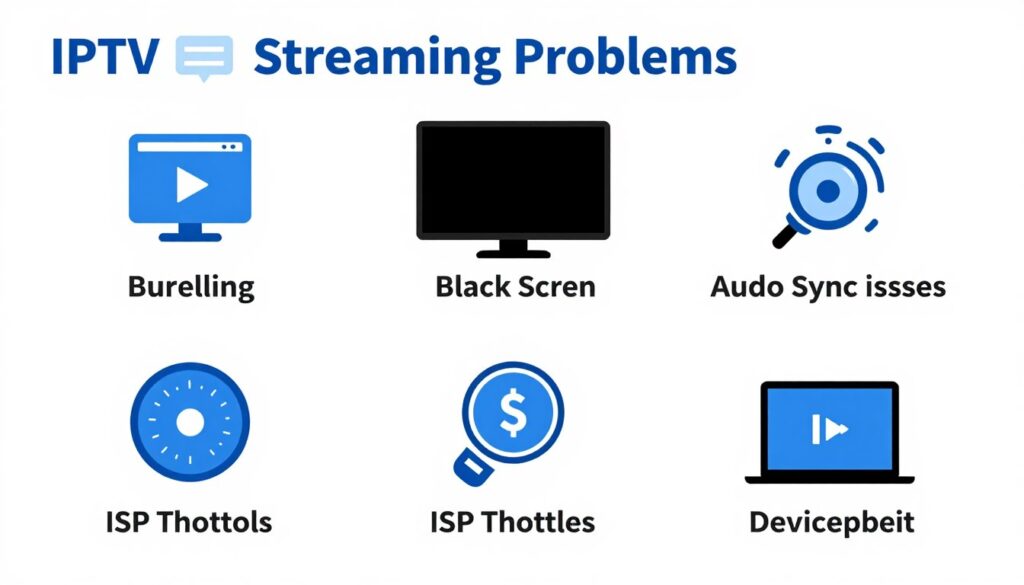
Streaming issues can ruin your viewing experience. Buffering during live sports, black screens, or audio that doesn’t match the video can be frustrating.
This comprehensive IPTV troubleshooting guide for 2026 covers every common problem. You’ll learn how to fix buffering, freezing, connection errors, and device-specific issues.
Whether you use Fire Stick, Roku, Smart TV, or Android box, this guide provides quick fixes and detailed solutions. Most problems take just a few minutes to resolve.
Let’s get your IPTV streaming smoothly again.
Understanding IPTV Problems in 2026
IPTV technology has evolved significantly. Modern services deliver thousands of channels in HD, FHD, and 4K quality directly over your internet connection.
However, streaming quality depends on multiple factors. Your internet speed, network setup, device performance, and IPTV provider all play crucial roles.
Most IPTV problems fall into specific categories. Understanding the root cause helps you apply the right fix quickly.
Never Deal with Streaming Issues Again
GetMaxTV delivers 21,000+ channels with 99.9% uptime guarantee and anti-freeze technology built in. Experience reliable streaming on any device with 24/7 support when you need it.
Common Problem Categories
Buffering and freezing account for approximately 60% of all IPTV issues. These problems stem from network congestion, insufficient bandwidth, or server overload during peak hours.
Connection errors represent another major category. These include authorization failures, playlist loading issues, and EPG problems that prevent proper guide display.
Playback quality issues affect viewing experience. Black screens, audio sync problems, and poor picture quality frustrate viewers trying to enjoy their content.
- Network-related issues: Buffering, freezing, slow channel switching
- Connection problems: Authorization errors, playlist failures, EPG not loading
- Playback issues: Black screen, audio sync, poor quality
- Device-specific problems: App crashes, force closes, compatibility issues
- Configuration errors: Wrong settings, DNS issues, VPN conflicts
Why IPTV Issues Occur More in 2026
Higher resolution streams require more bandwidth. As 4K and HEVC content becomes standard, older devices and slower connections struggle to keep up.
ISPs increasingly throttle streaming traffic. Many internet providers deliberately slow down IPTV streams during peak hours to manage network congestion.
Device limitations affect performance. Fire Sticks, Roku devices, and budget Android boxes may lack processing power for modern codecs and high bitrate streams.
Network interference has increased. More WiFi networks, smart home devices, and wireless signals compete for bandwidth in your home environment.
Buffering and Freezing Issues: The #1 IPTV Problem
Buffering occurs when your device can’t download stream data fast enough. The video pauses while more content loads into memory.
This represents the most common IPTV complaint. During live sports or premium events, buffering becomes especially frustrating for viewers.

Quick Buffering Fixes (Try These First)
Restart your streaming device and router. This simple step clears temporary cache and reestablishes network connections.
Switch from WiFi to ethernet cable. Wired connections provide stable bandwidth without wireless interference that causes buffering.
Close other apps and devices using your network. Multiple streams on Netflix, YouTube, or gaming consoles compete for available bandwidth.
Lower stream quality temporarily. Selecting HD instead of 4K reduces bandwidth requirements immediately while maintaining watchable quality.
- Restart device and router (fixes 40% of buffering cases)
- Connect via ethernet cable instead of WiFi
- Close background apps using bandwidth
- Reduce stream quality from 4K to HD temporarily
- Clear app cache in settings
- Move router closer to streaming device
Detailed Buffering Solutions
Internet Speed Optimization
Run a speed test using fast.com or speedtest.net. Your download speed should exceed minimum requirements for your desired quality.
Contact your ISP if speeds fall below advertised rates. Many providers offer free speed upgrades or technical visits to resolve connection issues.
Upgrade your internet plan if multiple devices stream simultaneously. Households with 3+ concurrent streams need at least 50-100 Mbps.
| Stream Quality | Required Speed | Recommended Speed | Multiple Devices (x3) |
| SD Quality | 3-5 Mbps | 8 Mbps | 24 Mbps |
| HD Quality | 10-15 Mbps | 20 Mbps | 60 Mbps |
| FHD Quality | 15-25 Mbps | 30 Mbps | 90 Mbps |
| 4K Quality | 25-50 Mbps | 50 Mbps | 150 Mbps |
Router Configuration
Change DNS settings to Google DNS (8.8.8.8 and 8.8.4.4). This resolves many connection issues by improving domain name resolution speed.
Enable QoS (Quality of Service) in router settings. Prioritize streaming traffic over downloads and uploads to prevent buffering during network congestion.
Update router firmware to the latest version. Manufacturers release updates that improve stability and performance for modern streaming protocols.
Device-Specific Buffering Fixes
Fire TV Stick: Go to Settings > Applications > Manage Installed Applications. Select your IPTV app, then Clear Cache and Clear Data. Restart the device.
Roku: Press Home 5 times, Up once, Rewind twice, Fast Forward twice. This enters secret diagnostic menu where you can clear system cache.
Smart TV (Samsung/LG): Navigate to app settings and clear cache. For Samsung, go to Settings > Support > Device Care > Manage Storage. For LG, hold the app icon and select Delete/Reinstall.
Android Box: Settings > Apps > Your IPTV app > Storage > Clear Cache. Also check available storage space – keep at least 1GB free.
VPN Solutions for ISP Throttling
Many ISPs throttle IPTV traffic during peak hours. This causes buffering even with fast internet connections and proper device setup.
Install a VPN to encrypt your traffic. Your ISP cannot detect and throttle encrypted streams, maintaining consistent speeds during busy periods.
Choose VPN servers near your location. Closer servers provide lower latency and better streaming performance than distant international connections.
- Use VPN protocols optimized for streaming (WireGuard or OpenVPN)
- Connect to VPN servers in the same country
- Test different VPN servers for best performance
- Enable VPN split tunneling to route only IPTV traffic
Fix Buffering Forever with Premium IPTV
GetMaxTV uses anti-freeze technology and premium servers to eliminate buffering. Stream 21,000+ channels in 4K quality without interruptions. Try it free for 24 hours and see the difference.
| Feature | Cable TV | GetMaxTV |
| Monthly Cost | $100-$150 | $6.95-$29.95 |
| Channel Count | 150-200 channels | 21,000+ channels |
| VOD Library | Limited on-demand | 97,000+ titles |
| Contract Length | 12-24 months | Flexible monthly |
| 4K Content | Limited channels | Full 4K support |
| Installation | Technician required | Instant setup |
| Catch-Up TV | Not included | 7-day catch-up |
Black Screen and No Picture Problems
Black screens occur when audio plays but no video displays. This frustrating issue has several potential causes from connection problems to codec compatibility.
The IPTV stream loads successfully but your device cannot render the video properly. Different factors cause this depending on your streaming device and IPTV app.
Common Causes of Black Screens
HDMI connection issues top the list. Loose cables, damaged ports, or HDCP handshake failures prevent video transmission to your display.
Codec incompatibility affects older devices. Modern HEVC/H.265 streams require hardware decoding that budget boxes and aging Fire Sticks lack.
Provider server problems sometimes send corrupted streams. The audio track plays but video packets fail to decode properly on your device.
- Loose or faulty HDMI cable connections
- HDCP (copy protection) handshake failures
- Codec incompatibility with device hardware
- Corrupted stream from provider servers
- Outdated app version missing bug fixes
- Graphics driver issues on Android boxes
Quick Black Screen Fixes
Unplug and replug your HDMI cable at both ends. Wait 30 seconds before reconnecting to reset the HDCP handshake completely.
Try a different HDMI port on your TV. Some ports support different HDCP versions or have better compatibility with streaming devices.
Restart your streaming device and TV together. Power both off, wait one minute, then turn on TV first followed by streaming device.
Update your IPTV app to the latest version. Developers constantly fix codec and playback bugs in newer releases available from app stores.
Advanced Black Screen Solutions
HDMI and Connection Fixes
Replace your HDMI cable with a certified high-speed cable. Look for “Premium High Speed HDMI” or “Ultra High Speed HDMI” certification labels.
Disable HDCP in device settings if available. Some Android boxes let you turn off copy protection which resolves handshake issues.
Use a different resolution temporarily. Change device output from 4K to 1080p in display settings to test if resolution causes the problem.
Fire TV Stick Specific Fixes
Go to Settings > Display & Sounds > Video Resolution. Set to Auto or manually select 1080p instead of 4K.
Enable Match Original Frame Rate. This setting in Display & Sounds prevents frame rate conversion issues that cause black screens.
Change HDMI mode to YUV420 if available. Some TVs handle this color space better than RGB mode for IPTV streaming.
Roku Black Screen Fixes
Press Home, go to Settings > System > Advanced system settings > Advanced display settings. Try different display modes.
Disable auto-adjust display refresh rate. Fixed refresh rates work better with some IPTV sources than dynamic adjustment.
Factory reset as last resort. Settings > System > Advanced system settings > Factory reset. This clears all configuration issues.
Smart TV Solutions
Samsung Smart TV: Go to Settings > General > External Device Manager > HDMI UHD Color. Disable for the HDMI port you’re using.
LG Smart TV: Settings > All Settings > General > HDMI ULTRA HD Deep Color. Turn off for connected devices experiencing black screens.
Sony Smart TV: Home > Settings > External inputs > HDMI signal format > Standard format. Enhanced format sometimes causes compatibility issues.
Codec and Hardware Decoder Issues
Switch to software decoding in app settings. Most IPTV apps like IPTV Smarters have hardware/software decoder options under player settings.
Try a different IPTV app to test. If black screens occur in one app but not another, the issue relates to app-specific decoder configuration.
Check if your device supports HEVC/H.265. Older Fire Stick models (1st and 2nd gen) lack hardware support for modern codecs.
Audio Out of Sync Problems
Audio sync issues create a lip-sync mismatch. Voices don’t match mouth movements, destroying the viewing experience especially for live content.
This problem occurs when audio and video packets arrive at different times. Network latency, processing delays, or decoder issues cause the desynchronization.
Quick Audio Sync Fixes
Change audio output from TV speakers to external system. Sometimes switching output resets audio processing and fixes sync issues immediately.
Adjust audio delay in your IPTV app. Apps like IPTV Smarters have audio sync adjustment in player settings (usually -500ms to +500ms range).
Disable audio processing features on TV. Turn off virtual surround, dialog enhancement, and volume leveling in TV audio settings.
- Adjust audio delay offset in IPTV app settings
- Disable TV audio processing features (surround sound, enhancers)
- Change audio output from TV speakers to external speakers
- Switch video player in app settings (hardware vs software)
- Restart channel or app to reload stream
Device-Specific Audio Sync Solutions
Fire Stick: In your IPTV app, open player settings during playback. Look for “Audio delay” or “Audio sync” option and adjust in 50ms increments.
Roku: Audio sync adjustment depends on the specific IPTV app. Check app settings under Playback or Advanced options for sync controls.
Android Box: Developer options may have “Disable audio offload” setting. This forces audio through main processor instead of dedicated chip.
External audio systems require special attention. Soundbars and AV receivers add processing delay that requires audio offset adjustment in your streaming device.
App Crashes and Force Close Errors
App crashes interrupt streaming unexpectedly. The IPTV app suddenly closes, returning you to the home screen without warning or error messages.
Force closes happen when apps exceed memory limits or encounter coding errors. Older devices with limited RAM experience this more frequently than newer hardware.
Common Crash Causes
Insufficient device memory causes most crashes. Apps need adequate RAM to buffer streams, process video, and maintain stable operation during playback.
Corrupted app cache creates instability. Old cached data conflicts with new app versions or creates memory leaks that eventually crash the application.
Outdated app versions contain unfixed bugs. Developers patch crash-causing issues in updates, so running old versions increases crash frequency.
Fixing App Crashes
Clear Cache and Data
Fire Stick: Settings > Applications > Manage Installed Applications > [Your IPTV App] > Clear Cache, then Clear Data. Clearing data requires re-entering login credentials.
Android Box: Settings > Apps > [Your IPTV App] > Storage > Clear Cache, then Clear Data if crashes persist.
Smart TV: Samsung – Press and hold the app icon, select “Delete” then reinstall. LG – Settings > General > Application Manager > select app > Clear Data.
Update or Reinstall App
Visit your device’s app store and check for updates. Install the latest version which contains bug fixes and stability improvements.
Completely uninstall the app before reinstalling fresh. This removes all corrupted files and gives you a clean installation that often resolves persistent crashes.
Free Up Device Memory
Delete unused apps to free storage space. Devices need at least 1GB free space for temporary files and app operation.
Clear system cache if your device allows. Android boxes often have “Clear cache partition” option in recovery mode or storage settings.
- Clear app cache every 2-3 weeks for prevention
- Uninstall apps you don’t actively use
- Move apps to external storage if possible (Android boxes)
- Restart device weekly to clear memory leaks
- Avoid running multiple heavy apps simultaneously
Device-Specific Solutions
Roku: Remove channel, restart Roku, reinstall channel. This forces a fresh installation without cached data causing crashes.
Fire Stick: Factory reset if crashes continue after other fixes. Settings > My Fire TV > Reset to Factory Defaults.
Android Box: Check for firmware updates from manufacturer. Outdated system software causes app compatibility issues leading to crashes.
Failed to Authorize and Login Errors
Authorization errors prevent access to IPTV content. Messages like “Failed to authorize,” “Invalid credentials,” or “Subscription expired” appear when launching channels.
These errors occur due to expired subscriptions, incorrect login details, server authentication problems, or MAC address mismatches with provider systems.
Common Authorization Error Messages
- “Failed to authorize” or “Authorization failed”
- “Invalid username or password”
- “Subscription expired” or “Account inactive”
- “Maximum connections reached”
- “MAC address not registered”
- “Server timeout” or “Cannot connect to server”
Quick Authorization Fixes
Verify your subscription status with your provider. Contact them via WhatsApp or email to confirm your account is active and not expired.
Double-check login credentials carefully. Usernames and passwords are case-sensitive – ensure caps lock is off and there are no extra spaces.
Restart your device and router together. This refreshes your connection to provider servers and often resolves temporary authentication issues.
Check if you’ve exceeded connection limits. Most plans allow 1-3 simultaneous streams – ensure you’re not logged in on too many devices.
Detailed Authorization Solutions
Xtream Codes Login Issues
Xtream Codes API requires specific format. Ensure you enter the correct URL (usually ends with /c/), username, and password in separate fields.
The URL format should look like: http://server.com:port/c/ or https://server.com/c/ – verify this with your provider’s setup instructions.
Port numbers matter for Xtream Codes. Common ports include 80, 8080, 25461, or custom ports provided by your service.
M3U URL Playlist Problems
M3U URL must be copied completely without line breaks. Any missing characters cause playlist loading failures and authorization errors.
Some providers generate time-limited URLs. These expire after 24-72 hours requiring you to get a fresh M3U URL from provider.
Test your M3U URL in a browser first. Paste it into the address bar – if it downloads a file or shows text, the URL works correctly.
MAC Address Registration
Some IPTV services tie subscriptions to device MAC addresses. Find your MAC address in device network settings and provide it to your provider.
Fire Stick MAC Address: Settings > My Fire TV > About > Network. Look for MAC address under WiFi or Ethernet depending on connection type.
Android Box MAC Address: Settings > Network & Internet > WiFi > Select your network > Advanced. MAC address appears at bottom of screen.
MAG Box: System Settings > Servers > Portals. MAC address displays at the top of portal configuration screen.
Provider Server Issues
Contact your provider if server issues persist. Their support team can check server status, reset your account, or provide alternative server URLs.
Ask provider about server maintenance schedules. Some services perform updates during off-peak hours which temporarily prevent authorization.
Request alternative servers if primary server has problems. Quality providers maintain backup servers for redundancy and reliability.
EPG (Electronic Program Guide) Not Loading
EPG displays program schedules, show information, and recording options. When EPG fails to load, you see empty channel lists without any program details.
EPG issues stem from incorrect URLs, server problems, cache corruption, or app configuration errors in your IPTV application settings.
Quick EPG Fixes
Clear EPG cache in your IPTV app. Most apps have this option under Settings > EPG or Settings > Advanced where you can clear and refresh guide data.
Update EPG URL if you entered it manually. Contact your provider for the correct EPG URL format which typically ends with .xml or .gz extensions.
Change EPG refresh interval. Setting it to 12 or 24 hours instead of longer periods ensures guide data stays current and loads properly.
App-Specific EPG Solutions
IPTV Smarters EPG Fix
Open Settings > EPG Settings. Enable “Auto update EPG” and set refresh period to 12 or 24 hours for optimal performance.
Tap “Clear EPG” then “Refresh EPG” buttons. Wait 2-3 minutes for the guide to download and populate channel information.
If using Xtream Codes login, EPG loads automatically. No separate EPG URL is needed – the provider supplies guide data through API.
TiviMate EPG Solutions
Settings > EPG > Update EPG. If EPG still doesn’t load, delete and re-add your playlist which forces fresh guide data download.
Enable “Use built-in player” if using external players. Some external players conflict with EPG loading in TiviMate interface.
Check EPG source URL format. TiviMate accepts standard XML formats – verify the URL with your provider if manually entered.
Smart IPTV EPG Problems
Smart IPTV requires EPG to be included in M3U playlist or provided as separate URL. Contact provider for proper playlist format.
Upload new playlist with EPG data included. Visit smart-iptv.com, log in, and upload updated M3U that contains EPG information.
Wait 4-6 hours after playlist upload. Smart IPTV processes EPG data on their servers which takes time for large channel lists.
Provider EPG Issues
Some providers don’t include EPG data. This limitation means you’ll only see channel names without program schedules or show information.
Ask provider if EPG is available for your subscription. Premium services typically include full EPG while budget options may not.
Use third-party EPG services if provider doesn’t supply guides. Services like xtream-editor.com let you add custom EPG sources to playlists.
Device-Specific Troubleshooting Guide
Each streaming device has unique characteristics. Hardware limitations, operating system differences, and app versions create device-specific problems requiring targeted solutions.
This section covers troubleshooting steps tailored to your specific hardware. Whether you use Fire Stick, Roku, Smart TV, or Android box, you’ll find device-optimized fixes here.
Fire TV Stick Troubleshooting
Fire Stick devices run Fire OS (Android-based). They’re popular but limited by processing power and RAM, especially on older generations.
Fire Stick Performance Issues
Close background apps regularly. Press and hold Home button, select Apps, then Force Stop apps you’re not using to free memory.
Disable data monitoring. Settings > Preferences > Data Monitoring > uncheck “Data Monitoring.” This feature causes lag and buffering on Fire Sticks.
Turn off autoplay previews. Settings > Preferences > Featured Content > uncheck “Allow Video Autoplay” and “Allow Audio Autoplay” to improve performance.
- Clear cache weekly for optimal performance
- Use ethernet adapter instead of WiFi (best ethernet adapter for Fire Stick improves stability)
- Disable Alexa features if not used (saves resources)
- Uninstall unused apps to free storage
- Keep Fire Stick updated to latest Fire OS version
Fire Stick IPTV App Issues
Sideload apps carefully from trusted sources. Use Downloader app and verify APK source before installation to avoid security issues.
Grant necessary permissions after sideloading. Settings > Applications > Manage Installed Applications > [App] > Permissions. Enable storage and network access.
Update sideloaded apps manually. Unlike App Store apps, sideloaded applications don’t auto-update – check developer sites for new versions periodically.
Roku Troubleshooting
Roku uses proprietary operating system. The platform offers stability but limits customization options compared to Android-based devices.
Roku Channel Issues
Remove and reinstall problematic channels. Press Star button on remote while highlighting channel, select “Remove channel,” restart Roku, then reinstall.
Check channel store region. Some IPTV apps only appear in specific regions – you may need to create account in different country to access certain channels.
Use Roku-compatible apps. Not all IPTV apps work on Roku – stick with officially supported apps from channel store for best compatibility.
Roku Network Problems
Reset network connection. Settings > System > Advanced system settings > Network connection reset. This clears network cache and reconnects fresh.
Change DNS on router (not on Roku directly). Roku doesn’t allow manual DNS configuration, so set Google DNS 8.8.8.8 in your router settings.
Update Roku software. Settings > System > System update > Check now. Roku frequently releases updates improving streaming performance.
Smart TV Troubleshooting
Smart TVs from Samsung, LG, and Sony have built-in IPTV app support. Each brand uses different operating systems with unique troubleshooting approaches.
Samsung Smart TV (Tizen OS)
Clear Smart Hub cache. Press Home, go to Settings > Support > Device Care > Manage Storage. Select apps to clear or optimize storage.
Reset Smart Hub as last resort. Settings > Support > Self Diagnosis > Reset Smart Hub. This requires re-downloading all apps but fixes persistent issues.
Install IPTV apps from Samsung App Store. Popular options include Smart IPTV (requires subscription) or IPTV Smarters Pro if available in your region.
LG Smart TV (webOS)
Clear app cache individually. Press and hold app icon on home screen, click information (i) icon, select “Clear Cache” option.
Update webOS software. Settings > All Settings > General > About This TV > Check for Updates. New webOS versions improve app compatibility.
Use LG Content Store for apps. Smart IPTV, SS IPTV, and other IPTV apps appear in Content Store depending on your TV’s region.
Sony Smart TV (Android TV)
Sony TVs run Android TV offering more flexibility. Install apps from Google Play Store just like Android boxes and smartphones.
Clear app data: Settings > Apps > See all apps > [IPTV app] > Clear cache and Clear data. Sony Android TVs use standard Android troubleshooting methods.
Factory reset if problems persist. Settings > Device Preferences > Reset > Factory data reset. This returns TV to original state removing all installed apps and settings.
Android Box Troubleshooting
Android boxes offer most flexibility but varying quality. Budget boxes often have hardware limitations while premium models perform excellently.
Android Box Performance
Disable unnecessary startup apps. Settings > Apps > Running services. Stop apps that auto-start but aren’t needed for IPTV streaming.
Enable developer options for advanced settings. Settings > About > Build number (tap 7 times). Then Settings > Developer options > Limit background processes to “2 processes.”
Use lightweight launcher. Replace heavy stock launcher with simple alternatives like HALauncher or ATV Launcher for better performance.
Android Box App Issues
Install apps from multiple sources. Try Google Play Store first, then alternative stores like Aptoide, or sideload APK files from trusted sources.
Update Android version if available. Check Settings > About > System update. Manufacturers occasionally release firmware updates for older boxes.
Use external storage for apps. Insert USB drive or SD card, format as internal storage, then move apps to external storage to free device memory.
Fire TV Stick
Best for: Budget-conscious users, Amazon ecosystem users
- Easy setup and user-friendly interface
- Wide app support including all major IPTV apps
- Affordable price point ($29-$59)
- Limited by 1-2GB RAM on older models
- Requires ethernet adapter for stable connection
Roku Devices
Best for: Simplicity seekers, non-tech-savvy users
- Most stable operating system for streaming
- No bloatware or unnecessary features
- Excellent remote with voice control
- Limited IPTV app availability
- Cannot sideload custom applications
Smart TVs
Best for: All-in-one solution, clean setup without extra devices
- No additional hardware needed
- Built-in apps from manufacturer store
- Large screen optimized interfaces
- App availability varies by TV brand/region
- Updates depend on manufacturer support
Choose Your Plan – All Include 24/7 Support & 30-Day Guarantee
GetMaxTV works perfectly on every device. Stream 21,000+ channels in HD, FHD, and 4K quality with 99.9% uptime guarantee. All plans include full EPG, 7-day catch-up TV, and multi-device support.
1 Month Plan
$6.95
- 21,000+ live channels
- 97,000+ VOD titles
- HD, FHD, 4K quality
- Full EPG included
- 7-day catch-up TV
- 1 device connection
6 Month Plan
$19.95
- Everything in 1 Month Plan
- Save 40% vs monthly
- Priority support
- Anti-freeze technology
- Premium servers
- Up to 2 devices
12 Month Plan
$29.95
- Everything in 6 Month Plan
- Save 60% vs monthly
- Best value per month
- VIP support access
- Dedicated servers
- Up to 3 devices
Internet Speed Requirements and Network Optimization
Internet speed directly impacts streaming quality. Insufficient bandwidth causes buffering, freezing, and quality drops during IPTV playback across all devices.
Understanding speed requirements helps diagnose problems. If your connection falls below minimum thresholds, no troubleshooting fixes will work until you upgrade internet service.
Minimum Speed Requirements by Quality
SD quality needs 3-5 Mbps download speed. This low requirement works for basic channels but picture quality remains noticeably inferior to HD content.
HD quality requires 10-15 Mbps consistently. Most users watch in HD which provides good clarity without excessive bandwidth consumption during streaming.
FHD (1080p) quality demands 15-25 Mbps. Full HD delivers crisp picture but requires significantly more bandwidth than standard HD streams.
4K quality needs 25-50 Mbps minimum. Ultra HD streams push bandwidth limits and require premium internet plans for smooth playback without buffering.
| Stream Quality | Minimum Speed | Recommended Speed | 2 Devices | 3 Devices | 4+ Devices |
| SD (480p) | 3-5 Mbps | 8 Mbps | 16 Mbps | 24 Mbps | 32 Mbps |
| HD (720p) | 10-15 Mbps | 20 Mbps | 40 Mbps | 60 Mbps | 80 Mbps |
| FHD (1080p) | 15-25 Mbps | 30 Mbps | 60 Mbps | 90 Mbps | 120 Mbps |
| 4K (2160p) | 25-50 Mbps | 50 Mbps | 100 Mbps | 150 Mbps | 200 Mbps |
Testing Your Internet Speed
Use fast.com for quick testing. Netflix’s speed test shows actual streaming speed your device receives, not theoretical maximum your plan advertises.
Try speedtest.net for detailed analysis. This service shows download speed, upload speed, ping, and jitter which all affect streaming quality and stability.
Test at different times of day. Speeds often drop during peak hours (6-10 PM) when neighborhood usage increases and ISPs throttle connections.
Test wired vs wireless speeds. Run tests both via ethernet cable and WiFi to identify if wireless interference causes your speed problems.
Optimizing Your Network for IPTV
WiFi Optimization
Position router centrally and elevated. Place router in center of your home on a shelf or mount it high on wall for better signal distribution.
Change WiFi channel to avoid congestion. Use WiFi analyzer apps to find least crowded channels, then switch your router to channel 1, 6, or 11 (2.4GHz) or any 5GHz channel.
Use 5GHz band for streaming devices. The 5GHz frequency offers faster speeds and less interference than crowded 2.4GHz band for nearby devices.
- Keep router away from microwave ovens and cordless phones
- Update router firmware to latest version
- Use WPA2 or WPA3 security (not WEP)
- Limit number of devices on network during streaming
- Consider WiFi extender or mesh system for large homes
Ethernet Connection Benefits
Wired connections provide superior stability. Ethernet eliminates WiFi interference, signal drops, and bandwidth sharing with other wireless devices completely.
For Fire Stick, use official Amazon ethernet adapter. Third-party adapters may not work properly or provide inconsistent speeds compared to Amazon’s adapter.
For other devices, Cat5e or Cat6 cables work perfectly. You don’t need expensive Cat8 cables – Cat5e handles gigabit speeds fine for IPTV streaming.
Router Configuration for IPTV
Enable QoS (Quality of Service) in router settings. Prioritize streaming traffic over downloads and uploads so IPTV maintains bandwidth during network congestion.
Change DNS to Google (8.8.8.8 and 8.8.4.4) or Cloudflare (1.1.1.1). These public DNS servers often respond faster than ISP’s default DNS addresses.
Disable IPv6 if experiencing connection issues. Some IPTV services have IPv6 compatibility problems – disabling it forces IPv4-only connections that work reliably.
Set custom MTU size if provider recommends. Maximum Transmission Unit adjustments can reduce packet fragmentation improving stream stability for some networks.
5G Home Internet for IPTV
5G home internet offers viable alternative to cable broadband. Providers like T-Mobile and Verizon deliver 100-300 Mbps speeds sufficient for multiple 4K IPTV streams.
Latency matters more than raw speed. 5G typically has 20-40ms latency which works fine for IPTV, though wired connections offer slightly lower latency.
Weather and tower distance affect 5G performance. Signal strength varies more than traditional cable internet, potentially causing inconsistent speeds during storms.
Test 5G service during trial period. Most providers offer 15-30 day trials – thoroughly test IPTV streaming during peak hours before committing long-term.
Get Premium IPTV Built to Never Buffer
GetMaxTV uses intelligent routing and premium CDN servers to deliver smooth streaming even on modest internet connections. Our anti-freeze technology adapts to your network conditions automatically.
- Anti-Freeze Technology: Automatic quality adjustment prevents buffering
- 99.9% Uptime: Redundant servers ensure constant availability
- Smart Routing: Connects you to nearest, fastest server automatically
- HEVC Encoding: Delivers 4K quality using less bandwidth
- Multiple CDN: Content delivery network reduces latency
- Peak Hour Optimization: Maintains quality during busy times
- 24/7 Monitoring: Server health checked constantly
- Instant Failover: Switches servers if issues detected
Advanced IPTV Problems and Solutions
Beyond common issues, several advanced problems affect IPTV performance. These require deeper technical knowledge but remain solvable with proper guidance and systematic troubleshooting.
Why IPTV Freezes During Live Sports
Live sports generate massive concurrent viewership. Thousands of users stream the same event simultaneously, overwhelming provider servers during peak moments like goals or touchdowns.
Higher bitrate streams for sports require more bandwidth. Sports broadcasts use elevated bitrates to capture fast motion clearly, demanding more from both servers and user connections.
CDN (Content Delivery Network) capacity determines stability. Premium IPTV services invest in robust CDN infrastructure that handles traffic spikes during major sporting events effectively.
- Choose providers with dedicated sports servers
- Connect via ethernet during major events
- Lower quality from 4K to FHD during peak moments
- Use VPN to bypass ISP throttling of sports streams
- Close all other internet-using apps and devices
ISP Throttling and VPN Solutions
Internet Service Providers throttle IPTV traffic increasingly. They identify streaming patterns and deliberately slow these connections to manage network congestion or push their own TV services.
VPN encrypts your traffic making it unrecognizable. Your ISP sees encrypted data but cannot identify it as IPTV, preventing them from applying throttling specifically to streams.
Best VPN Practices for IPTV
Choose VPN with fast servers and unlimited bandwidth. Free VPNs impose speed limits and data caps that defeat their purpose for streaming applications.
Connect to VPN servers near your location. Closer servers provide lower latency (ping) and faster speeds than connecting to servers across continents.
Use WireGuard or OpenVPN protocol. These modern protocols offer best balance of speed and security for IPTV streaming compared to older protocols.
Enable split tunneling to route only IPTV through VPN. This preserves normal internet speeds for web browsing and other activities while protecting streams.
- ExpressVPN: Fastest speeds, reliable for 4K streaming
- NordVPN: Large server network, budget-friendly
- Surfshark: Unlimited devices, good for multiple TVs
- Private Internet Access: Advanced features, technical users
Poor Picture Quality Issues
Blurry or pixelated video stems from multiple causes. Low bitrate streams, insufficient bandwidth, or incorrect display settings all degrade picture quality below acceptable standards.
Check your IPTV app’s quality settings first. Many apps default to automatic quality which may select lower resolutions than your connection supports.
Verify display output matches your TV capabilities. If your 4K TV receives 720p output from streaming device, picture quality suffers regardless of stream quality.
Improving Picture Quality
Force higher quality in IPTV app settings. Switch from “Auto” to manually select FHD or 4K if your internet speed supports higher resolutions.
Adjust streaming device output resolution. Match device output to TV’s native resolution – 4K TV should receive 4K output from Fire Stick or Android box.
Check HDMI cable quality. Old or damaged cables limit resolution and introduce artifacts – use certified high-speed HDMI cables for 4K content.
Contact provider about bitrate. Quality IPTV services encode channels at 8-12 Mbps for HD and 15-20 Mbps for 4K – lower bitrates always produce inferior pictures.
Slow Channel Switching
Channel changes taking 5-10 seconds indicate problems. Modern IPTV should switch channels within 1-3 seconds for good user experience.
IPTV protocol affects switching speed. MPEG-TS streams generally switch faster than HLS streams which require playlist downloads before playback starts.
Speed Up Channel Switching
Use hardware video decoder in app settings. Hardware decoding initializes faster than software decoding when switching between channels or sources.
Enable “Fast channel switching” if available. Some IPTV apps include this option which pre-loads channel data for instant switching.
Reduce buffer size in advanced settings. Smaller buffers mean less data to load when changing channels, speeding up the switch process.
Choose providers using MPEG-TS protocol. This streaming protocol switches faster than HLS or other playlist-based formats by design.
Recording and Catch-Up Not Working
Recording functionality depends on IPTV service support. Not all providers offer recording features – verify your subscription includes this capability before troubleshooting.
Catch-up TV requires EPG data. If EPG doesn’t load properly (see earlier section), catch-up features won’t function since guide data drives time-shift viewing.
Fixing Recording Issues
Check storage availability on your device. Recording needs free space – ensure at least 10GB available for recording storage depending on length and quality.
Verify recording permissions in app settings. Android apps require storage permissions to save recorded content to device or SD card.
Contact provider about catch-up availability. Some services only offer catch-up for specific channels, not entire channel lineup across all content.
Use external recording solutions. Apps like TiviMate offer built-in recording even if your provider doesn’t include this feature natively.
Parental Controls Setup and Channel Organization
Organizing thousands of channels improves usability dramatically. Most IPTV services offer 10,000+ channels which becomes overwhelming without proper organization and filtering.
Parental controls protect children from inappropriate content. Setting up PIN protection and channel blocking prevents accidental access to adult content by family members.
Setting Up Parental Controls
IPTV Smarters Parental Controls
Open Settings > Parental Control. Enable the feature and create a 4-digit PIN code you’ll remember but children cannot guess.
Select categories to lock. Mark categories like “Adult,” “XXX,” or custom categories containing content you want to restrict access.
Lock individual channels if needed. Browse channel list, long-press specific channels, and add them to locked list requiring PIN to view.
TiviMate Parental Controls
Settings > Parental Control > Enable. Create secure PIN and choose whether to hide locked channels completely or show them with lock icons.
Add groups to parental control. TiviMate lets you lock entire channel groups rather than individual channels for efficient management.
Set app lock on startup. Require PIN immediately when opening TiviMate to prevent unauthorized access before main menu appears.
Smart TV Built-In Controls
Samsung and LG Smart TVs offer system-level parental controls. These work across all apps and inputs, providing comprehensive protection beyond IPTV.
Samsung: Settings > General > System Manager > Change PIN. Then Broadcasting > Program Rating Lock to set content restrictions.
LG: Settings > Safety > Channel Lock. Set PIN and select channels or entire inputs to require password for access.
Organizing Channel Favorites
Favorite channels provide quick access to most-watched content. Creating organized favorites eliminates scrolling through thousands of unused channels constantly.
Creating Favorites in IPTV Smarters
Browse to desired channel, long-press the channel name. Select “Add to Favorites” from popup menu that appears.
Create multiple favorite groups. Settings > Manage Favorites lets you create “Sports,” “Movies,” “Kids,” or custom groups for different family members.
Reorder favorites manually. Long-press favorite channel, drag to new position in list for personalized organization that matches viewing habits.
TiviMate Favorites Organization
Long-press channel while browsing. Select “Add to favorites” then choose which favorites list if you created multiple categories.
Create smart playlists based on criteria. TiviMate’s advanced features let you auto-populate favorites based on channel names or categories.
Hide non-favorite channels completely. Enable “Show only favorites” to display clean list containing only your chosen channels without clutter.
Channel List Filtering
Most IPTV apps offer filtering options. Use these to narrow down massive channel lists to specific countries, languages, or categories quickly.
Filter by country shows only regional channels. Select “USA,” “UK,” or “Canada” to see channels from specific countries rather than international mix.
Filter by category separates content types. Sports, movies, news, kids, and entertainment categories help find appropriate content without browsing everything.
Search function finds specific channels instantly. Type channel name or show title to jump directly instead of scrolling through thousands of listings.
Troubleshooting Specific Error Messages
Error messages provide clues about underlying problems. Understanding what each error means helps you apply the correct fix immediately without trial and error.
Common IPTV Error Messages Decoded
"Playlist is Empty" or "No Streams Available"
This error indicates playlist loading failure. Your M3U URL expired, contains typos, or the provider’s server isn’t responding to playlist requests.
Fix: Contact provider for fresh M3U URL or Xtream Codes credentials. Copy the new playlist information carefully without extra spaces or line breaks.
"Connection Timeout" or "Cannot Connect to Server"
Your device cannot reach the IPTV provider’s servers. Network problems, DNS issues, or server downtime cause this connection failure.
Fix: Check your internet connection first. Change DNS to 8.8.8.8, restart router, or try VPN if ISP blocks IPTV traffic.
"Invalid MAC Address" (MAG Boxes)
Provider’s system doesn’t recognize your device MAC address. You haven’t registered the MAC or entered it incorrectly during account setup.
Fix: Find correct MAC address in device settings. Contact provider via WhatsApp to register the MAC address in their system properly.
"Subscription Expired" or "Trial Ended"
Your account period ended and requires renewal. Free trials typically last 24-48 hours, after which you must purchase a subscription plan.
Fix: Visit provider’s website to purchase subscription. Most services activate within minutes after payment processing completes.
"Too Many Connections" or "Max Streams Reached"
You exceeded simultaneous stream limits. Basic plans allow 1 connection, while premium plans support 2-4 concurrent streams across different devices.
Fix: Close IPTV app on other devices. Wait 2-3 minutes for server to register disconnection, then try connecting again.
"Geo-Blocked Content" or "Not Available in Your Region"
Content licensing restricts specific channels to certain countries. The provider blocks your IP address location from accessing regionally licensed content.
Fix: Use VPN connected to appropriate country. For UK channels, connect to UK VPN server; for US content, use US server location.
App-Specific Error Messages
IPTV Smarters Errors
“Login Failed”: Incorrect Xtream Codes credentials. Double-check username, password, and server URL format with your provider’s setup instructions.
“Parse Error”: Corrupted playlist or app cache. Clear app cache, then reload playlist by logging out and back in completely.
“Player Error”: Codec or decoder issue. Switch between hardware and software decoder in Settings > Player to resolve playback failures.
TiviMate Errors
“Playlist URL Error”: Invalid M3U URL format. Ensure URL includes http:// or https:// and doesn’t contain spaces or special characters.
“EPG Load Failed”: EPG URL unreachable or invalid. Check EPG URL separately, update if provider changed it, or wait if server is temporarily down.
Smart IPTV Errors
“Service Stopped”: Smart IPTV requires annual activation fee. Visit siptv.eu to activate your device’s MAC address for continued service.
“Wrong MAC Address”: MAC address mismatch. Verify MAC shown on TV matches the MAC you registered on Smart IPTV website exactly.
Frequently Asked Questions (FAQ)
Why does my IPTV buffer every few minutes?
Frequent buffering typically results from insufficient internet speed or network congestion. Test your internet speed at fast.com – you need at least 10-15 Mbps for HD and 25-50 Mbps for 4K quality.
Switch to ethernet connection instead of WiFi to eliminate wireless interference. Close background apps using bandwidth like YouTube, Netflix, or downloads on other devices.
Your ISP may throttle IPTV traffic during peak hours (6-10 PM). Install a VPN to encrypt your connection and prevent ISP from detecting and slowing streaming specifically.
Clear your IPTV app cache weekly. Old cached data causes memory issues leading to buffering. Go to Settings > Apps > [IPTV App] > Clear Cache.
How do I fix IPTV black screen with audio playing?
Black screens with audio usually indicate HDMI connection or codec compatibility issues. First, unplug and replug your HDMI cable at both ends, waiting 30 seconds before reconnecting.
Try a different HDMI port on your TV. Some ports support different HDCP versions or have better compatibility with streaming devices than others.
Change video decoder in your IPTV app settings. Switch between hardware decoder and software decoder to find which works with your specific device and streams.
Update your streaming device and IPTV app to latest versions. Developers constantly fix codec and playback bugs in newer releases that resolve black screen issues.
What internet speed do I need for 4K IPTV streaming?
4K IPTV requires 25-50 Mbps minimum download speed per stream. For reliable viewing without buffering, aim for 50 Mbps or higher dedicated to streaming.
If multiple people stream simultaneously, multiply the requirement by number of devices. Three 4K streams need 150 Mbps total bandwidth to maintain quality.
Use ethernet connection for 4K streaming whenever possible. WiFi introduces packet loss and interference that disrupts high-bitrate 4K streams more severely than HD content.
Test speed during evening peak hours (7-9 PM) not just daytime. Many ISPs provide advertised speeds during low-usage periods but throttle during busy times when you actually watch.
Why does IPTV freeze during live sports events?
Live sports generate massive concurrent viewership that overwhelms provider servers. Thousands stream the same event simultaneously, especially during major moments like goals or final minutes.
Sports broadcasts use higher bitrates to capture fast motion clearly. This demands more bandwidth from both provider servers and your internet connection than regular programming.
Choose IPTV providers with dedicated sports servers and CDN infrastructure. Premium services like GetMaxTV invest in robust systems that handle traffic spikes during major sporting events.
Lower quality from 4K to FHD during peak moments. This reduces bandwidth requirements instantly while maintaining watchable quality during crucial plays and scoring moments.
How do I fix “Failed to authorize” or login errors?
Authorization errors occur due to expired subscriptions, incorrect credentials, or MAC address issues. First, verify your subscription is active by contacting your provider’s support.
Double-check login credentials carefully. Usernames and passwords are case-sensitive – ensure caps lock is off and there are no extra spaces before or after entries.
For Xtream Codes login, verify the server URL format is correct (usually ends with /c/). Port numbers matter – common ports include 80, 8080, or 25461.
If you’re on MAG box, provide your device MAC address to the provider. They must register it in their system before authorization will work properly.
Can I use VPN with IPTV to avoid buffering?
Yes, VPN prevents ISP throttling which causes buffering during peak hours. Many internet providers deliberately slow IPTV traffic to manage network congestion or push their own TV services.
VPN encrypts your traffic making it unrecognizable to ISP. They see encrypted data but cannot identify it as IPTV streaming, preventing targeted throttling of your connection.
Choose VPN servers near your location for best performance. Closer servers provide lower latency and faster speeds than connecting to distant international servers.
Use WireGuard or OpenVPN protocol for streaming. These modern protocols offer the best balance of speed and security specifically for IPTV applications.
Why is my EPG (TV guide) not loading?
EPG problems stem from incorrect URLs, server issues, or corrupted cache. Clear EPG cache in your IPTV app first – Settings > EPG > Clear EPG, then Refresh EPG.
If using Xtream Codes login, EPG loads automatically from provider. No separate EPG URL needed – provider supplies guide data through their API system.
For M3U playlists, verify EPG URL is correct. Contact provider for proper EPG URL which typically ends with .xml or .gz file extensions.
Wait 2-3 minutes after refreshing EPG. Large channel lists take time to download and process guide data for thousands of channels in the system.
How do I set up parental controls on IPTV?
Most IPTV apps include parental control features. In IPTV Smarters, go to Settings > Parental Control, enable it, and create a 4-digit PIN code.
Select categories to lock such as “Adult” or “XXX” content. You can also lock individual channels by long-pressing channel name and adding to locked list.
TiviMate offers more advanced options. You can hide locked channels completely or show them with lock icons, and set app lock on startup.
Smart TVs have system-level parental controls. These work across all apps and inputs – Samsung and LG both offer channel locks and content rating restrictions in TV settings.
Conclusion: Your Path to Smooth IPTV Streaming in 2026
IPTV troubleshooting doesn’t have to be complicated. Most problems have straightforward solutions once you identify the root cause correctly.
Buffering and freezing affect 60% of users but resolve with proper internet speeds and network configuration. Connection errors usually need credential verification or app updates.
Device-specific issues require targeted approaches. Fire Stick, Roku, Smart TV, and Android box each have unique troubleshooting steps that address their particular limitations.
Remember to check internet speeds, use ethernet connections, and keep apps updated. These three simple steps prevent most IPTV problems before they start.
Quality IPTV service makes troubleshooting unnecessary. Premium providers invest in infrastructure that eliminates common streaming issues through anti-freeze technology and robust server networks.
Experience IPTV Without the Troubleshooting Headaches
GetMaxTV delivers reliable streaming with 99.9% uptime guarantee and 24/7 support. Our anti-freeze technology and premium servers eliminate buffering, freezing, and connection issues automatically. Stream 21,000+ channels in 4K quality across all devices with confidence.
Why Choose GetMaxTV
- 21,000+ live channels in HD, FHD, and 4K quality
- 97,000+ movies and TV series on demand
- 99.9% uptime guarantee with redundant servers
- Anti-freeze technology prevents buffering
- 24/7 WhatsApp support for instant help
- Works on Fire Stick, Roku, Smart TV, Android, iOS
- Full EPG and 7-day catch-up TV included
- 30-day money-back guarantee
Why Leave Cable Behind
- Cable costs $100-150/month vs $6.95-29.95 IPTV
- Limited 150-200 channels vs 21,000+ options
- Requires technician installation vs instant setup
- 12-24 month contracts vs flexible monthly plans
- Limited 4K content vs full 4K support
- No catch-up features vs 7-day replay
- Equipment rental fees vs use your own devices
- Poor customer service vs 24/7 support
✓ No Credit Card Required for Trial | ✓ 30-Day Money-Back Guarantee | ✓ Cancel Anytime
This comprehensive IPTV troubleshooting guide 2026 covered every major problem and solution. Bookmark this page for future reference when issues arise.
Your smooth streaming experience starts now. Apply these fixes systematically, and you’ll enjoy uninterrupted entertainment across all your favorite channels and devices.