
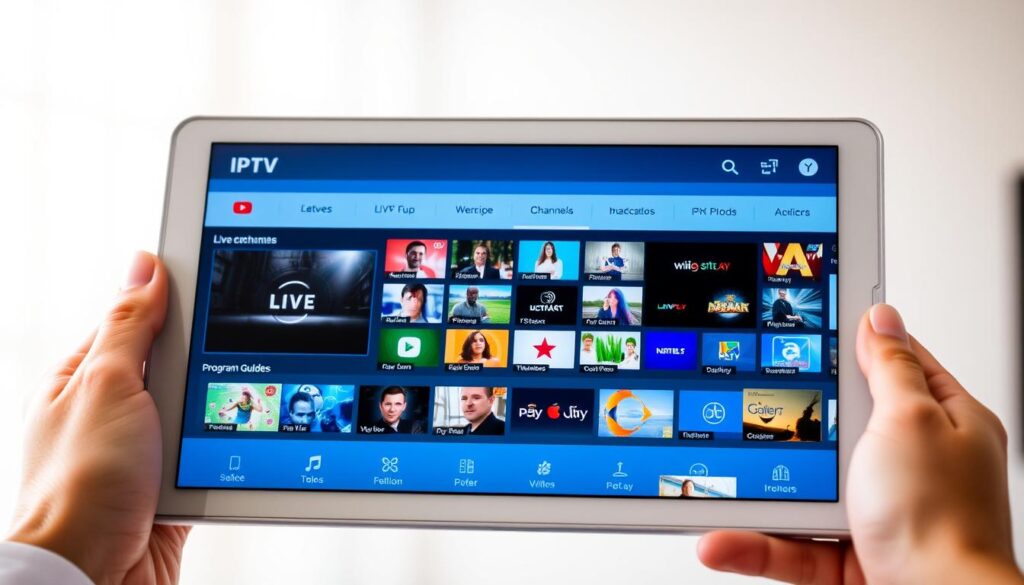
Curious how your tablet can replace a cable box and put every show, movie, and live channel in your hands?
You’ll learn fast why streaming on a small, touch-first device makes watching simple, flexible, and affordable.
The next minutes will give you a clear, friendly guide to get started. You’ll see which app choices deliver smooth playlists, EPGs, PiP, and 4K support. We also explain how VPNs keep your connection private and steady during peak hours.
GetMaxTV shines as a best-value path: over 19,000 live channels and 97,000+ VOD for just $6.95/month, instant activation, no contract, and 24/7 support. This guide maps the step-by-step journey from first install to watching your first channel and shows what to tweak for reliable playback.
Ready to start? See the quick setup and service details, including a direct link to try a top option IPTV on Android tablet and begin streaming in minutes.
Key Takeaways
- You can replace cable with a portable device for live television, movies, and shows.
- Pick a player that supports playlists, EPG, and external players for best results.
- Use a VPN to avoid throttling and keep streams private during busy hours.
- GetMaxTV offers large content libraries, low cost, instant activation, and broad compatibility.
- Follow a simple install flow to watch in minutes with reliable, touch-friendly controls.
Why Android tablets are perfect for live streaming and VOD in 2025
A compact tablet delivers the flexibility and control that modern viewers expect. You get portability, quick startup, and a touch-first interface that makes browsing channels and VOD feel natural.
From cable to convenience: open an app, tap a channel, and stream within seconds at home, in a dorm, or while traveling. Subscriptions like GetMaxTV give you a huge library without a long-term contract, instant activation, and broad device compatibility. Learn more with this concise device guide.
Key features that matter
Touch UI, PiP, and EPG navigation speed up channel surfing during live sports and big events. Modern players bring advanced tools: IPTV Smarters Pro offers PiP, catch-up, and external player support. GSE Smart IPTV adds 4K playback and 31-language interfaces. OTT Navigator provides Studio Mode for multi-screen viewing.
- Portability and instant access beat cable for mobility.
- Player features scale from casual watching to power users.
- A VPN helps avoid throttling and keeps streams private on public Wi‑Fi.
| Feature | Why it matters | Practical benefit |
|---|---|---|
| EPG | Quick program guide | Find shows and set catch-up easily |
| Picture-in-Picture | Multitask while watching | Follow a game and check scores or chat |
| Studio/Multi-screen | Watch multiple feeds | Up to nine views for sports and monitoring |
| VPN support | Bypass restricted networks | Reduce ISP throttling and keep streaming private |
Choice matters: you can pick lightweight apps or deep-custom players and still use the same subscription across devices. For a straightforward app to try, check the official GetMaxTV app and see how easily your switch from cable becomes risk-free.
Quick-start: Set up IPTV on Android tablet in two minutes

You can be watching live channels and VOD in under two minutes with the right app and credentials. This quick guide walks you through the fast path from install to play, plus a VPN option if your network restricts streams.
Download a compatible player
Open the app store on your device and search for a trusted player. If the app isn’t listed, only sideload from a reputable APK source and enable unknown sources briefly.
Add your M3U/portal and load EPG
Copy your M3U or portal URL (or scan a QR) and paste it into the player. Then load XMLTV or JTV EPG so you get channel timelines, thumbnails, and show info.
Optional: protect and stabilize with a VPN
If your network blocks or throttles streaming, connect a vpn on the device. Pick a nearby server to keep speed high and your connection private.
- Start with default quality, then tweak buffer, decoder, and resolution.
- Test over Wi‑Fi first, then try mobile data if needed.
- GetMaxTV activates in under two minutes, works across devices, has no contract, and offers 24/7 support for quick setup.
Best IPTV apps for Android tablets: players that actually work
Choosing the best apps changes how quickly you find channels, movies, and live sports. Below are reliable players that pair well with GetMaxTV’s large library and low price.
IPTV Smarters Pro
Touch-optimized with PiP, robust EPG, catch-up, and external player support. It’s ideal if you want a smooth, mobile-first player. Read a full IPTV Smarters Pro review.
GSE Smart IPTV
4K playback, 31-language menus, fast playlist parsing, parental controls, and casting make this a top choice for global users.
Purple Player
Cloud sync keeps favorites unified across devices. This app works well if you jump between phone, TV, and tablet and want one list for all.
OTT Navigator
Power users will love Studio Mode (monitor up to nine feeds), multi-EPG sources, and deep UI tweaks for performance tuning.
Lazy IPTV and other options
- Lazy IPTV: free, playlist-first with M3U/XSPF and XMLTV/JTV support plus UDP proxy.
- IPTV Extreme Pro: recording and AntiFreeze tools for long sessions.
- TiviMate: better on big screens but sideloadable for advanced organization.
Tip: pick a player that auto-updates playlists, handles codec versions, and offers stream fallback. That keeps your streaming experience steady with minimal setup and great quality.
Choosing your IPTV service: value, content, compatibility
Your best choice depends on channel breadth, VOD size, and how the service behaves during live games.
Start by comparing core content: prioritize deep channel lists, strong sports packages, and a sizable VOD library for both movies and series.
What to look for
Check real-world uptime and performance promises to avoid mid-game buffering. Test sample streams when possible.
Device support matters. Make sure the service works with your device today and with the apps you prefer tomorrow.
Practical checklist
- Compare channels, sports coverage, and VOD depth.
- Verify onboarding is simple: clear credentials, M3U/portal, and EPG support.
- Confirm casting, web access, or mirroring for unsupported devices.
- Look for helpful, 24/7 support that resolves playlist or player issues fast.
“Value is more than price: it’s content, reliability, and easy setup when you need it most.”
| Factor | Why it matters | What to check | GetMaxTV edge |
|---|---|---|---|
| Channels & VOD | More choices reduce FOMO | Count live feeds and VOD titles | 19,000+ channels, 97,000+ VOD |
| Performance | Buffers ruin live events | Check uptime, stream fallback | Stable streams, instant activation |
| Compatibility | Works across devices and apps | Test with your favorite player and casting | Universal support and cross-device use |
| Price & Support | Hidden fees add up quickly | Look for all-inclusive plans and 24/7 help | Low monthly rate, no contract, 24/7 support |
Bottom line: choose value. GetMaxTV pairs deep content, broad compatibility, simple onboarding, and round-the-clock support so you can try the service risk-free and start streaming quickly.
GetMaxTV: The best-value IPTV for Android tablets
If you want broad content and low cost, GetMaxTV is built for easy streaming and quick setup.
Massive library: watch over 19,000 live channels and 97,000+ VOD titles, including popular movies and full series. You get frequent catalog updates, so fresh content appears often.
Unbeatable price and simple subscription
Pay only $6.95/month. Every sports and movie package is included with no extra fees. The subscription has no contract and starts fast.
Fast activation and real help
Activation takes under two minutes. Enter credentials into your preferred player or app and start streaming. Count on 24/7 customer support from a helpful team if you need setup help.
- Cross-device: works with Firestick, Smart TV, Android, Mac, Windows and more.
- One account: use the same subscription across devices without extra charges.
- Reliable live streaming: robust sources and steady performance during peak times.
Try a risk-free trial or jump straight to a GetMaxTV subscription and see how the service transforms your viewing experience.
How to connect GetMaxTV to your favorite Android tablet apps
Getting your GetMaxTV account linked to top apps takes just a few taps. Follow these fast, reliable steps to add playlists, load EPG, and tune settings for smooth streaming and quick channel access.
Adding playlists and EPG to IPTV Smarters Pro and GSE Smart IPTV
In IPTV Smarters Pro, open the login/playlist area and paste your GetMaxTV M3U or portal URL. Then load the XMLTV or JTV EPG so you get a full guide, thumbnails, and reminders.
In GSE Smart IPTV, add the URL under Remote Playlists, enable auto-updates, and attach the EPG source. If your device and connection handle it, select the app’s 4K player for higher quality.
Optimizing OTT Navigator and Purple Player for live sports
For OTT Navigator, add GetMaxTV as a source, enable multiple EPG feeds, and turn on Studio Mode to monitor several channels at once—perfect for sports weekends.
With Purple Player, sign in, add the playlist, then enable cloud-sync so favorites follow you across devices. Use parental controls to curate the home view.
- Decoder & buffer: set HW or HW+ and raise buffer slightly if your connection fluctuates.
- Organize lists: map live channels, movies, and series into app home sections for one-tap access.
- Sideload care: verify source and checksum, update the app version regularly to keep lists fresh.
Keep your credentials secure and contact support 24/7 if a channel needs refreshing or a list fails to load.
Performance tips: prevent buffering and boost quality on tablets
A few practical tweaks can turn a spotty stream into a smooth, high-quality viewing session. Start with the basics and work through app settings before changing hardware.
Network checklist: bandwidth, Wi‑Fi placement, and wired alternatives
Aim for at least 20 Mbps for HD. If your connection is weak, move closer to the router or switch to 5 GHz.
For the steadiest link, use a USB‑C Ethernet adapter to give your device a wired-like connection. Also, limit other devices and pause big downloads during big events.
App settings: codec choices, buffer size, resolution caps
In your player, pick HW or HW+ decoding when available and set a moderate buffer (5–10 seconds). Cap resolution if your network fluctuates to avoid repeated buffering.
Keep the app updated, clear cache when UI slows, and relaunch to refresh playlists and EPG feeds.
When to use a VPN: avoid throttling and unblock restricted networks
Use a VPN if your ISP throttles video or your network blocks streams. Choose a nearby server for best speeds and switch servers or protocols if a route feels congested.
- Close background apps and disable battery savers that limit performance.
- Free up storage so the player can cache data smoothly.
- If a feed buffers, try an alternate source in the same category; many apps include backup links.
“Follow this checklist and rely on 24/7 support from your service if anything stalls — GetMaxTV makes it easy to test and swap options risk-free.”
Advanced tablet workflows: casting, multi-device, and travel use
A few small steps let you cast to a big screen, share a subscription across devices, and stream safely while traveling.
Cast to TV with Chromecast or Miracast
You can bridge gaps when a native app is missing by casting or mirroring. Use Chromecast for most smart TVs and Miracast when native casting is supported.
Tip: if casting quality drops, move closer to the router or switch to 5 GHz.
Same subscription across devices
Sign in on multiple devices without extra fees. Keep favorites synced and channels ready on your phone, TV, or laptop.
Keep credentials handy and enable cloud sync in your player so preferences follow you.
Travel-friendly setup and security
Install your preferred player from the app store before you leave. If a store blocks the app, sideload from a verified source like Downloader and enable unknown sources briefly.
Use a vpn on hotel, airport, or campus Wi‑Fi to avoid blocks and keep streams private. For live streaming sports, test the connection early and lower resolution if the network is crowded.
“Bring a compact toolkit: credentials, playlist/EPG URLs, and a backup player to switch quickly if a device misbehaves.”
| Need | Action | Why it helps | Quick fix |
|---|---|---|---|
| Casting | Use Chromecast/Miracast | Big-screen viewing without new apps | Move closer to router or switch device |
| Multi-device | Enable cloud sync | Favorites and channels stay consistent | Sign out on shared devices |
| Travel | Install app or sideload safely | Access content in restrictive regions | Use verified APKs and check checksums |
| Security | Use VPN and clear logins | Protect account and avoid blocks | Choose nearby VPN server for speed |
Troubleshooting common IPTV issues on Android tablets
When channels vanish or an app stalls, a few quick checks usually get you back to streaming fast.
Fix missing channels
Refresh or reload your playlist and EPG first. Give the guide a minute to parse after you re-add XMLTV or JTV sources.
If channels still fail, check your provider status page or contact support to confirm an outage.
App crashes or freezes
Clear the app cache, force close, and relaunch. If that fails, install the latest version or reinstall the app to remove corrupted files.
Playlist formats and proxies
Use valid M3U or XSPF playlists with matching XMLTV/JTV EPGs. Multicast feeds may need a UDP proxy; set one on your LAN or router and point the player to that proxy.
- For persistent buffering, try a different stream in the same category, change decoder, or increase buffer size slightly.
- If a restrictive network blocks streams, connect a VPN to a nearby server to reduce throttling.
- Free up device storage and close background apps to improve playback quality and stability.
| Issue | Why it happens | Action | When to contact support |
|---|---|---|---|
| Missing channel | Playlist or EPG out of date | Refresh list, re-add EPG, wait to parse | If channel stays offline after provider check |
| App crash | Corrupt cache or old version | Clear cache, update or reinstall | If crashes repeat after reinstall |
| Buffering | Poor bandwidth or throttling | Use wired/5GHz, VPN, lower resolution | If multiple streams buffer on good network |
Tip: Keep your playlist URL and affected channel names handy. GetMaxTV offers 24/7 support to help when quick fixes don’t restore your stream.
Conclusion
Choose the iptv service that gives you the most content, compatibility, and trustworthy support. GetMaxTV delivers over 19,000 live channels and 97,000+ VOD titles for just $6.95/month. All sports and premium movies are included with no contract.
You can activate your subscription in under two minutes and use the apps and devices you already own. Your account stays flexible so you can stream shows and full series with minimal setup.
Need help? A 24/7 support team is ready to assist. Ready to start? Subscribe now: https://getmaxtv.com/. Not sure yet? Try a no-obligation free trial via WhatsApp: https://wa.me/message/OZ4NORVZQTYAC1.
FAQ
How do I set up live streaming on my Android tablet in under two minutes?
Download a compatible player from the app store or sideload a trusted APK. Open the app, add your playlist or portal credentials (M3U or portal URL), enable EPG if offered, and pick a channel. Most apps let you start within a minute once you have your subscription details ready.
Which apps work best for live sports and VOD on a tablet?
Look for players with PiP, multi-stream, and robust EPG support. Popular choices include IPTV Smarters Pro, GSE Smart IPTV, OTT Navigator, Purple Player, and Lazy IPTV. Check for external player support and 4K playback if you plan to watch high-resolution sport or movies.
What should I check when choosing a service for my device and apps?
Prioritize channel depth, VOD library size, sports coverage, uptime, and cross-device compatibility. Also confirm simultaneous streams, supported playlist formats, and 24/7 customer support to avoid surprises during big events.
How can I reduce buffering and improve stream quality?
Test your bandwidth, move closer to your router, or use a wired connection via USB adapter. In-app, lower resolution, increase buffer size, or switch codecs. If your ISP throttles video, try a reputable VPN to stabilize the connection.
Do I need a VPN, and when should I use one?
Use a VPN when you face throttling, geo-restrictions, or when you’re on public Wi‑Fi. A VPN can help maintain consistent speeds and access region-locked channels, but choose one with fast servers to avoid added latency.
How do I add EPG and playlists to popular players like Smarters Pro and GSE?
In Smarters Pro and GSE, go to the playlist or add-user section, paste your M3U URL or portal, then import the XMLTV or JTV file for EPG. Save and refresh the guide; channels will map automatically if the provider supplies proper IDs.
What are the common playlist formats and which players accept them?
The main formats are M3U, XSPF, and XMLTV/JTV for guides. Most major players support M3U and XMLTV. Check app documentation for XSPF and advanced proxy options like UDP if your streams require them.
How do I fix missing channels or incorrect guide data?
Refresh your playlist and EPG, restart the app, and verify your provider’s service status. If issues persist, clear the app cache or re-import the guide file. Contact your service support to confirm channel IDs and EPG mapping.
What should I do if an app keeps crashing or freezes?
Clear the app cache, update to the latest version, or reinstall the player. Ensure your device firmware is current and close background apps that use memory. If instability continues, try an alternative player to isolate the problem.
Can I use one subscription across multiple devices without extra fees?
Many providers allow multiple simultaneous streams, but limits vary. Check your subscription for the number of concurrent connections and compatible devices like Fire TV, Smart TVs, Mac, and Windows before sharing access.
Is casting to a TV from my tablet supported, and how do I set it up?
Yes. Use Chromecast or Miracast to cast directly from supported players or mirror your screen. Open the player, select the cast option, and choose your TV. For best results, keep both devices on the same network and use a wired TV connection if possible.
What should I know about travel-friendly setups and sideloading apps?
Ensure you have trusted APK sources and enable app install from unknown sources only when necessary. Keep a backup of your playlists and EPG files in the cloud. Use a VPN when connecting to unfamiliar networks and verify app compatibility with local regulations.
How do providers differ in sports coverage and live event reliability?
Coverage varies by rights and region. Compare services for dedicated sports packages, event uptime, and server capacity during peak events. Read reviews and test short trials where available to confirm live-event reliability before committing.
Are there free players that still offer quality and stability?
Yes. Players like Lazy IPTV provide a free, playlist-first approach. They work well if you manage your own playlists and guides, but paid apps often add better support, smoother UIs, and advanced features like cloud sync and multi-EPG sources.
How do I ensure my streams use minimal data without losing too much quality?
Cap resolution in the app (720p or 480p for mobile-friendly viewing), reduce frame rate if available, and limit simultaneous streams. Use adaptive bitrate players that automatically adjust to your network for efficient data use.
What is the best way to contact support if a service won’t activate?
Use the provider’s official support channels: live chat, email, or ticketing system. Have your account credentials, order ID, and device details ready. Many services offer instant activation but can resolve issues quickly with clear information.
The GetMaxTV Team is a group of cord-cutting experts and streaming technology specialists who have been testing and reviewing IPTV services since 2022. Based in North America, our team personally tests every service we recommend across 15+ devices including Fire TV Stick, Roku, Apple TV, Samsung Smart TVs, and gaming consoles. We verify channel counts, measure buffering rates, test picture quality in HD and 4K, and evaluate customer support response times. Our mission is to help viewers save money by switching from expensive cable subscriptions ($147/month average) to affordable, high-quality IPTV alternatives. Every article on GetMaxTV.com is based on hands-on testing and real-world experience — not recycled marketing claims.