
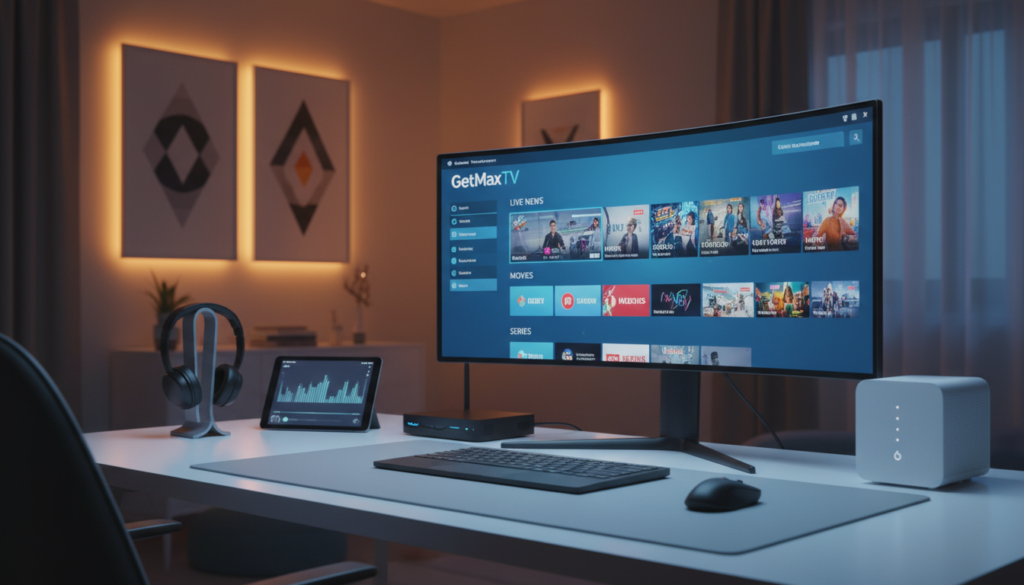
A staggering shift is reshaping home entertainment. In 2026, over 80 million Americans have cut the cord. The average cable bill has hit $147 a month, while streaming now represents 47.5% of all television viewing. This isn’t just a trend; it’s a revolution in how we consume media.
Enter a powerful alternative: Internet Protocol Television, or IPTV. This technology delivers television services directly over your internet connection. It bypasses traditional cable formats, offering a more flexible and modern way to access global channels and on-demand libraries.
Your computer is the perfect hub for this digital entertainment. With a reliable media player, you can transform your desktop into a comprehensive center for live television and video. The basics are simple to grasp, ensuring your viewing remains smooth and high-quality.
As global internet speeds continue to improve, streaming crystal-clear, high-definition content is now a standard expectation. This guide will walk you through the essential steps to configure your system. You’ll be ready to enjoy a seamless and personalized television setup tailored to your needs.
Key Takeaways
- The cord-cutting movement is massive, with streaming dominating nearly half of all TV time.
- IPTV uses your internet connection to deliver television, offering a modern alternative to cable.
- Your computer, paired with the right software, becomes a powerful entertainment center.
- Understanding a few simple setup steps ensures a high-quality and reliable streaming experience.
- This method provides incredible flexibility and personalization for your viewing habits.
- With faster internet widely available, streaming high-definition content is easier than ever.
Understanding IPTV and Preparing Your PC
Television delivery has evolved beyond traditional broadcast towers and satellite dishes. Today, services flow directly through your internet connection. This method provides incredible flexibility for your viewing habits.
What is IPTV and How Does It Work?
Internet Protocol Television uses a packet-switched network to send video. It works like a continuous stream of data. This differs from old cable or satellite systems.
Your chosen service sends channels and on-demand libraries over the web. A stable broadband connection is required for seamless playback. This technology lets you watch live events and shows from across the globe.
System Requirements for a Smooth Viewing Experience
To enjoy buffer-free streaming content, your device needs proper hardware. You must meet certain specifications for high-definition video. A reliable media player is also crucial for performance.
Check your network bandwidth first. A fast internet line prevents interruptions during your favorite programs. Here is a quick guide to the specs your computer should have.
| Component | Minimum Specification | Recommended Specification |
|---|---|---|
| Processor | Dual-core 1.5 GHz | Quad-core 2.0 GHz or better |
| RAM | 4 GB | 8 GB |
| Internet Speed | 15 Mbps for HD | 25+ Mbps for 4K |
| Operating System | Windows 10 (64-bit) | Windows 11 (64-bit) |
| Media Player | VLC 3.0 or similar | Latest version of your preferred player |
Verifying these points ensures a high-quality viewing experience. You can then access a vast array of IPTV channels without hassle. Prepare your system to watch iptv smoothly every time.
IPTV on PC Windows: Installation and Setup

Your journey to seamless viewing begins with selecting the right application. The software you choose acts as the gateway to your channels and on-demand libraries.
This step is simple but crucial for a reliable entertainment experience.
Installing VLC Media Player and Alternative Players
Many users start with the VLC media player. It’s a versatile, open-source tool that handles many streaming formats. You can download it directly from the official VideoLAN website.
For a more integrated experience, consider alternatives. The Microsoft Store offers options like MyIPTV Player. These are among the best IPTV players for a streamlined setup.
Configuring M3U Playlists and EPG for Streaming
Once your software is ready, you need to add your channel list. This is done by configuring an M3U playlist. You’ll input a specific URL provided by your service.
Use the open network stream feature in your chosen media player. This action loads your live channels. For a complete guide, you must also set up the Electronic Program Guide (EPG).
EPG data shows schedules for programs from every country. Verify your settings to ensure the network stream is stable and the guide is active. This makes browsing content effortless.
Optimizing Your IPTV Viewing Experience on Windows
After installation, a few smart adjustments can dramatically enhance your daily viewing. This stage is about refining your setup for maximum reliability and enjoyment.
Managing Channel Playlists and Video Quality Settings
Keep your channel list fresh. Regularly update the playlist URL from your provider. This ensures you always have the latest live streams.
Improve playback by tweaking video quality settings. In VLC media player, increase the cache value. This helps prevent buffering during peak hours.
Most top-tier players let you hide unused channel groups. This simplifies navigation to your favorite content. It creates a cleaner, more personalized interface.
Enable EPG support for a detailed program guide. XMLTV support is crucial here. It pulls accurate show schedules for every channel.
Choose a service with strong support for your specific country. This guarantees access to local and international channels. It makes a huge difference in your experience.
Finally, prioritize high-definition streams in your player windows application. For safety, download media players from the Microsoft Store. This ensures a secure installation process.
Why Choose GetMaxTV
Finding the right service is the final step to unlocking a world of digital entertainment. GetMaxTV stands out as a premium provider designed for serious streamers. It delivers the robust performance your setup deserves.
This service ensures your viewing experience is seamless and packed with options. You gain access to a vast library that works perfectly with your preferred media player.
Premium Features: 21,000+ Live Channels & 97,000+ VOD Titles
GetMaxTV offers an unmatched entertainment library. You can watch live broadcasts from over 21,000 channels. Its video-on-demand collection includes more than 97,000 titles.
All content streams in crisp HD and stunning 4K quality. The service boasts 99.9% uptime, so your favorite shows are always ready. Their 24/7 WhatsApp support team helps with any playlist or app settings quickly.
Start Your Free 24-Hour Trial - No Credit Card Required
You can test this best IPTV service risk-free. Visit getmaxtv.com to begin your 24-hour trial. No credit card is needed to start streaming.
Plans begin at just $6.95 per month, backed by a 30-day money-back guarantee. The service works on Fire TV, Roku, Apple TV, Smart TVs, Android, and gaming consoles.
Transform your device into a powerful entertainment center today. Experience superior streaming with a provider built for reliability.
Conclusion
Your computer has unlocked a new era of television freedom. Streaming live broadcasts and on-demand content offers a flexible, highly personalized viewing experience. You can enjoy it from virtually anywhere with an internet connection.
Choosing a reliable media player is key. Tools like VLC or dedicated applications make managing your channels and preferences simple. This puts you in complete control of your digital entertainment.
Always use authorized services to keep your data secure and your streaming within legal boundaries. A stable connection and a quality playlist form the backbone of a great setup.
With the right configuration, your device transforms into a powerful entertainment hub. We encourage you to explore premium providers to maximize this potential. A world of seamless, personalized content awaits your discovery.
FAQ
How do I start streaming live television on my computer?
First, you’ll need a media player application like VLC and a subscription from a streaming provider. Your provider will give you a special playlist link. You simply open that link in your player to begin accessing all your channels and on-demand content.
What software do I need besides VLC?
While VLC media player is a popular free choice, several dedicated apps are available in the Microsoft Store. These specialized IPTV players for Windows often offer a more tailored interface, better EPG support, and easier management for your playlists and favorite channels.
How do I add my channel playlist and program guide?
In your chosen player, look for an option like “Open Network Stream” or “Add Playlist URL.” Paste the M3U link from your provider there. For the electronic program guide, you’ll usually find a separate settings area to input the EPG URL, which populates the schedule data for your channels.
My stream is buffering. How can I improve the video quality?
Buffering can often be fixed in your player’s settings. Try adjusting the caching value, which temporarily stores video data. A slightly higher cache can smooth playback. Also, ensure your internet connection is stable and that no other programs are using excessive bandwidth on your PC.
What should I look for in a streaming service?
Look for a reliable provider with a strong track record. Key features include a vast selection of live channels and video-on-demand titles, consistent uptime, quality customer support, and easy-to-use links for your playlist and guide. A free trial period is an excellent way to test the service firsthand.
The GetMaxTV Team is a group of cord-cutting experts and streaming technology specialists who have been testing and reviewing IPTV services since 2022. Based in North America, our team personally tests every service we recommend across 15+ devices including Fire TV Stick, Roku, Apple TV, Samsung Smart TVs, and gaming consoles. We verify channel counts, measure buffering rates, test picture quality in HD and 4K, and evaluate customer support response times. Our mission is to help viewers save money by switching from expensive cable subscriptions ($147/month average) to affordable, high-quality IPTV alternatives. Every article on GetMaxTV.com is based on hands-on testing and real-world experience — not recycled marketing claims.