
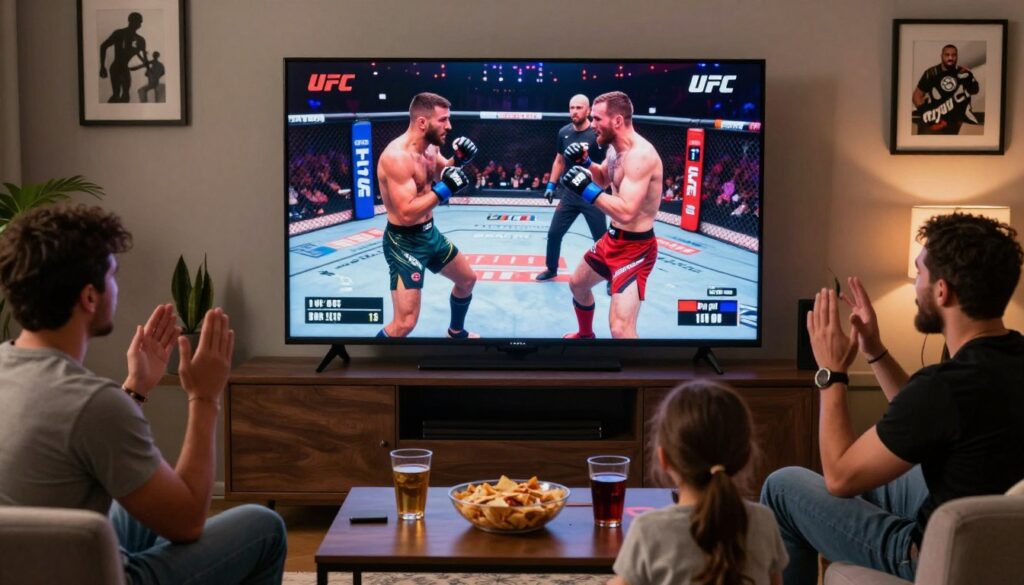
Curious how your fight-night setup in 2025 really compares to buying an official PPV?
You want clear options, reliable coverage, and a simple plan you can trust from Canada. This short guide explains how fight viewing worked recently, what official PPV purchasing covers, and what an iptv-style service can add to your device lineup without overpromising rights.
Most big fights streamed in HD, and fans often used streaming sticks like Amazon Fire TV to watch at home. Prelims and archives were usually available via official platforms, while main cards required a separate buy.
This article is educational and practical: a product roundup plus a checklist to compare stream quality, EPG, device support, and customer service before you pay. You’ll also see a brief mention of GetMaxTV as a legal IPTV-style option to consider.
Expect sections on official methods, service comparisons, device setup, VPN tips for travel, and a “confirm before fight night” checklist so your viewing goes smoothly.
Key Takeaways
- You’ll learn the difference between official PPV purchases and broader live-TV services.
- Compare stream quality, EPG, device compatibility, and support before buying.
- Device choice (Fire TV, Roku, Apple TV) matters for a smooth experience.
- GetMaxTV is one legal IPTV-style option to review later in the article.
- Verify coverage and your location before fight night to avoid surprises.
What UFC Streaming Looks Like in 2025: PPV Events, Prelims, and Devices
C You rarely get the whole fight night from a single service anymore—expect to move between apps and channels.
Why the main card differs from prelims
The main card is usually a separate PPV purchase, while prelims and archives often live on a dedicated pass or subscription. That means you may watch undercard fights on one app and pay separately for the headline bouts.
Where live channels fit in
Live channels handle weigh-ins, press conferences, desk shows, and post-fight recaps. They help you follow news and analysis during fight week and add entertainment beyond the cage.
“You’ll often switch platforms: news clips and analysis earlier in the week, prelims on one app, and the paid main card at night.”
Device reality check
Smart TVs and streaming sticks are best for living-room viewing. Consoles and mobile are handy backups.
- Keep one main device for the big screen.
- Have a second device signed in as a fallback.
- Confirm apps and purchase flow the day before the event.
Cutting cable usually means combining official apps with a live TV service for channels and discovery. For a legal, streamlined option to review, consider GetMaxTV.
Quick Look at the Next Big Card: UFC 321 Coverage Basics
The October 25 card at Etihad Arena, Yas Island, UAE, is a good example of how a single fight night can be split across services.
The preliminaries were expected on ESPN/ESPN+ (in the U.S. context), while the main card — including Tom Aspinall vs. Ciryl Gane for the heavyweight title — required a separate pay-per-view purchase.
That split means you often get undercard action via a broadcaster app or subscription, and the main card shows up only after you complete a purchase tied to your account.
Main card vs undercard viewing expectations
You should expect easier access to undercard fights through a channel or app you already subscribe to. The headline fights usually show as a distinct entitlement in the app or on the website and need a one-time buy.
“Confirm which device has the PPV tile and sign in early — it avoids the last-minute scramble when walkouts start.”
Why timing and region availability matter for live events
Events held overseas change start times in your local time zone. Check the event page a week before the month of the fight to lock in Canadian local start times.
Region availability also matters: what a friend sees abroad may not match your app tiles at home. Verify access, decide on a primary device, and set a backup.
| Coverage Element | Preliminaries | Main Card |
|---|---|---|
| Typical location | Broadcaster app / subscription channel | Pay-per-view tile in app or website |
| Access | Included with subscription | Separate purchase tied to account |
| Device notes | Works on most apps and channels | Confirm PPV support on your main device |
| Timing | Matches scheduled channel windows | May start later due to international location |
Official Ways to Watch UFC in the USA Without Cable
If you go cable-free, you can still get full fight-night access by combining a few official services. Start with the platform that fits your needs, then confirm the pay access for the main card before fight night.
ESPN+ for live coverage and PPV purchase flow
ESPN+ is the central subscription many fans use. The base plan costs $11.99/month or $119.99/year. A main card is usually a separate ppv add-on that you buy on the official website, then watch inside the app.
Fight Pass for prelims and archives
Fight Pass covers undercards, prelims, and the fight library. It pairs well with a ppv purchase when you want full archival access and early-round coverage.
Bundle option: Hulu + Disney + ESPN+
The bundle starts at $16.99/month and gives broader entertainment value. It keeps billing under one plan and can simplify sign-ins across apps.
Channel-based option: fuboTV
fuboTV offers 250+ live channels, including the channel you need for prelims. Plans start at $72.99/month and include a 7-day free trial and large DVR options on higher tiers.
“Confirm prices and eligibility on each official website before you commit—plans and coverage change often.”
| Service | Primary use | Starter price | Notes |
|---|---|---|---|
| ESPN+ | Live events, ppv purchase flow | $11.99/month | Buy main card on the website, watch in app |
| Fight Pass | Prelims, archives, library | Varies by region | Good companion to ppv buys |
| Hulu + Disney + ESPN+ | Bundle for entertainment + sports | $16.99/month | Single bill, multiple apps |
| fuboTV | Channel-based live TV with ESPN | $72.99/month | 250+ channels, 7-day trial, robust DVR |
Takeaway: Official services are the cleanest way to secure entitlements. Pair a subscription for prelims and archives with the official purchase path for the main event, and always verify price and device support on each website before fight night.
iptv ufc ppv usa: What to Look for in a Reliable Streaming Service

When you pick a streaming service for fight night, reliability beats extra channel names every time.
Reliable means steady playback, predictable quality, and quick help when something goes wrong minutes before the main card. Check real user reports and uptime history for the service you plan to use.
Channel depth vs. real access. Marketing may shout “250 live channels” or similar. Treat that as a headline, not proof. What matters is accurate channel mapping, EPG listings, and whether the live channels you need actually work on event night.
Picture quality targets. Aim for FHD as the baseline. 4K is nice, but only if your TV, device, and internet speed support it. Otherwise 4K claims add little value.
Use a free trial first. For new users, test during peak hours, check channel switching speed, and use the same device you’ll rely on—like a Fire Stick—so you find app quirks in advance.
Support, DVR, and quick setup
Fast support and clean account setup save the night. Confirm DVR works for live sports if your plan includes recordings. Keep backup devices signed in before walkouts.
“Test streams at the busiest hour and confirm the app on your main device—small checks prevent last-minute headaches.”
| Factor | What to check | Why it matters |
|---|---|---|
| Channel list | Real channel mapping vs claim | Find listings fast for live events |
| Picture | FHD and 4K availability | Matches your device, TV, and bandwidth |
| Free trial | Peak-hour test on your device | Shows real performance for new users |
| Support | Response speed and account help | Fixes problems before walkouts |
Product Roundup: Top IPTV Options Canadian Viewers Compare for UFC Coverage
A Canada-first roundup looks past headline channel counts and focuses on real-world stream uptime, EPG accuracy, and support speed.
SOLID IPTV snapshot: 30K+ channels, 4K and FHD streams, an EPG, a free trial, and super-fast support. In practice this means broad channel choice and quick fixes if a feed drops during a long fight.
IPTVVUK snapshot: 24K+ channels with 4K/FHD options, an EPG, and a free trial. Compare EPG labeling and how fast channels load during busy hours—not just the raw channel number.
G‑IPTV snapshot: 28K+ channels, 4K/FHD, EPG, free trial, and fast support. Use the trial to verify multi-room stability and whether DVR records live sports reliably.
How to use trial windows to test streams
- Run the free trial during prime time and test multiple sports and news channels.
- Check long-event stability, channel switching speed, and DVR behavior.
- Confirm plan limits: simultaneous streams, device caps, billing per month, and support response time.
“Treat these comparisons as feature checks for live TV convenience—not a replacement for buying official event access where required.”
How Canadians Typically Watch UFC: TSN, TSN+, and When It Complements PPV
In Canada, most fight nights mix national broadcaster coverage with official event apps to give you complete access.
TSN and TSN+ carry many major fights and are a common part of a legal viewing setup. TSN+ was priced at CA$8 per month, which makes it an affordable subscription option if you cut cable but still want mainstream sports coverage.
Why add TSN+?
- It covers surrounding programming, highlights, and expert analysis that you won’t get from a single purchase.
- It fills gaps when the main event requires a separate PPV buy, so you still get pre- and post-fight content.
Be aware the TSN app may not be available in the Amazon Appstore. Many viewers use the Silk browser or a lawful sideload method on Fire TV devices to reach the website player.
Before fight night, check TSN’s listings and confirm your subscription and access on the device you plan to use. Combining broadcaster coverage with official apps reduces switching and keeps your month-to-month streaming routine consistent.
“Confirm your account and device the day before so you’re not troubleshooting during walkouts.”
UK and Europe Notes for Travelers: TNT Sports Box Office and DAZN
When you travel to the UK or Europe, broadcasting rights often change what you can buy and where you watch. Plan ahead so you don’t get surprised on fight night.
TNT Sports Box Office handles many UK pay-per-view purchases. If an event runs there, you’ll buy the main card through the TNT Sports website or in their app. Expect the channel and checkout flow to look different from Canadian platforms.
TNT Sports Box Office for PPV purchases
Quick tip: check the TNT Sports Box Office page and confirm payment options and start times before you leave home. The Box Office is the primary route for local PPV events and extras like build-up shows.
DAZN availability and regional limits
DAZN operates in select European countries (for example, Germany, Italy, and Austria). Its catalog and live sports rights change by location, so confirm access on the official DAZN website for the country you’ll visit.
You may use vpn to maintain lawful access to a subscription you already pay for while abroad. Use vpn only within your provider’s terms. Your physical location still affects what content a service shows you.
“Verify app availability, payment methods, and local start times well before fight night.”
- Confirm the local app or website for purchases and signing in.
- Check whether the channel carrying prelims in Canada is available abroad.
- Test login on a browser if the native app isn’t in a foreign app store.
| Region | Common Pay Path | Notes for Travelers |
|---|---|---|
| UK | TNT Sports Box Office (website/app) | Buy main card via Box Office; check payment and start time |
| Germany/Italy/Austria | DAZN (region-specific website) | Catalog varies by country; confirm access before travel |
| General Europe | Local broadcaster websites or apps | Browser access often works if app not available; test earlier |
Final takeaway: set expectations early. Verify the app or website, confirm payment, and, if you plan to use a vpn, make sure it aligns with the service’s rules. For channel listings and related options, you can also check a consolidated channels list or a travel-friendly guide like this channels list and the practical legal guide on streaming GetMaxTV.
Device Setup Guide for Fight Night: Fire Stick, App Store Installs, and Sign-Ins
A smooth fight-night starts with the right app installed and your account signed in ahead of time. Use this short, device-by-device guide to install the official app from each store and confirm access before walkouts.
Fire TV / Fire Stick
- Open the Appstore, search “UFC”, and choose Get / Download.
- Sign in, then check that any ppv or pass purchase appears under your account.
- Play a short clip to confirm streams and audio are working.
Roku
- Go to Streaming Channels → Search “UFC” → Add Channel.
- Open the channel, sign in, and verify the event tile is visible.
- If the tile is missing, sign out and back in on the same account tied to your purchase.
Apple TV
- Open the App Store, install the app, then sign in with your account.
- Check the event tile and confirm PPV access well before the main card.
Android / Android TV
- Install from Google Play, run a playback test, and set stream quality to match your bandwidth.
- Confirm the app shows your purchase on the website account page if needed.
Samsung & LG smart TVs
- Use Samsung Apps (Tizen 4.0+) or LG Content Store (webOS) to install the app.
- If your model is older, test the website player on a browser as a fallback.
Chromecast
- Set up Google Home, then cast from Chrome or a supported mobile app.
- Test audio/video sync on a short clip and confirm the phone stays awake during casting.
“Install from official stores, sign in early, and test playback on the device you plan to use.”
Pro tip: stay signed in on a backup device so you can switch fast if an update or handshake fails during walkouts.
| Device | Install Source | Key Check |
|---|---|---|
| Fire Stick / Fire TV | Amazon Appstore | Event tile visible; playback test |
| Roku | Roku Channel Store | Signed-in account matches purchase |
| Apple TV | Apple App Store | Confirm ppv access in app |
| Android / Android TV | Google Play | Quality set to bandwidth; test stream |
How PPV Works in Practice: Purchase on the Website, Then Watch in the App
Complete your purchase on the event website, then confirm the event tile shows in the app on your chosen device. This is the usual workflow: buy the main card on the official checkout, then open the app and sign in with the same account so the entitlement appears.
What to confirm the day before the event
Quick checklist to avoid last-minute hassles:
- Confirm the purchase email and that the website order shows as complete.
- Sign into the app on the exact device you plan to use and look for the event tile.
- Verify your account email, password, and that your subscription status is active for the month.
Common "missing tile" fixes that save fight time
Missing tiles usually come from account mismatches, cached sessions, or an app that needs updating. If the tile is not visible, try these steps in order.
- Force-close and reopen the app.
- Sign out and sign back into the same account used on the website.
- Check for app updates, then reboot the streaming device.
- Confirm the website order email before calling service support.
| Cause | Quick Fix | Why it works |
|---|---|---|
| Wrong account | Sign out/in on app | Matches entitlement to your account |
| Cached session | Force-close app & reboot device | Clears stale data and refreshes tiles |
| App outdated | Update app from store | Restores compatibility with website purchases |
“Test the full flow earlier in the month for major events, then re-check the day before—most issues are solved with a quick sign-in or update.”
VPN Guidance for UFC Streams: Stability, Travel, and Staying Within the Rules
A VPN can be a useful networking tool when you travel or want a steadier route to your streaming service. Use it to preserve sign-in continuity, reduce erratic routing during peak hours, and help when a local network behaves poorly.
When a VPN can help while traveling
Legitimate uses include keeping the same login experience when you move between locations and avoiding flaky local routing that causes stutters. A VPN can also help if a website or app behaves differently on a foreign network—so long as you follow the provider’s terms.
Pick a nearby server for better speed
Choose a server close to your physical location to cut latency. Lower latency improves speed and reduces buffering for live sports. Run a quick speed test after you connect so you know the connection holds up before the main card.
What stability means for live events
- Fewer buffers and interruptions during rounds.
- Faster channel or stream changes on multi-feed services.
- Consistent resolution so you avoid mid-fight drops in quality.
What a VPN should not be used for
Do not use a VPN to bypass content rights, violate a service’s terms, or access content you haven’t paid for. That risks account suspension and may breach local rules. Treat a VPN as a networking aid, not a workaround.
“Use a VPN as a stability and privacy tool — always match its use to your lawful subscriptions and check the service website for regional rules.”
Practical travel note: if your location changes, review the streaming service’s policies on its website so you understand what access you keep while abroad. For more on sports-friendly VPNs and setup tips, see this guide for streaming sports with a VPN from a reputable provider: stream sports with IPVanish.
Performance Checklist: Speed, Buffering, DVR, and Home Network Tips
Run a real playback test on the TV you’ll use — that single step often solves night-of issues.
Bandwidth targets: aim for ~25–35 Mbps for smooth FHD viewing and 50+ Mbps for 4K. Test speed in the room and on the exact device you’ll watch from to match real conditions.
Wi‑Fi vs Ethernet: Ethernet is usually the most reliable for live sports. If cabling isn’t possible, a strong 5 GHz Wi‑Fi connection is often good enough — position your router close to the device.
EPG and DVR checklist
Confirm DVR details in your plan: supported recordings, hours allotted, and whether live-record starts immediately. Check the EPG accuracy so you land the right channel when prelims or post-fight shows shift.
Last‑mile troubleshooting
- Update the app first, then clear the app cache.
- Restart the app, reboot the device, then reboot router/modem if needed.
- Test playback after each step and verify account access if the event tile is missing.
“Small maintenance — app updates and cache clears earlier in the month — prevents most last-minute problems.”
For practical plan comparisons and service details, see this concise review of options before you commit: best streaming services review.
Pricing and Plans: Per Month Costs, Trials, Bundles, and Budget Planning
A clear monthly budget separates recurring subscriptions from one-off purchases so you know the real cost of fight season.
Comparing monthly plans vs one-time PPV add-ons
List fixed per month charges first: ESPN+ is $11.99/month, the Hulu + Disney + ESPN+ bundle starts at $16.99/month, and fuboTV plans begin at $72.99/month (often with a one-week free trial). In Canada, TSN+ runs about CA$8/month.
Then, add one-off PPV costs for major cards. Treat PPV purchases as separate line items so your month-to-month totals aren’t misleading.
Evaluating free trials and avoiding surprise renewals
Read trial terms closely. Note the trial length, what features are limited (4K, DVR), and the exact renewal date. Set a calendar reminder to cancel before the trial converts to a paid subscription.
Choosing plans by device count, streams, and content needs
Match a plan to how many devices and simultaneous streams you need. Pick one primary service for daily viewing and add extras only on big months.
- Keep recurring subscriptions lean to control the monthly price.
- Use trials at peak hours to test performance on your device.
- Save purchase confirmations and set reminders to avoid surprise charges.
“Budget simply: base subscriptions per month + occasional event add-ons = realistic costs.”
| Item | Typical per month | Notes |
|---|---|---|
| ESPN+ | $11.99 | Base sports subscription |
| Hulu bundle | $16.99 | Entertainment + sports bundle |
| fuboTV | $72.99 | Channel-heavy; 7-day free trial |
Choosing a Trustworthy Provider and a Legal IPTV Subscription
Before you hit subscribe, scan the provider’s website like a short checklist to avoid hidden fees and unclear promises.
Start by confirming the basics on the site:
- Clear pricing and plan limits (devices, simultaneous streams).
- Support channels and refund or trial terms spelled out in plain language.
- EPG accuracy and a realistic channel list so you know the content you get.
What to verify on a provider’s website before you subscribe
Look for an official publisher in the app store and a verified checkout on the website. That reduces the chance of clone apps or confusing install steps. Confirm device notes, whether the service supports your main TV device, and how many users can stream at once.
Where GetMaxTV fits if you want a legal, straightforward option
If you prefer a clear, licensed subscription that lists plans, channels, and device support, consider reviewing GetMaxTV. It presents its details openly and links to official apps so you can verify before you buy. For a broader comparison, read an independent service reviews roundup.
“Legal clarity and visible support channels are the best signals of long‑term reliability for live sports and event access.”
Conclusion
A reliable fight night starts with one clear purchase for the main card and tested streaming options for prelims, build-up shows, and replays.
Confirm your app and device the day before, run a short trial on your main screen, and keep a backup device signed in. Device setup and account verification fix most issues before walkouts.
Focus on stable streams, accurate EPG, fast support, and realistic channel mapping — big counts like “250 live channels” only help when listings load reliably at peak time.
Use a month-by-month approach: test with a free trial, keep the subscription that works on your device, and adjust as your viewing habits change. Always confirm access and entitlements on the official website and inside the official app before the event.
If you want a legal IPTV subscription and a straightforward way to compare plans, check GetMaxTV’s offer at GetMaxTV or read a focused guide here: watching PPV and boxing with IPTV.
FAQ
How can I watch PPV fight nights on a streaming service without cable?
You can buy PPV events through official platforms like ESPN+ (in the U.S.) or regional box‑office services, then watch through their apps on supported devices. Make sure your subscription covers live PPV purchases, sign in on your app ahead of fight night, and confirm your payment and account email the day before the event to avoid delays.
What devices will reliably play live fight cards and prelims?
Most major platforms support Fire TV/Fire Stick, Roku, Apple TV, Android TV, Chromecast, and modern smart TVs (Samsung, LG). Install the official app from the device app store, sign in, and test playback using a free match or short clip before the event. Keep a backup device ready in case one has issues.
How important is internet speed for full‑card coverage and 4K streams?
Bandwidth matters. Aim for at least 10–15 Mbps per stream for FHD and 25+ Mbps for stable 4K. Use Ethernet when possible, and prioritize a wired connection for the main viewing device. If using Wi‑Fi, place your router close to the streaming device or use a mesh/ extender to reduce buffering.
What should I check the day before a PPV event?
Confirm your account login, email receipt or purchase confirmation, and that the PPV tile shows up in the app. Verify the app is updated, test the device with a short stream, and ensure your payment method is current. Signing in on a second device gives you a fallback if issues arise at showtime.
Are free trials a good way to test a provider for fight night?
Free trials help you test stream quality, channel lineups, and device support. Use the trial to watch live content at peak hours and test EPG accuracy. Read trial terms carefully for auto‑renewal details and any restrictions on PPV purchases during the trial window.
What does “250 live channels” mean and should I trust that claim?
That phrase usually indicates a provider’s channel count. Verify channel lists and whether live sports and regional feeds are included. Check picture quality, EPG reliability, and real user support response times before subscribing—quantity doesn’t always equal coverage for major live events.
Can I purchase a PPV on the website and then watch it in the app?
Yes. Typically you buy the PPV on the promoter’s or broadcaster’s website, then the purchase links to your account and unlocks the event tile in the app. Make sure you use the same login, and if the tile is missing, sign out and sign back in or check email confirmations for activation steps.
When is using a VPN helpful for live sports while traveling?
A VPN can help if a regional blackout or geofencing blocks your usual service while traveling. Choose a nearby, reputable VPN server to reduce latency. Don’t use a VPN to violate terms of service; some platforms block VPN connections, so test it ahead of time.
How do I troubleshoot a missing PPV tile on fight night?
First, confirm your purchase and that you’re signed into the correct account. Update the app, clear cache, and reboot the device. If the tile still doesn’t appear, try signing in on a different device and check spam folders for activation emails. Contact the provider’s support with your order number if needed.
What’s the difference between main card and prelims for viewing options?
Main cards are usually the paid PPV portion with wider distribution and higher production quality. Prelims often stream free or on basic channels and may air on the same broadcaster’s linear channels or streaming platform. Check the event listing to know which fights are included in your purchase.
How many simultaneous streams should I pick in a plan?
Choose a plan that matches your household needs: one to two streams suffice for solo viewers, while families or shared households may want three or more. Verify device compatibility and whether the plan includes DVR or cloud recording if you need to time‑shift events.
Are there legal, trustworthy alternatives to unofficial services for live sports?
Yes. Use official broadcasters and authorized streaming services like ESPN+, DAZN (where available), TSN/TSN+ in Canada, or TNT Sports Box Office in the UK. These providers offer legal access, customer support, and consistent quality for major events.
What should I verify on a provider’s site before subscribing?
Look for clear channel lists, supported devices, trial terms, refund and cancellation policies, payment security, and real contact support. Check recent user reviews for reliability during live events and confirm whether PPV purchases are supported within the platform or via a partner site.
How do DVR and EPG accuracy affect live event viewing?
Reliable EPG (electronic program guide) makes it easy to find scheduled events. If your plan includes DVR or cloud recording, confirm start and end buffers around events so you don’t miss walkouts or post‑fight coverage. Test scheduled recordings during a trial to validate timing and quality.
What’s a safe way to compare price per month vs PPV add‑ons?
Calculate your annual spending: combine base subscription cost with estimated PPV buys. If you watch many events, a higher monthly plan with included sports channels may be cheaper than frequent PPV purchases. Factor in device limits, DVR, and support quality when choosing.
How can I ensure smooth playback on a Fire Stick or other streaming device?
Keep the device firmware and app updated, clear app cache before big events, and close background apps. Use Ethernet or a strong 5 GHz Wi‑Fi connection, restart the device an hour before main card time, and sign in on a backup device in case you need to switch quickly.
The GetMaxTV Team is a group of cord-cutting experts and streaming technology specialists who have been testing and reviewing IPTV services since 2022. Based in North America, our team personally tests every service we recommend across 15+ devices including Fire TV Stick, Roku, Apple TV, Samsung Smart TVs, and gaming consoles. We verify channel counts, measure buffering rates, test picture quality in HD and 4K, and evaluate customer support response times. Our mission is to help viewers save money by switching from expensive cable subscriptions ($147/month average) to affordable, high-quality IPTV alternatives. Every article on GetMaxTV.com is based on hands-on testing and real-world experience — not recycled marketing claims.