
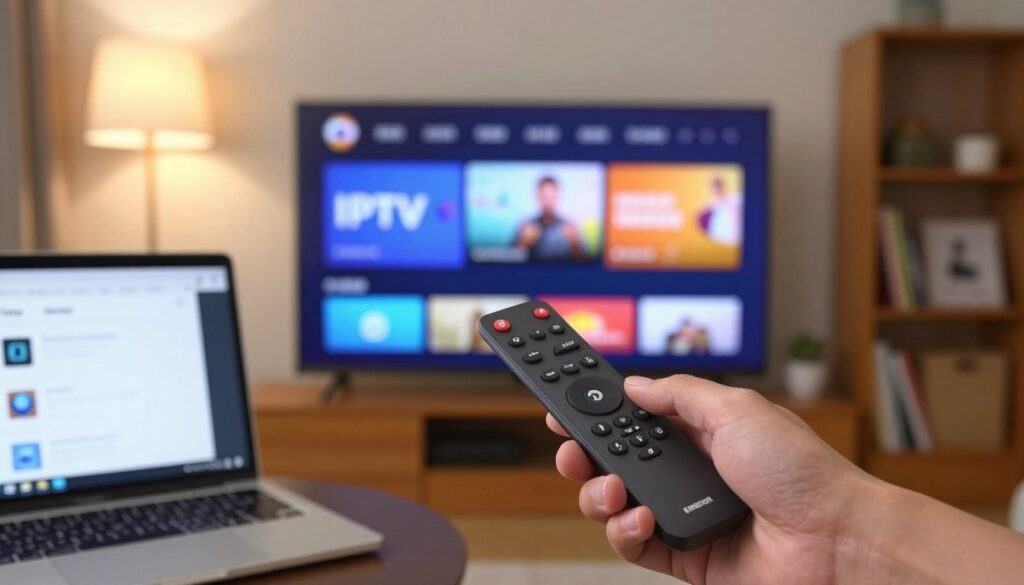
Curious whether you can safely add a streaming player to your Fire stick and keep full control of your channel list?
This short guide shows you how to install an IPTV player on your Fire TV devices in Canada and sign in with your own service details. IPTV Smarters Pro works across Fire TV Stick HD/4K/4K Max, Fire TV Cube and FireOS TVs, but remember the player does not include channels — you must use your subscription.
Sideloading means adding apps that aren’t in the Amazon Store. It’s a simple settings change and a download step, often needed for some IPTV apps today. The steps below apply to most Fire TV models, with only small menu-name differences.
You’ll see two sign-in paths: a playlist M3U URL (with optional EPG) or the Xtream Codes API. Gather that info before you start. Take a safety-first approach: download from reputable sources, delete the APK after install to save space, and avoid offers promising “free” channel lists.
When you’re ready to compare legal subscription options, consider providers like GetMaxTV as one example to evaluate.
Key Takeaways
- You’ll install a player on your Fire TV and sign in with your own IPTV service credentials.
- IPTV Smarters Pro is a player, not a channel provider — subscription required.
- Sideloading adds apps outside the Amazon Store; it’s common and straightforward.
- Prepare either an M3U URL (+EPG) or Xtream Codes API before you begin.
- Prioritize safety: use trusted sources and remove APKs after installation.
- The steps cover most Fire TV devices; expect minor menu differences.
What you’ll need before you start on Fire TV Stick in Canada
Before you start, gather the small set of items that make setup quick and smooth on your Fire TV device in Canada. A little prep saves time and keeps the process legal and tidy.
Compatible devices
Works with: Fire TV Stick (newer models), Fire TV Cube, and FireOS TVs. Check your FireOS version in Settings → My Fire TV → About, and confirm free storage under Settings → Applications → Manage Installed Applications.
Service details and login
Your provider usually emails a playlist with an M3U URL, an optional EPG link, or Xtream Codes API fields (username, password, server URL). Save long links in a secure note on your phone so you can copy/paste instead of typing with the remote.
Time, storage and connection
Plan about 10–20 minutes for settings changes, installing Downloader, adding the APK, and the first login. Make room for the app plus a temporary installer file; you can delete the APK after install to reclaim space.
- Internet: stable Wi‑Fi, low local congestion, and roughly 10 Mbps minimum for HD; stability beats peak speed.
- Optional privacy: consider a reliable VPN for Fire TV for privacy only — it doesn’t legalize unlicensed content.
- For legal subscription options, you can review sample providers like GetMaxTV.
IPTV Smarters Pro explained: what it is and what it isn’t
Smarters Pro acts as the control hub for live TV and on‑demand content delivered by your chosen provider.
An app that organizes your live channels and on-demand content
iptv smarters pro is a player interface that helps you organize and watch content supplied by your subscription. It presents sections like Live TV, Movies, Series, and Catch‑up when your provider supports them.
Why it does not include built-in channels or a service
The app is not a channel provider. It won’t unlock or host streams on its own.
Without valid service credentials or playlist links, Smarters Pro cannot play anything. Treat it as the viewer app that consumes your account details.
Key features and practical benefits
- Categories: Displays Live TV, Movies, Series, and Catch‑up based on what your service offers.
- Multi-user: You can create separate profiles so family members keep personalized lists and settings.
- Multiple subscriptions: Manage more than one service in the same app if you need to.
- EPG support: The electronic program guide (schedule) appears only if your provider supplies an EPG link or API feed.
| Feature | What it does | When it appears |
|---|---|---|
| Live TV | Lists current channels and categories | When your service provides a live playlist |
| On‑demand (Movies/Series) | Shows VOD items and artwork | When your provider includes VOD support |
| Profiles | Separate user settings and favorites | If multi‑user is enabled by the app |
| EPG | Program schedule guide | Only with an EPG link or API from your provider |
Best practice: pick a reputable service and IPTV Smarters Pro guide to learn how to add your credentials. That way you know the app is just the player, and your subscription supplies the streams and options for playback.
Choosing the right IPTV app for Firestick: IPTV Smarters, Smart IPTV, and alternatives
Picking the right player matters more than you might think; it shapes how you watch and manage channels on your Fire TV. Start by matching the app to your needs: login ease, EPG support, UI preferences, and compatibility with your provider’s format.
When iptv smarters (smarters pro) fits best
iptv smarters is a strong choice if you want a free player with multiple playlist support and a simple Fire TV interface. Use it when you plan to manage more than one service or prefer profile-based navigation.
Smart IPTV vs iptv smarters
Smart IPTV follows a one-time activation fee model. By contrast, smarters pro is usually free with optional upgrades. Both play playlists and guides, so weigh cost against features and ease of use.
Other options and availability
You may also see alternatives like TiviMate in recommendations. Some players are not always in the app store, which means you might need to sideload them. Always check that your chosen app supports your provider’s M3U URL or API first.
| App | Cost model | Best for |
|---|---|---|
| iptv smarters | Free/optional paid | Multi-playlist, profiles |
| Smart IPTV | One-time fee | Straightforward playback |
| TiviMate | Freemium | Advanced UI on similar devices |
Compatibility first: the best app reliably supports your provider’s login method. Next, read the safety and legal basics before you choose how to install iptv. For detailed setup tips, see this Smarters app guide.
Safety, privacy, and legality basics for IPTV streaming in Canada

Understanding licensing and safety helps you decide which streaming options are appropriate and legal for your household.
What “legal IPTV” means
Legal services hold rights to distribute the channels and content you pay to watch in Canada. If a provider lacks proper licenses, viewing their streams may be unlicensed and risky.
Your responsibility: choose providers that clearly state distribution rights and terms.
Why some apps vanish from stores
Apps are removed from the Google Play Store or the Amazon app store for many reasons: policy conflicts, complaints, or legal pressure. Removal alone isn’t proof of criminal activity, but it is a cue to be cautious.
IPTV Smarters Pro, for example, was removed from Google Play in 2019 and is often distributed via an APK instead of being available google play today.
Practical safety checklist
- Prefer the official website for downloads.
- Avoid random file mirrors and unknown torrents.
- Scan APKs or URLs with VirusTotal before installing.
- Use trusted providers and confirm they are a legitimate service.
VPNs and common misconceptions
A VPN can help protect your privacy on public Wi‑Fi or shared networks, and it reduces ISP visibility. It does not make unlicensed content legal.
If privacy matters to you, a VPN is an optional tool — balance it with responsible, licensed choices. If you want a legal subscription to pair with your player, review GetMaxTV as one starting option.
Prepare your Firestick to install apps outside the Amazon App Store
Before you sideload any app, take a moment to ready your device so the process is safe and reversible.
How to find Developer Options on newer and older Fire TV interfaces
Go to Settings → My Fire TV → Developer Options. Newer Fire OS shows Developer Options directly under My Fire TV.
If you don’t see Developer Options, go to Settings → My Fire TV → About. Highlight the device name (for example, Fire TV Stick) and press the select button seven times. That unlocks developer mode.
Enable “Install Unknown Apps” (or “Apps from Unknown Sources”) safely
Newer devices use Install Unknown Apps. Old devices show Apps from Unknown Sources. Both let specific apps install APK files.
Toggle the permission only for the installer app you plan to use (for example, Downloader). This gives the installer access while keeping other apps restricted.
After installation, revisit Settings and turn the permission off again if you want tighter security.
Optional: enable ADB debugging only if you need it
ADB debugging is for advanced users and troubleshooting. Leave it off for normal installation to reduce exposure.
If you enable it, remember to disable ADB after you finish the task.
| Setting | Where to find it | What it does |
|---|---|---|
| Developer Options | Settings → My Fire TV (or About → tap 7×) | Unlocks permissions used for sideloading and debugging |
| Install Unknown Apps | Settings → My Fire TV → Developer Options | Allow specific installers (enable only for Downloader) |
| Apps from Unknown Sources | Older Fire OS under Developer Options | Global toggle to allow APK installs (avoid leaving enabled) |
| ADB Debugging | Developer Options | Remote debugging and advanced tool access (optional) |
Make sure you follow these steps before continuing. The next step is to install the Downloader app from the Amazon store so you can proceed to the installation and add smarters pro firestick files safely.
For full install instructions and an alternate walkthrough, see this guide on how to install on Amazon Fire or review provider options like GetMaxTV for Firestick.
Install the Downloader app from the Amazon App Store
Get Downloader from the Amazon App Store—it’s the easiest way to fetch an APK using a simple URL.
Find Downloader from the home screen search and install it
From the Fire TV home screen, navigate to the search icon and type “Downloader.” Select the Downloader icon that shows the orange arrow. Then choose Install to add the app from the app store.
First-run prompts and permissions to expect
When you open Downloader the first time, it will show onboarding screens and a permission request to access storage. Accept the storage permission so the app can save downloads.
The app also offers a built-in browser field where you paste a web url to fetch an APK. You will see prompts to confirm downloads before any file is saved.
Why use Downloader: it lets you enter a direct url and download an APK without a PC. That makes the sideload process straightforward and fast.
- Make sure your device is online and has enough free space.
- Enable the “Install Unknown Apps” permission for Downloader before you try to install iptv content.
- Only enter URLs you trust; verification steps come next in the sideload guide.
| Step | What to expect | Action |
|---|---|---|
| Search | Home screen search result | Select Downloader → Install |
| Permissions | Storage access and download confirmation | Accept storage; confirm each download |
| Enter URL | Built-in address field | Paste trusted URL to fetch APK |
Ready to sideload? Follow the sideload apps guide for detailed steps and safety tips: sideload apps guide. The next section shows how to fetch and install IPTV Smarters Pro via the APK.
Install IPTV Smarters Pro via the sideload method
Get the player from a trusted source and keep the process fast and tidy.
Choose a reputable source: prefer the app’s official website to avoid risky mirrors. A good example address is https://www.iptvsmarters.com/smarters.apk. Avoid random download sites and torrent files.
Use Downloader on your Fire stick. Open Downloader, click the URL box, paste the APK address, and start the download. The installer will run automatically when the file finishes.
During installation you’ll see permission prompts and an install-confirm screen. Grant the needed storage permission and tap Install. When prompted, choose Done instead of Open so you can remove the APK first.
Free up space: return to Downloader, select Delete, and confirm Delete to remove the APK. This reclaims storage on smaller devices and keeps your device tidy.
Make launching easy: open Your Apps & Channels, find the new IPTV Smarters entry, press the menu button and select Move to front row to create a home screen shortcut.
| Step | Action | Why it matters |
|---|---|---|
| Source | Use official website | Reduces malware and broken files |
| Downloader flow | Paste URL → Download → Install | Simplest sideload path on Fire |
| Post-install | Select Done → Delete APK | Reclaims storage and avoids clutter |
| Shortcut | Move app to front row | Quick access from home screen |
If the install fails, double-check that Install Unknown Apps is enabled for Downloader and confirm you used the correct APK URL. For a step-by-step setup after installation, see this Smarters Pro setup guide.
Set up IPTV Smarters Pro: add your playlist and start streaming
The first run begins with a quick Terms prompt; after you accept, the app shows the home dashboard and a clear option to add a playlist.
Get ready: choose the “Load Your Playlist or File/URL” flow on the home screen. This is the most common method when your provider emails an M3U link.
Accept Terms and explore the home tiles
Accept the Terms of Use to continue. The main tiles list Live TV, Movies, Series, Settings, and the account area.
Spend a moment to locate the button that says Load Your Playlist or File/URL before proceeding.
Enter your playlist details
Pick a friendly name so you recognize it later. Then paste the M3U URL and, if available, add the EPG link in the playlist file url field.
The app may ask for a permission (Allow) to access storage or network functions. Grant it so the app can save and display channels.
Click add user and confirm the load
When you click add user the app fetches the playlist file. A successful load shows channels and categories, and the guide starts to populate after a short delay.
- If nothing appears, re-check the url for extra spaces.
- Confirm your subscription is active and that the provider supports M3U.
- Try reloading or re-entering the playlist file if load errors persist.
Note: channel availability depends on your subscription, not the player itself. If you plan to use iptv, keep account details handy for support checks.
Login options compared: M3U URL vs Xtream Codes API
Picking between a single long playlist link and a few short login fields affects how quickly you can start watching.
When M3U is the simplest choice (and when it’s a pain to type)
m3u url is often the easiest for first-time setup. Your provider sends one link and you paste it once.
On Fire TV, that same long url can be hard to enter with the remote. Typos break the load and cause frustration.
When Xtream Codes API is easier, and what to do if it’s not supported
xtream codes uses short fields: server, username, and password. Typing is quicker and less error‑prone than a long link.
Some services no longer offer xtream codes or change support often. If your provider does not supply it, fall back to the m3u url method.
“Ask your provider to resend valid login details and confirm compatibility with iptv smarters or smarters pro if you see errors.”
- Compare both options and pick the fastest path for your provider’s format.
- If xtream codes are available, use them for simpler typing and faster restores.
- If not, request a fresh url or use copy/paste from a secure note on your phone.
| Sign-in method | Ease of entry | Best when |
|---|---|---|
| m3u url | Single long link to paste | Your provider only supplies a playlist url |
| xtream codes | Short fields (server, user, pass) | Your provider supports login xtream codes and sends credentials |
| Fallback | Ask provider to resend or use phone copy/paste | If one method fails or is not supported |
Tip: use the Fire TV mobile keyboard or store your login credentials in a secure note to avoid typing long strings with the remote. Remember that your provider supplies the url and credentials — not iptv smarters or Amazon.
Optimize your Firestick IPTV experience for smoother live channels
You can get steadier live channels by prioritizing connection reliability over raw download speed.
Recommended speeds: aim for about 10 Mbps per HD stream as a baseline. If several people watch at once, add headroom — two viewers need roughly 20 Mbps. For live TV, consistent latency and low packet loss matter more than bursty peak numbers.
Wi‑Fi vs Ethernet: reduce buffering
If your router sits far from the TV or walls block signals, a wired adapter can cut dropouts. Ethernet lowers jitter and gives steadier playback for live channels.
Use 5 GHz Wi‑Fi when possible and place the router higher or nearer the TV if wiring is not feasible.
Quick troubleshooting steps
- Close and restart iptv smarters; then reopen the player.
- Reboot your Fire stick device and, if needed, cycle the router/modem.
- Check your playlist and confirm your service account is active with the provider.
- Clear the app cache or update FireOS if problems persist.
Household tips and parental controls
Set separate profiles or playlists for family members so favorites and restrictions stay personal. Use built‑in parental controls to block mature channels for kids.
| Issue | Quick fix | Why it helps |
|---|---|---|
| Buffering | Switch to Ethernet or move router | Reduces packet loss and jitter |
| App glitches | Restart app → reboot device | Clears temporary faults |
| Missing channels | Verify playlist and account | Provider changes or expiry stop streams |
“Make sure to keep FireOS updated and clear the app cache occasionally to maintain smooth playback.”
Beyond Firestick: installing IPTV Smarters on Android phones, Android TV, and iOS
You can run the same player on phones, Android TV boxes, and iPads so your subscription moves with you.
Android phones and Android TV: sideload when not in the Play Store
Because the app was removed from Google Play in 2019, many Android devices require sideloading. Enable Unknown Sources for your browser or file manager, download the official APK from the vendor, and install it.
Always verify the download link and avoid modified APKs that promise extra channels. Those often carry malware or unstable code.
iPhone and iPad: use the Apple App Store
The iOS path is simpler. Search the Apple App Store for the player (often listed as “Smarters Players Lite”), install, and sign in.
Your M3U or API credentials will work the same across devices, provided your provider allows multiple logins.
- Travel tip: keep the same playlist name and EPG settings so family members see familiar lists.
- Limit note: many providers cap simultaneous streams — check your plan before using multiple devices.
| Platform | Install method | Quick tip |
|---|---|---|
| Android phones/TV | Sideload official APK | Enable Unknown Sources; verify source |
| iPhone/iPad | Apple App Store | Search “Smarters Players Lite” and sign in |
| Cross‑device | Same credentials | Confirm provider multi‑device policy |
“Keep downloads official and consistent so your channel lineup stays the same on every device.”
Conclusion
In short, a safe setup combines small prep steps, a clean sideload flow, and reliable login details.
Quick recap: prepare your Fire TV for unknown apps, install Downloader, sideload and install IPTV Smarters Pro, then remove the APK. Add your M3U URL or Xtream Codes API and load your service credentials to start watching.
Remember: IPTV Smarters is only the player — your channels come from your service iptv, not the app. Prioritize official downloads, scan files if unsure, and delete installers to save space.
For better playback, prefer a stable connection or Ethernet and use the restart checklist for buffering. A VPN helps privacy but does not change licensing. For a legal subscription option, check GetMaxTV’s offer on https://getmaxtv.com. For a full APK walkthrough, see the full APK walkthrough.
FAQ
What do you need before starting on your Fire TV Stick in Canada?
You need a compatible device like a Fire TV Stick, Fire TV Cube, FireOS TV or newer Firestick, your IPTV service details (M3U URL, EPG link, or Xtream Codes API login credentials), enough time and storage space, and a stable internet connection for streaming. Also have your login credentials and playlist file URL ready.
What is IPTV Smarters Pro and what does it do?
IPTV Smarters Pro is a media player that organizes live channels and on-demand content from your IPTV service. It does not include built-in channels or provide a service — you must load a playlist or use Xtream Codes credentials from your IPTV provider. Key features include multi-user support, multiple subscriptions, EPG support when included, and playlist loading options.
How do you choose between IPTV Smarters, Smart IPTV, and other apps?
Pick IPTV Smarters Pro when you want a full-featured player with multi-user and EPG support. Smart IPTV often follows an activation fee or different model, while other alternatives may be free players or offer different features. Consider ease of use, EPG compatibility, and whether the app is available in the Amazon App Store or requires sideloading from the official website.
Is streaming with these apps legal and safe in Canada?
Legal IPTV means licensed content from an authorized provider; you’re responsible for using legitimate services. Some players or APKs aren’t in the Amazon App Store or Google Play Store because of licensing or policy reasons. Always download from the official website, check APKs with VirusTotal, and confirm your IPTV service’s legality before subscribing.
Should you use a VPN with your Firestick for streaming?
A VPN can add privacy and help protect your traffic on public networks but it won’t make illegal content legal. Use a trusted VPN if you want additional privacy, but avoid common misconceptions that a VPN removes all risk or bypasses licensing issues.
How do you prepare your Firestick to install apps not in the Amazon App Store?
Find Developer Options in Settings on newer or older Fire TV interfaces, enable “Install Unknown Apps” (or “Apps from Unknown Sources”) for the Downloader app or file manager you’ll use, and optionally enable ADB debugging only if necessary. Keep these settings off when not installing third-party apps for better security.
How do you install the Downloader app from the Amazon App Store?
From the Fire TV home screen, search for “Downloader,” select it in the App Store, and install. On first run you’ll grant storage and download permissions; accept those so you can sideload APKs or load M3U URLs.
How do you sideload IPTV Smarters Pro using the Downloader method?
Download the IPTV Smarters Pro APK from a reputable source or the official website using Downloader, install and confirm permissions when prompted, then delete the APK to free up Fire TV storage. Create a home screen shortcut so the app is easy to launch next time.
How do you add your playlist and start streaming in IPTV Smarters Pro?
After launching the app and accepting Terms of Use, choose Add User. Load a playlist file URL or enter an M3U URL and optional EPG link, or select Xtream Codes API and enter your server, username, and password. Name your playlist, confirm it loads correctly, and then explore Live Channels and on-demand sections.
When should you use M3U URL vs Xtream Codes API to log in?
Use M3U when you have a direct playlist file URL — it’s simple but can be tedious to type. Use Xtream Codes API when your provider supports it for easier login and better metadata/EPG integration. If Xtream Codes isn’t supported, stick with M3U or ask your provider for alternative credentials.
What network speeds and setup improve live channel performance?
For reliable HD streaming, aim for steady download speeds (typically 5–10 Mbps per HD stream) and prioritize stability over peak speed. Use Ethernet adapters for Fire TV or a strong 5 GHz Wi‑Fi connection to reduce buffering. Restart the app, reboot the Fire TV, or check the playlist status for quick troubleshooting.
How do you troubleshoot common streaming problems?
Quick fixes include restarting the app, rebooting your Fire TV, checking that the M3U URL or Xtream server is active, and confirming your IPTV service’s subscription status. If channels fail, try reloading the playlist file, clearing app cache, or switching DNS settings if recommended by your provider.
Can you use parental controls and multiple profiles with Smarters Pro?
You can manage multi-user setups in IPTV Smarters Pro and set up separate profiles for households. For device-level parental controls, use Fire TV’s parental control features to restrict app access or purchases.
How do you install Smarters on Android phones, Android TV, and iOS?
On Android phones and Android TV, you can install from the Google Play Store when available or sideload the APK if necessary. On iPhone and iPad, download IPTV Smarters from the Apple App Store if listed, sign in with the same playlist or Xtream credentials, and sync your EPG/settings.
Where can you find the official app and avoid risky downloads?
Check the IPTV Smarters official website, the Amazon App Store, Google Play Store, or the Apple App Store when available. Avoid untrusted APK sites; scan files with VirusTotal and prefer downloads from the provider or well-known stores to reduce malware risk.
The GetMaxTV Team is a group of cord-cutting experts and streaming technology specialists who have been testing and reviewing IPTV services since 2022. Based in North America, our team personally tests every service we recommend across 15+ devices including Fire TV Stick, Roku, Apple TV, Samsung Smart TVs, and gaming consoles. We verify channel counts, measure buffering rates, test picture quality in HD and 4K, and evaluate customer support response times. Our mission is to help viewers save money by switching from expensive cable subscriptions ($147/month average) to affordable, high-quality IPTV alternatives. Every article on GetMaxTV.com is based on hands-on testing and real-world experience — not recycled marketing claims.