
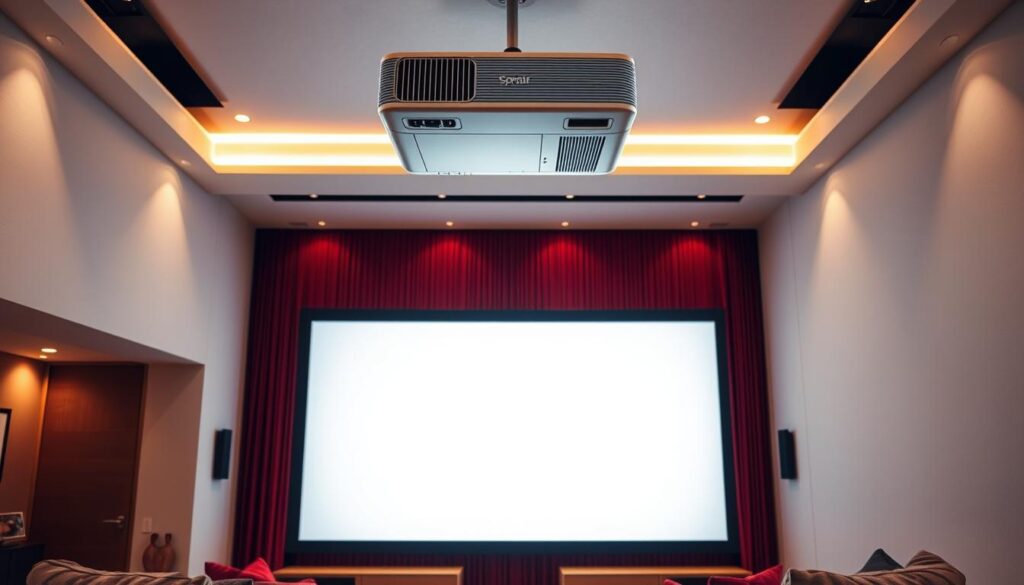
Want to turn your living room into a jaw‑dropping cinema for less than a month of cable? Imagine a simple, affordable way to watch movies and live sports on a 100+ inch display without extra hardware fees or long contracts.
You can stream the shows you love with crisp HD or 4K if your projector and network match the content. The easiest setups use an Android streaming stick via HDMI, a laptop with VLC or Kodi, or casting with Miracast/Chromecast/AirPlay.
Weak Wi‑Fi can cause lag, so a wired connection often keeps things smooth. Improve sound with external speakers via Bluetooth or analog for a true home theater experience.
GetMaxTV makes this fast and risk‑free: over 19,000 live channels and 97,000+ VOD for just $6.95/month, universal compatibility, all sports and movie packages included, instant activation, and 24/7 support. Ready to learn the best ways to connect and optimize your setup? Start with this guide: integrate IPTV into your home theater.
Key Takeaways
- You can create a big‑screen home theater affordably with a projector and modern streaming sources.
- Choose HDMI, casting, or a PC method based on your room and device compatibility.
- Match projector resolution and brightness, and use external audio for better sound.
- Wired networks reduce buffering; aim for 8 Mbps (HD) or 25 Mbps (4K) per stream.
- GetMaxTV offers vast content, low cost, instant activation, and 24/7 support for easy setup.
Why IPTV on a projector is the ultimate home theater upgrade
A projector paired with modern streaming sources gives you freedom to place a giant display anywhere in your space.
Big-screen immersion: movies, live sports, and shows on 100+ inch displays
You’ll feel a true theater experience when a 100+ inch screen fills your room. Live sports, blockbuster movies, and current shows look dramatic at scale. A compact stick or a small box plugs into the HDMI input and delivers huge impact without bulky hardware.
Cut the cords: streaming flexibility without satellite dishes or extra wiring
Streaming replaces satellite or long cable runs with a tidy setup. Use an Android TV/Fire TV/Roku stick, a laptop running VLC or Kodi, or cast from a phone with Chromecast or AirPlay. Since you stream over your internet, you avoid extra fees and get more channels for less.GetMaxTV advantage:
- 19,000+ live channels and 97,000+ VOD for $6.95/month.
- No contract, instant activation, universal compatibility, and 24/7 support.
| Method | Device | Best for | Notes |
|---|---|---|---|
| HDMI | Stick / Box | Stable, simple setup | Plug and play with adapter if needed |
| Laptop | PC / Mac | Custom playlists, VLC/Kodi | Good for advanced settings |
| Casting | Phone / Tablet | Quick sharing | Requires solid Wi‑Fi for best quality |
Pre-check: projector ports, internet speed, and room setup

Start by checking the physical inputs and your internet speed to avoid last‑minute cable hunts or buffering.
HDMI or adapter‑ready? If your display has an hdmi input, you can use most streaming sticks or boxes immediately. If you have only USB‑C or older VGA, grab a USB‑C to hdmi adapter or a VGA adapter so your devices connect cleanly.
Wi‑Fi vs. wired: stable connections for smooth streaming
Check your internet speed and prefer Ethernet for heavy streams. Wired connections cut buffering and improve video quality.
- Match native resolution (HD or 4K) to avoid scaling that reduces image quality.
- Measure throw distance so the screen fits your room and seating plan.
- Confirm audio outputs now — Bluetooth, 3.5 mm, or an HDMI audio extractor — so you’re not surprised later.
- Keep a high‑speed hdmi cable long enough to reach your placement without strain.
| Check | Why it matters | Quick fix | Notes |
|---|---|---|---|
| Inputs | Ensures device compatibility | Use hdmi or adapter | USB‑C to hdmi or VGA adapter for older models |
| Network | Prevents buffering | Use Ethernet or boost Wi‑Fi | 25 Mbps recommended for 4K streams |
| Room & audio | Controls brightness and sound | Darken room; add speakers | Higher lumens for bright rooms; external speakers for better sound |
Tip: GetMaxTV’s support can help pick the right app or playlist format so activation is fast and risk‑free once your setup is ready.
IPTV on projector: step-by-step connection methods
Follow these quick connection methods to get your big‑screen setup streaming in minutes.
Plug an Android TV, Fire TV, or Roku stick/box into the projector hdmi input. Connect the device to Wi‑Fi or Ethernet, install the IPTV app, and load your GetMaxTV playlist or Xtream Codes. HDMI delivers the most reliable video and reduces buffering compared with wireless casting.
Using a laptop or PC
Connect your laptop via HDMI to the projector. Open VLC or Kodi, add the M3U/Xtream playlist, set audio to your speakers, and press full screen. If your laptop has only USB‑C or VGA, use a USB‑C to hdmi adapter or a VGA adapter and keep a spare cable handy.
Casting from phone or tablet
Cast or mirror using Chromecast, AirPlay, or Miracast to a compatible device. Open the app, choose a channel or VOD, and start playback. If casting stutters, try an Ethernet adapter or switch to an HDMI stick for a steadier connection.
“Install the app, add the playlist, and you’re watching in minutes.”
| Method | Best for | Quick tip |
|---|---|---|
| HDMI stick / box | Stable playback | Use Ethernet adapter for top stability |
| Laptop (VLC/Kodi) | Custom playlists, VLC features | Set audio output to external speakers |
| Casting (Chromecast/AirPlay) | Quick sharing | Prefer strong Wi‑Fi; see Chromecast guide |
- Fine‑tune the input, keystone, and focus for the best screen image.
- Route audio via Bluetooth, 3.5 mm, or an HDMI audio extractor if needed.
- Universal compatibility: Firestick, Smart TV, Android, Mac, and Windows all work with GetMaxTV and its 24/7 support.
Optimize picture, sound, and room for theater-quality viewing
Fine-tuning your display, sound, and seating creates a real theater vibe without a big budget.
Resolution, brightness, and screen choices for HD and 4K
Match your projector resolution to the content you watch most. If you stream 4K movies, use a 4K-capable device and set the native resolution to avoid soft images.
Calibrate brightness, contrast, and color temperature for your room. Sports usually need brighter modes; films benefit from cinema presets in low light.
Audio routing: soundbar, speakers, and Bluetooth options
Great audio lifts every scene. Use a soundbar or powered speakers via Bluetooth or analog out for clearer dialogue and punchy crowd noise.
If your device has limited audio outputs, an HDMI audio extractor is a smart option to feed your sound system cleanly.
Ambient light and seating: the ideal viewing environment
Reduce ambient light with blackout curtains or dimmable lamps to improve perceived picture quality. Choose an ALR screen if your room stays bright.
- Place seats about 1.5 times the screen width for ideal viewing.
- Save custom picture and audio presets for quick switching between sports and movies.
- Minor fixes—focus, keystone, and aspect ratio—deliver a professional look.
Pro tip: With GetMaxTV’s vast content library, your tuned setup will make every live event and movie feel premium for just $6.95/month. For a deeper build guide, see create a full‑fledged home theater.
Quick fixes: connection, buffering, and quality issues
Quick fixes that take minutes can cure most streaming hiccups and get your big screen back to smooth video.
If you see a blank screen, reseat the hdmi cable, power‑cycle both devices, and pick the correct input. Try a different hdmi port or a certified cable if a handshake fails.
Reduce buffering by moving closer to your router, switching to 5 GHz, or running Ethernet via an adapter. In the app, lower bitrate or resolution to test stability, then raise it once stable.
- Match your device output to the native resolution to keep video sharp.
- Stop background downloads and prioritize your streaming device for better quality.
- For audio sync issues, toggle delay settings or route sound through speakers that support lip‑sync.
“If you want personalized help with playlists, app settings, or network tips, GetMaxTV’s 24/7 support can walk you through a quick fix.”
Low risk trial: there’s no contract, so you can try the service while you tune your setup. For more detailed steps, see our troubleshooting guide.
Choose GetMaxTV for unmatched value on your projector
GetMaxTV bundles massive channels and on‑demand libraries into one low‑cost service built for big‑screen viewing. You pay only $6.95/month, with no contract and instant activation so you can start watching in about two minutes.
What you get:
- 19,000+ live channels and 97,000+ VOD titles included—no hidden fees or extra package charges.
- All sports and movie packages are covered, so the big game and new releases are ready when you are.
- Universal compatibility with Firestick, Roku, Smart TV, Android, iOS, Mac, Windows, and common streaming devices.
- Works with a compact stick, a small box, or a laptop using VLC/Kodi. Use an adapter if needed for your setup.
If you need help choosing an app or adding a playlist, 24/7 support can guide you step‑by‑step. Cut cable fees, simplify your setup, and turn your projector into the center of a rich home entertainment experience—risk‑free and easy to try.
Smart streaming practices and privacy basics
Protecting your privacy and keeping your network secure makes every streaming session smoother and more reliable.
Use reputable services and follow their acceptable use policy to get consistent playback across your devices and projector. Read terms before adding playlists, and keep account info private.
Secure your Wi‑Fi with a strong password and update router firmware regularly. A wired connection will reduce buffering and improve video stability when your internet acts up.
If you care about privacy, review app permissions, disable unneeded features, and consider network‑level safeguards that match your needs. For a deeper look at device risks, see the smart TV privacy report.
- Keep firmware and apps updated for security and playback fixes.
- Limit background downloads during prime viewing to keep video steady.
- Store playlists securely and never share credentials; GetMaxTV support is available 24/7 if you need help.
“When troubleshooting, change one setting at a time so you can identify what improves performance.”
Conclusion
Now you have a clear path to build a simple, powerful home theater that fits your space and budget.
You can choose an HDMI stick, laptop with VLC/Kodi, or casting via Chromecast, AirPlay, or Miracast to get movies and shows onto a massive screen. Use external speakers and dim the room for the best image and sound.
GetMaxTV delivers unbeatable value: $6.95/month, 19,000+ live channels and 97,000+ VOD, all sports and movie packages, no contract, instant activation, and 24/7 support.
Ready to subscribe? Visit GetMaxTV. Prefer to try first? Message support for a free trial via WhatsApp: start a free trial.
For recommended apps and portable screens, see recommended apps and explore 4K movies at GetMaxTV 4K movies.
FAQ
What devices can you use to stream content to a home theater projector?
You can use media sticks like Roku, Amazon Fire TV, and Chromecast, streaming boxes such as Apple TV or Nvidia Shield, and laptops or PCs via HDMI. Many modern projectors accept USB-C, VGA, and optical inputs, and some models include built-in smart apps. Make sure your adapter or cable matches the input on your display.
Do you need a wired internet connection for the best streaming quality?
A wired Ethernet connection gives the most stable bandwidth and reduces buffering, especially for 4K content. However, a strong dual-band Wi‑Fi network can work well for HD. Aim for at least 15–25 Mbps for HD and 25–50 Mbps for 4K streams, and place your router close or use a mesh system for better coverage.
How do you connect a streaming stick or box via HDMI?
Plug the streaming device into an available HDMI port, switch the projector input to that HDMI channel, then follow on-screen prompts to connect to your Wi‑Fi and sign into apps. If the port is recessed or power is limited, use a short HDMI cable or a powered HDMI extender for reliable handshakes.
Can you use a laptop to play playlists and video services on the big screen?
Yes. Connect the laptop to the projector with HDMI or USB-C, set the display to duplicate or extend, then open your media player or browser to play playlists and streaming apps. Adjust display resolution in your OS to match the projector’s native resolution for the best image.
What are the best settings for picture and brightness in a home theater room?
Set the projector to its native resolution and choose a cinema or film color profile. Reduce brightness or enable dynamic contrast in a dark room to deepen blacks. Use a dedicated projection screen or a high-gain wall surface and minimize ambient light with blackout curtains for clearer colors and contrast.
How do you route audio from the projector to external speakers?
Many streamers and projectors offer optical, HDMI ARC/eARC, or Bluetooth audio output. For the best sound, run a direct HDMI ARC connection to a soundbar or AV receiver. If your projector lacks outputs, connect the streaming device’s audio output to speakers or use an external audio extractor.
What causes buffering and how can you fix it quickly?
Buffering often stems from slow internet, Wi‑Fi interference, or overloaded servers. Try restarting the router, switching to a wired connection, closing background apps, or lowering stream resolution. Updating firmware on your streamer and projector can also improve performance.
Are adapters required for phones or tablets without HDMI ports?
Yes. Use a USB-C to HDMI or Lightning to HDMI adapter to mirror your phone or tablet. Alternatively, use wireless casting tools like Chromecast or AirPlay if your streaming device supports them for hassle-free mirroring without cables.
How do you ensure compatibility between your playback service and display?
Check supported resolutions, HDR formats, and DRM requirements of the streaming service. Match the service’s playback settings to the projector’s native resolution and color space. If a service uses strict DRM, use a certified streaming box like Apple TV or Roku for guaranteed playback.
What privacy or network precautions should you take when streaming?
Use strong, unique passwords for your streaming accounts and home network. Keep firmware and apps updated, enable two-factor authentication where available, and consider a guest Wi‑Fi network for visitors. Limit unnecessary app permissions on your streaming devices to protect data.
Can Bluetooth speakers be used for low-latency audio with video?
Bluetooth often introduces audio delay. For low-latency playback, use wired connections, optical audio, HDMI ARC/eARC, or wireless systems designed for AV sync. Some soundbars support Bluetooth low-latency codecs, but verify compatibility before relying on them for movies or gaming.
How do you pick the right screen size and seating distance?
Choose a screen size that fills your field of view without causing eye strain. For HD content, sit at a distance roughly 1.5–2.5 times the screen diagonal. For 4K, you can sit closer—about 1–1.5 times the diagonal—to enjoy finer detail on larger displays.
What should you check on a projector before buying for streaming services?
Verify native resolution, brightness (lumens), contrast ratio, available inputs (HDMI/USB-C/VGA), smart app support, and audio output options. Also check manufacturer updates, warranty, and room size recommendations to ensure the unit fits your viewing needs.
How do you troubleshoot HDMI handshake problems?
Power down all devices, reconnect the HDMI cable securely, try a different HDMI port or cable, and power on the display last. If issues persist, enable HDMI-CEC or change resolution settings on the source device. High-quality, certified HDMI cables reduce handshake failures.
What streaming device gives the widest app selection and easiest setup?
Devices like Roku, Amazon Fire TV, and Apple TV offer extensive app libraries and simple setup wizards. Choose the one that supports the apps you use, matches your preferred interface, and supports the resolution and HDR standards your display requires.
The GetMaxTV Team is a group of cord-cutting experts and streaming technology specialists who have been testing and reviewing IPTV services since 2022. Based in North America, our team personally tests every service we recommend across 15+ devices including Fire TV Stick, Roku, Apple TV, Samsung Smart TVs, and gaming consoles. We verify channel counts, measure buffering rates, test picture quality in HD and 4K, and evaluate customer support response times. Our mission is to help viewers save money by switching from expensive cable subscriptions ($147/month average) to affordable, high-quality IPTV alternatives. Every article on GetMaxTV.com is based on hands-on testing and real-world experience — not recycled marketing claims.