
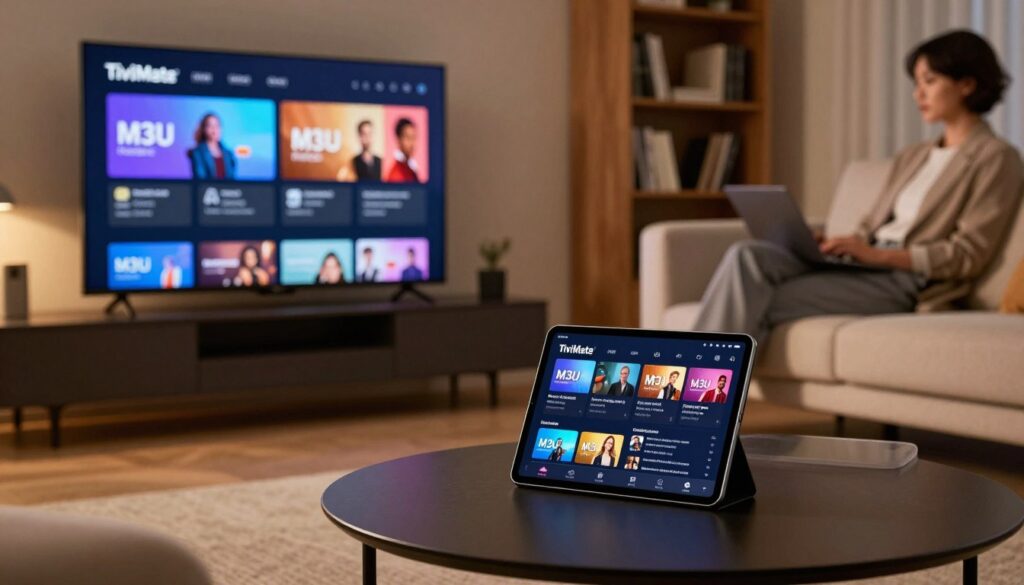
Wondering why your streaming feels flaky when live sports or big shows air? You’re about to learn how to add a working m3u playlist tivimate and tune it so channel browsing feels like cable — but over the internet.
You’ll follow a clear, step-by-step path: install the app on your Android TV or Fire TV box, add your playlist URL or file, import channels, attach EPG data, and tweak settings to cut buffering.
This guide is for Canadians using Android TV devices, Fire sticks, or set-top boxes who already have a valid IPTV source. Free lists can break during peak use; premium providers usually offer better uptime, EPG, HD/4K streams, and support.
Remember: a player organizes streams, but you supply the source. We’ll focus on improving streaming stability, guide accuracy, and your browsing experience with groups and favorites.
Ready to see a reliable source for premium channels? Check GetMaxTV’s offer to compare stability and features: GetMaxTV playlist guide.
Key Takeaways
- You’ll add a playlist to TiviMate and import channels for a cable-like feel.
- The guide targets Canadian Android TV and Fire TV users with a working IPTV URL.
- Premium sources give better uptime, EPG, HD/FHD/4K streams, and support.
- We’ll optimize streaming stability, guide accuracy, and channel browsing.
- Use the troubleshooting tips and settings tweaks to reduce buffering.
- Compare options like GetMaxTV to find a stable, supported service.
What an M3U Playlist Is and How TiviMate Uses It in 2025
Let’s first demystify what these text-based stream files actually do for your viewing setup.
What the file contains: At its core, an M3U or M3U8 is a plain text list of streaming links. It does not hold video. Instead, it points your iptv player to where each live channel stream lives on the internet.
Both formats still appear in 2025. The M3U8 version often signals HTTP Live Streaming, but for you it normally behaves the same inside the app.
How the player and the service differ
Tivimate acts as a media player that imports the file, organizes channel groups, and plays streams. It does not host channels or sell a subscription.
If a channel fails, the issue is usually the source or link, not the app. That distinction helps you troubleshoot faster and pick reliable services.
Why EPG matters
EPG (the program guide) turns a list of channels into a grid with now/next info. That makes browsing feel like cable and improves your live viewing experience.
- EPG adds schedules and program names for easier channel surfing.
- Links in the file can be geo-restricted, so Canadian users may lose access to some US-only channels.
Once you understand the roles—file vs player vs iptv service—you’ll follow the right setup steps and troubleshoot much more quickly. For a deeper look at reliable sources and modern options, see this guide on unlocking premium streams: the 2025 IPTV guide.
What You Need Before You Add a Playlist
Make sure your hardware, app, and source details are ready before you begin.
Devices and the app
Confirm you have a compatible Android TV device. Common examples in Canada include Android smart TVs, Chromecast with Google TV, NVIDIA Shield, and various Android boxes or sticks.
Install the app on the device you plan to use so you can add channels right away.
Your source details
Most providers give either an m3u url or a downloadable file. The URL is the simplest to add; an uploaded file works if your provider supplies one.
An EPG URL is optional but highly recommended so your channels show schedules instead of a plain list.
Internet basics for stable streaming in Canada
Wired Ethernet usually gives the best stability. Strong 5 GHz Wi‑Fi can work but is more sensitive to distance and interference in crowded buildings.
Remember: steady connections and low packet loss matter more than peak Mbps for live viewing.
If you need privacy or want to reduce ISP throttling later, a vpn can help, but confirm your speed afterward.
For a comparison of reliable sources and setup tips, see this helpful guide: GetMaxTV playlist guide.
How to Install TiviMate on Your Streaming Device
Start by installing the app from your device’s Google Play store—it’s the fastest route.
Open Google Play on your Android TV or Google TV streamer. Search for the app by name, then choose Install. After installation, open the app and allow network permissions if prompted.
Common device types in Canada include Android TV televisions, Google TV streamers, and Android-based set‑top boxes. Each of these runs the same ecosystem and usually supports the app natively.
- If the app isn’t in your store: your device may not be supported. Consider an alternative Android TV device or sideloading only if you understand the risks.
- Basic first steps: open the app, check remote navigation, and accept any permission prompts so adding your source is seamless.
The app’s interface focuses on live TV browsing and useful features like grouped channels and favorites. That makes it better for managing many streams than a simple media player.
| Step | Action | Why it matters |
|---|---|---|
| 1 | Open Google Play on your device | Ensures official install and updates |
| 2 | Install the app and grant permissions | Allows network access and guide updates |
| 3 | Confirm remote navigation works | Makes adding sources and browsing painless |
| 4 | Use a supported Android TV device if needed | Maximizes compatibility and stability |
For Fire TV users, follow the specific install steps in this guide: install on Fire TV Stick. For advanced setup tips after install, see this expert configuration guide: advanced configuration.
m3u playlist tivimate Setup: Add Your M3U URL or File

Start inside the app and use Add Source to import via URL or file.
Choose M3U and supply your source
Open the app and select Add New. Choose the M3U option, then pick whether you’ll paste a URL or upload a file from local storage.
Enter the URL cleanly
Paste the full address and remove trailing spaces. Make sure it begins with http:// or https:// and check case sensitivity. If you use a remote, try the companion keyboard app to avoid typos on Canadian remotes.
What to expect during import
The app will process the link, count channels, and build groups. Larger lists take longer; wait for the progress indicator before closing the app.
Name and organize
Name the list so you can identify the source later. Good names keep channels grouped and make switching between sources easy.
- Verify EPG later if you want program guides.
- If import fails, request an updated URL from your provider — links often expire or rotate.
For guidance on choosing a reliable source, see this helpful guide: finding the best IPTV playlist.
Configure EPG (Program Guide) for Better Channel Navigation
A proper EPG turns a row of links into a usable TV-style grid with schedules. Adding the program guide makes finding shows fast and gives your live channels context for now and next.
How to add the EPG URL: during or after you add your playlist, paste the provider’s EPG url into the guide section and refresh. Wait for the sync to finish and let the app map channels to guide entries.
Success looks like current and upcoming show titles showing on each channel. If you see many “No information” lines, data did not map or the provider lacks full coverage.
Quick fixes for common sync issues
- Time mismatch: check your device timezone and any EPG shift settings to fix off-by-one-hour problems in Canada.
- Missing guide data: free lists often lack EPG IDs; you may need to assign sources or accept partial coverage.
- Slow updates: large lists take longer to sync — schedule refreshes during off-hours to protect your viewing experience.
Key takeaway: EPG quality usually reflects the source, not the app. If guides remain poor after fixes, contact your provider or consider a more reliable service.
Optimize TiviMate Settings for Smoother Streaming
Small, smart changes to app settings can cut buffering and make live TV feel smoother.
Playback tweaks that actually help
Increase buffer size if you see frequent stutter; a larger buffer trades a small startup delay for steadier playback.
Select hardware or software decoder based on your device performance. Older devices may need software decoding to avoid artifacts, while newer boxes benefit from hardware decoding for high-bitrate streams.
Prefer adaptive stream formats when available; they change bitrate to match network conditions and reduce rebuffering.
Test method: one change at a time
Change a single option, test several channels, then undo if results worsen. Keep brief notes so you can reproduce what works.
Make channel navigation fast and calm
Use groups and favorites to hide channels you never watch. Fewer visible channels speeds browsing and reduces guide clutter.
Multi-screen limits and device realities
Remember, multi‑screen is limited by your service connections, not the app. If streams drop when another device connects, your plan likely needs more concurrent connections.
Device CPU and storage affect recording and high-bitrate playback. For reliable recordings, use local fast storage or a well-configured NAS.
Keep your setup tidy
Regular maintenance helps: prune unused playlists, refresh guide data during off-hours, and lock in settings that proved stable. That keeps your viewing experience consistent over time.
Choose a Reliable Playlist Source: Free Lists vs Premium IPTV Services
Your viewing quality starts with the source you pick. Free public m3u lists can help you test a setup, but expect broken links, missing EPG, and channels that vanish without notice.
What to expect from free lists
Free lists often lack proper schedules and show many dead links. Apsattv-style lists and similar public sets may include service channels with no EPG and regional locks.
Community projects like IPTV-ORG provide better mapping and some EPG support, but availability still changes. For Canadian users, many free channels work only in the US or North America and can stop working overnight.
What premium services typically add
Paid services usually deliver stability, HD/FHD/4K streams, routine updates, VOD libraries, and customer support when links fail.
Good providers advertise concurrent connections, transparent URL rotation policies, and clear support channels so you know what to expect.
How to evaluate providers with a trial
- Test sports during a live event to judge uptime and bitrate under peak load.
- Check channel-change speed and EPG accuracy across news and local channels.
- Watch for buffering during prime time in your time zone and confirm support response times.
“A short trial under real conditions tells you more than weeks of casual testing.”
If you prefer a stable, supported iptv service rather than chasing public lists, review GetMaxTV for a practical option: GetMaxTV.
Stay Secure and Stream Responsibly
Protecting your privacy and checking content rights helps make streaming safer and more reliable.
VPN basics: A VPN encrypts your traffic, which helps keep your viewing private and can reduce ISP throttling that shows up as mysterious buffering during peak hours.
If you see slowdowns only in the evening or during big games, try a VPN as a test. In Canada, that often rules out traffic shaping by your provider.
What a VPN won’t fix
A VPN won’t repair a poor-quality provider server, overloaded services, or a weak device that struggles to decode high-bitrate content. It helps privacy and access but does not improve a bad source.
Legality and safety
The file format and the player are neutral tools; what matters is whether your content sources hold distribution rights. Using reputable services and verified sources keeps you on the safe side of the law.
- Do not share your source links publicly.
- Scan unfamiliar files before opening them on your device.
- Prefer providers with clear policies and support.
Your responsibility: You choose what to access. Take a moment to learn local rules and pick trusted services. For deeper reading on secure sources and best practices, see this detailed guide or everything you need to know.
Fix Common TiviMate M3U Issues (Quick Troubleshooting Checklist)
Begin with a few fast tests to rule out common causes. These checks get most channels back quickly and keep you from over‑complicating a simple error.
Playlist won’t load: fast checks
Confirm the URL is exact — no extra spaces, correct case, and not expired or rotated by your provider. Many failures in 2025 come from changed links.
Try the same url on another device or in a different app (for example, VLC) to see if the problem is the app or the source.
Buffering despite “fast internet”
Verify local network issues first: switch to Ethernet, pause other household streams, and retest at off‑peak hours.
If problems persist, test with a VPN to rule out ISP throttling. If buffering spikes during major sports or news events, the provider’s servers may be overloaded — not your device.
Dead channels and missing groups
Refresh or re-import the list and re-run the EPG mapping. Providers sometimes rename groups or remove categories, which breaks mappings.
Clear the app cache on your device and re-sync only if the simple refresh fails.
Backup plan and maintenance
- Keep a secondary playlist with essential news and sports channels so you remain covered during outages.
- Document working urls and EPG links securely (password manager or encrypted note).
- Keep the app and device firmware updated and review key settings after each update.
“If your provider offers support, give them the exact url, error message, and time — it speeds diagnosis.”
When to seek help: Contact support if you see repeated failures after these steps. For public lists, expect limited help and consider switching to a paid service. For a deeper look at risks and sources, see this guide on discovering Bein Sports links on GitHub: discovering Bein Sports lists.
Conclusion
Wrap up your setup by checking a few simple habits that keep live channels steady.
Core workflow: install the app on your device, add the playlist URL or file, load channels, enable the guide, and tune playback features for smoother viewing.
Remember that playlist quality drives reliability more than any single tweak in the player. Use a wired connection when possible, keep a backup list for news and sports, and refresh sources when providers rotate links.
Free lists work for testing, but premium services usually give better stability, EPG, and support. If you want a more stable experience, check GetMaxTV’s current offer at GetMaxTV or review a detailed walkthrough on reliable sources here: the 2025 IPTV guide. Choose content sources responsibly for your region and needs.
FAQ
What is an M3U URL and how does TiviMate use it?
An M3U URL is a web link that lists live channel streams and their addresses. TiviMate reads that list to display channels inside the app, but it does not provide the streams itself — you still need a source or service that hosts the streams and, ideally, an EPG link for the program guide.
Do I need a separate EPG link for a cable‑like guide?
Yes. The EPG (electronic program guide) supplies show times and program names. Without a proper EPG URL, you’ll see channels but not the detailed guide. Adding the correct EPG improves navigation and creates a more traditional TV experience.
Which devices support TiviMate and what are the minimum requirements?
TiviMate runs on Android TV platforms, Android TV boxes and sticks, and some Fire TV devices via sideloading. You should have a reasonably current Android version, enough storage for the app, and a stable network connection — Ethernet is preferred for reliability.
Should I use a URL or a file when adding my streams?
A URL is the common choice because it updates automatically when your provider changes channels. A local file can work, but it won’t refresh from the provider. Use a hosted URL plus an optional EPG URL for the best experience.
How do I enter the URL without causing loading errors?
Copy-paste the full URL exactly as provided, watch for trailing spaces, and ensure it starts with the correct protocol (http or https). If authentication is required, include the credentials in the format the provider specifies or use the app’s login fields.
What should I expect when TiviMate imports my channel list?
During import, TiviMate parses streams and attempts to map groups. Larger lists can take several minutes. You may see temporary “loading” entries; wait until the process finishes before navigating channels or customizing groups.
How do I fix EPG sync problems like wrong times or missing data?
Check that the EPG URL is correct, then confirm your device’s timezone and the guide’s timezone settings match. If the feed is incomplete, try a different EPG source or ask your provider for a compatible XMLTV link. Refresh the guide after changes.
What playback settings help reduce buffering?
Increase buffer size where available, prefer H.264 or H.265 settings that match your device decoder, and use hardware decoding when supported. Also switch to Ethernet or a 5 GHz Wi‑Fi band to lower packet loss and latency.
How can I organize channels and hide ones I don’t watch?
Use channel groups and favorites inside the app to keep frequently watched channels front and center. Most IPTV players let you hide or remove channels from view so your guide stays tidy and easy to browse.
What does “connections” mean for IPTV service plans?
Connections refer to simultaneous streams allowed by your provider. If your plan permits three connections, you can watch on up to three devices at the same time. Exceeding that will cause streams to drop until a slot frees up.
Can I record shows and what affects recording quality?
Recording depends on the app and your device storage. You’ll need enough free space and a recorder-compatible stream. Recording quality follows the incoming stream bitrate and your device’s encoding capabilities.
Are free stream lists a reliable option?
Free lists can be tempting, but they often suffer broken links, limited guide data, and geo-restrictions. They work for casual testing, but expect instability and the need to swap sources frequently.
What advantages do premium services add?
Paid providers usually offer higher uptime, HD/FHD/4K streams, regular updates, better EPGs, VOD catalogs, and customer support. They’re more reliable for sports, news, and daily viewing.
How do I evaluate a provider during a trial?
Test live sports and high-traffic events for buffering and channel switching speed. Check EPG accuracy, uptime during peak hours, and whether the provider honors simultaneous connections. Use a trial period to confirm stability.
Should I use a VPN when streaming?
A VPN can protect your privacy and sometimes prevent ISP throttling that causes buffering. Choose a reputable VPN with fast servers and low latency, and test performance before relying on it for live viewing.
Is using these stream lists legal?
The technology itself is neutral, but legality depends on the source of the streams. Only use services that have proper rights to distribute the content. If in doubt, ask the provider for licensing details.
What do I do if the URL won’t load in the app?
Check for typos, confirm the URL hasn’t expired, and ask your provider if they’ve changed endpoints. Verify your internet and try the URL in a browser or another player to isolate the issue.
Why do I still get buffering with a fast connection?
Buffering can come from server-side load, ISP throttling, or local network congestion. Test with Ethernet, change DNS settings, or contact your provider about server issues. A VPN can help if throttling is the cause.
How do I handle dead channels or missing groups?
First refresh the list and restart the app. If problems persist, request an updated source from your provider or switch to a secondary link. Keep a backup source for essential channels like news or sports.
What’s a good backup plan for critical channels?
Maintain a secondary, reliable source or paid subscription for must‑watch channels. This ensures news, sports, or emergency programming stays available if your primary source fails.
The GetMaxTV Team is a group of cord-cutting experts and streaming technology specialists who have been testing and reviewing IPTV services since 2022. Based in North America, our team personally tests every service we recommend across 15+ devices including Fire TV Stick, Roku, Apple TV, Samsung Smart TVs, and gaming consoles. We verify channel counts, measure buffering rates, test picture quality in HD and 4K, and evaluate customer support response times. Our mission is to help viewers save money by switching from expensive cable subscriptions ($147/month average) to affordable, high-quality IPTV alternatives. Every article on GetMaxTV.com is based on hands-on testing and real-world experience — not recycled marketing claims.