
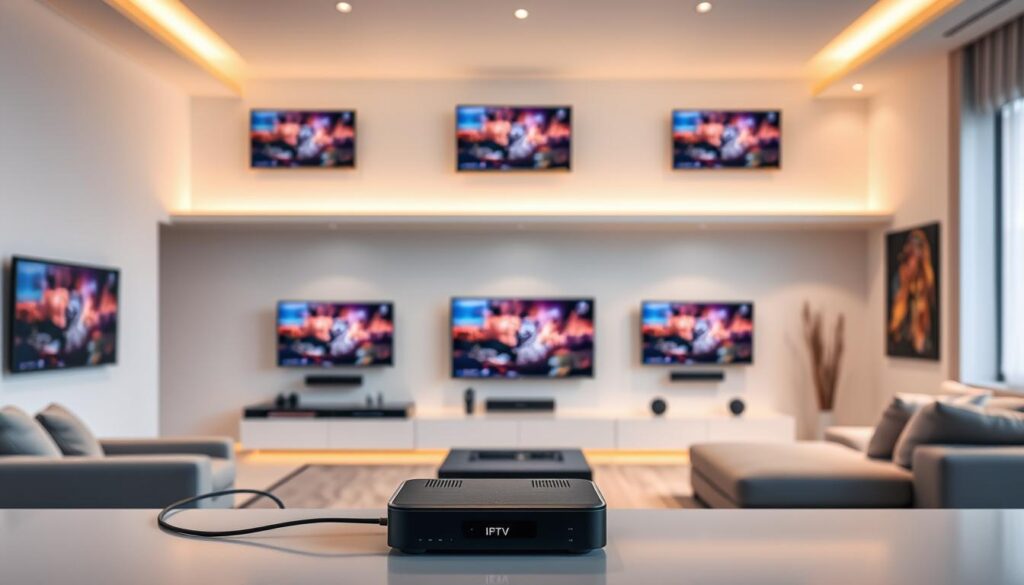
Curious how one low-cost plan can replace bulky cable boxes and keep everyone happy at once?
GetMaxTV aims to be the answer: a value-packed streaming service at just $6.95/month that gives you access to over 19,000 live channels and 97,000+ VOD titles with all sports and movie packages included.
The setup is simple and fast. You can start on Firestick, Smart TV, Android, Mac, or Windows within two minutes after signup. A basic home kit — a gigabit router, a main receiver, and secondary devices — lets each family member watch different channels at once with smooth playback.
For wired installs, Cat‑5e/6 and a splitter hub preserve speed. Proper router settings like IGMP Snooping and QoS help keep streams steady and avoid bandwidth waste. No contract, instant activation, and 24/7 customer support mean low risk when you switch from cable.
Want a step-by-step guide to add rooms, balance quality, and pick the right plan? Check this helpful walkthrough on multi-connection setups: how to share accounts effectively.
Key Takeaways
- GetMaxTV offers a low price plan with vast channel and VOD access.
- Setup is quick and works across common devices with instant activation.
- Basic hardware and router tweaks ensure smooth multi-room streaming.
- No contract and 24/7 customer support reduce signup risk.
- Wired or wireless layouts let you scale rooms without an installer.
Why whole-home IPTV is the smarter way to watch in 2025
A whole-home setup turns every screen in your house into a personal entertainment hub. With GetMaxTV at $6.95/month, you get an all-inclusive lineup that replaces expensive cable bundles.
Your family can watch the same channel in sync or different channels at once. Even a basic 100 mbps Ethernet run carries several HD feeds reliably. On Wi‑Fi, mesh coverage and smart placement keep streams steady.
“Instant activation and 24/7 support mean you switch over with almost no downtime.”
Enjoy fast activation, broad device access, and no contract. This modern guide helps you pick plans and the right number of connections so every user gets the quality they need.
- Predictable monthly cost with sports, movies, and premium channels included.
- Scale rooms easily and avoid extra boxes or technician visits.
- Smart bandwidth allocation keeps entertainment smooth for each user.
Read a deeper review and setup tips in this streaming guide, or learn to unlock every channel via this channel activation walkthrough.
What you need from IPTV for multiple TVs
https://www.youtube.com/watch?v=0jVFQs34oYI
Every home needs a streaming setup that removes friction and just works. Start by fixing the common problems: long sign‑in flows, constant buffering, and confusing limits on streams.
Simplicity matters: you want one sign‑in across your devices and a service that keeps channels and content ready in every room.
Common pain points
- Buffering and desync ruin video playback; prioritize QoS and IGMP Snooping on your router.
- Repeated logins or app messes break the user experience; choose services with instant activation and unified accounts.
- “Too many streams in use” messages mean you need clear guidance on allowed device connections.
Multi-room benefits
True multi-room lets each person watch different shows at the same time or sync one broadcast across rooms with zero delay.
“A quality service pairs generous channel counts with 24/7 support to fix issues fast.”
Pro tip: add DLNA or a local media server to reduce network load and keep video steady during peak hours.
GetMaxTV at a glance: the #1 value pick for families
GetMaxTV packs premium channels and VOD into one low‑cost plan built around family needs.
You pay just $6.95/month and get a complete lineup that beats cable on price and choice. Activation is instant—most users start watching within two minutes with no contract or hidden fees.
Over 19,000 live channels and 97,000+ VOD titles mean there’s always fresh content and classic favorites ready to stream. Every sports and movie package is included at no extra charge, so big games and new releases are covered.
Quick facts
- Price: $6.95/month
- Channels: 19,000+
- VOD: 97,000+
- Support: 24/7 customer support
| Feature | What you get | Family benefit | Notes |
|---|---|---|---|
| Price | $6.95/month | Low monthly cost | No contract |
| Live channels | 19,000+ | Huge variety | Includes sports |
| VOD library | 97,000+ | On‑demand movies & shows | All movie packages included |
| Compatibility | Smart TVs, sticks, phones, PCs | Works across devices | Fast setup in ~2 minutes |
You can learn more or start a subscription with a trusted provider at GetMaxTV. The plan is built so you can add rooms or devices without surprise upgrades.
Device compatibility that just works across your home

Your home should let anyone jump into a show in seconds, no extra boxes required.
Universal support means the main streaming apps run on Firestick, Smart TVs (Samsung, LG, Android TV), Apple TV, and common media players. That gives you quick access to live channels and VOD content without extra hardware.
Mobile freedom: iPhone, iPad, and Android phones or tablets put the same lineup in your pocket. Use the same account and playlists to switch rooms or watch on the go.
- Watch on Samsung and LG smart tvs, Fire TV/Firestick, and Android TV sets.
- Stream from Windows or macOS laptops at a desk or in a dorm.
- Popular apps like TiviMate and IPTV Smarters simplify a set‑top experience.
24/7 customer support is available to help you install apps, load playlists, and troubleshoot playback so you get streaming in minutes.
| Device type | Works on | Benefit |
|---|---|---|
| Smart TVs | Samsung, LG, Android TV | Plug‑and‑play access to channels |
| Streaming sticks | Fire TV, Apple TV | Easy app install, low cost |
| Computers & Mobile | Windows, macOS, iOS, Android | Flexible viewing and portability |
Network planning for smooth multi-room IPTV streaming
Start with realistic speed targets so videos play smoothly, even during peak hours. Budget per stream: 5 Mbps for SD, 10 Mbps for HD, and 25 Mbps for 4K. These targets help you size your home internet and avoid surprise buffering.
Wired vs wireless: stability and quick wins
Favor Ethernet for stationary sets to guarantee steady quality and low latency. If you can’t run cable, mesh Wi‑Fi or Powerline adapters bring reliable coverage to distant rooms.
Whole-home Wi‑Fi: placement and bands
Place the router centrally, raise it off the floor, and keep it away from thick walls and appliances. Split 2.4 GHz and 5 GHz SSIDs so devices can use the faster band when available.
Router settings that make a difference
- Enable IGMP Snooping or Multicast mode to keep channel data efficient and prevent flooding your network.
- Use QoS to prioritize streaming boxes so downloads and updates don’t interrupt playback.
- Assign static IPs or reserved leases to main players to keep priorities consistent.
Double‑check your internet connection and plan total bandwidth using the per‑stream numbers above. If you hit trouble, 24/7 support can help tune QoS, verify multicast, and confirm your provider meets the needed speed per stream.
“A few router changes — QoS and IGMP — often fixes buffering faster than new hardware.”
Need hands‑on help? Visit our network troubleshooting guide to walk through settings with step‑by‑step support.
Your minimum hardware kit for a multi-TV setup
https://www.youtube.com/watch?v=e51bn4OfRcM
Start by picking a compact hardware kit that keeps streaming quick and predictable.
Keep the list simple: a strong router, a main receiver, and extra devices will cover most homes. This approach saves time during setup and reduces troubleshooting later.
Primary router, main receiver, and secondary devices
Router: choose a gigabit, dual‑band Wi‑Fi router that handles many connections and supports QoS and IGMP Snooping. That keeps video prioritized and avoids traffic jams on your internet connection.
Main receiver: pick a Smart TV or a set‑top stick (like Fire TV) as the central device. Keep HDMI runs short and use good cables to protect picture and sound quality.
Secondary devices: add tablets, phones, or extra set‑top boxes in bedrooms, office, and kitchen. Use a small network switch near your rack to fan out Ethernet to several devices easily.
Practical cabling: Cat‑6 runs now save headaches later
- Pull Cat‑6 to likely TV spots during renovations so you won’t rip walls later.
- In finished rooms, Powerline adapters can bridge gaps where Wi‑Fi is weak.
- Label Ethernet runs and keep a simple splitter hub or switch to manage connections.
| Item | Recommendation | Why it matters |
|---|---|---|
| Router | Gigabit, dual‑band with QoS | Prioritizes video and supports many device connections |
| Main receiver | Smart TV or Fire TV device | Central hub for your plan and largest screen |
| Cabling | Cat‑6 runs; Powerline where needed | Future‑proofs rooms and reduces buffering |
| Switch / Splitter | Basic unmanaged gigabit switch | Fans out Ethernet to consoles, streamers, and smart devices |
Plan device placement so your strongest connection serves the main family room. With these basics, you’ll support a huge channel lineup and smooth multi‑room playback without surprise buffering.
Step-by-step: from first TV to the entire house
Get started in minutes and expand room by room with a simple, repeatable workflow. This guide walks you through activation, app choices, and family controls so everyone gets quick access to channels and shows.
Activate and watch in about 2 minutes
Subscribe, receive your credentials, and sign in on a main Smart TV or streaming stick. Activation is instant; most users see content and the EPG in roughly two minutes.
Add second, third, and fourth rooms
- Install the same app on each device and log in once.
- Repeat the login workflow to populate your guide and channels fast.
- Prefer Ethernet or strong 5 GHz Wi‑Fi on large screens for best results.
Apps and guide setup
Install recommended apps like IPTV Smarters or TiviMate. Enter the portal or playlist URL from signup and your program guide (EPG) will load automatically.
Profiles and parental controls
Create user profiles and lock mature content so kids only see age‑appropriate shows. Manage your subscription and add capacity if peak use grows.
“If you need help, 24/7 support is available to walk you through credentials and app setup.”
| Step | Quick action | Why it helps |
|---|---|---|
| Subscribe | Get credentials | Instant activation |
| Install app | IPTV Smarters / TiviMate | Fast guide & playback |
| Add rooms | Repeat login | Same experience across devices |
IPTV for multiple TVs
Start by mapping high-use spots and count how many streams you’ll run at once. This quick audit guides your choice of plans and connections.
Plan streams for bedrooms, living room, kitchen, and more
List where people watch: living room, bedrooms, and kitchen. Estimate concurrent streams at peak times and assign one strong link to the main room.
- Map usage: mark heavy rooms and needed streams.
- Reserve a spare slot for guests or a projector during big events.
- Label devices in your app to track viewing and manage limits during sports nights.
Balancing HD and 4K across rooms to fit your bandwidth
A wired Ethernet line is most stable; a single 100 Mbps internet link easily handles several HD feeds. Put 4K on the room with the best speed.
- If a room gets weak Wi‑Fi, set that device to SD.
- Use mesh or Powerline to boost poor reception and keep quality steady.
- Review usage after a week and adjust plans or add one more stream if needed.
“Prioritize your largest screen and give secondary rooms lower bitrates when needed.”
| Room | Recommended Quality | Why |
|---|---|---|
| Living room | 4K / HD | Main screen, best connection |
| Bedroom | HD | Good balance of quality and speed |
| Kitchen / Guest | SD | Lower demand, preserves bandwidth |
All-inclusive entertainment: sports, movies, and premium TV
Imagine opening an app and finding live games, new releases, and premium shows without extra checkout screens.
No hidden fees: GetMaxTV includes every major sports network and event in one plan. You won’t chase seasonal add‑ons or surprise surcharges. That makes budgeting simple and predictable.
No hidden fees: every package is included
From blockbuster premieres to classic films, the movie selection is part of the base offering. The massive channels and VOD library cover premium TV, regional lineups, and niche interests so everyone in your house has options.
- You get top sports networks and live events included, so you never miss a match.
- Blockbusters and old favorites are available within the same library alongside thousands of live channels.
- Stream on preferred devices and move between rooms without losing your spot or missing live action.
“This all‑inclusive approach cuts the clutter of separate subscriptions while keeping viewing quality high.”
| Benefit | What it includes | Why it matters |
|---|---|---|
| Sports coverage | Major leagues & live events | No seasonal fees or paywalls |
| Movie access | New releases & classics | All included in the base plan |
| Channels & VOD | Thousands of channels + large library | Wide content for every viewer |
If you want a focused look at sports options, see this best sports guide to compare how channels and coverage stack up across providers.
Troubleshooting multi-device streaming like a pro
You can fix many playback headaches in minutes with a few targeted checks. Start with the network and the app, then move to device-level tweaks if needed.
Fix buffering with QoS, better Wi‑Fi placement, or wiring
If you see buffering, prioritize streaming traffic with QoS on your router. Move the router to a central, elevated spot to boost signal reach.
For stubborn rooms, try Ethernet or Powerline adapters to remove wireless interference. Enabling IGMP Snooping or Multicast mode helps the router handle channel data more efficiently and reduces packet loss.
Audio/video desync after pauses: try AAC and app updates
When audio drifts from the picture after pausing, switch your player’s audio codec to AAC and update the app. Old app versions or codecs often cause desync on pause/resume.
Restart the app and, if needed, reboot the device. That simple cycle fixes many A/V timing glitches quickly.
Devices not seeing streams: same subnet and multicast support
Ensure all your devices are on the same subnet. Guest networks or AP isolation can block discovery and stop some devices from finding channels.
Turn on IGMP Snooping, confirm multicast support, and reserve IPs for main players to avoid accidental drops.
- If buffering occurs, enable QoS and reposition the router.
- Use Ethernet or Powerline to stabilize weak rooms.
- Switch to AAC and update apps to fix A/V drift.
- Keep devices on the same subnet and enable multicast to ensure discovery.
- If a channel toggles HD/SD, lower resolution in that room or boost its signal.
“Keep a short checklist handy and contact 24/7 customer support if you need guided help.”
Most issues clear up fast with these steps. If you still need help, reach out to customer support for live troubleshooting and step‑by‑step guidance to restore a smooth streaming experience across your home.
Privacy and access: streaming securely on your network
Streaming at home should feel safe — you can add privacy without complexity.
A VPN is an option that can enhance privacy and help bypass geo‑blocks in some regions. It can also add a layer of security when you use public hotspots or travel and want consistent access to your usual guide and channels.
When a VPN helps and when you don’t need it
You generally don’t need a VPN for stable home streaming on a trusted internet connection. Most users get strong privacy by enabling WPA2/WPA3 Wi‑Fi and choosing a robust password.
If you face regional restrictions, a VPN can restore access to familiar content and keep your connection private. Pick a reputable provider and choose a server near you to minimize latency and keep quality high.
- Start simple: try the service without a VPN and confirm stability.
- Device‑level vs router‑level: support can advise which setup avoids double NAT or DNS conflicts.
- Keep firmware current: update your router to improve baseline security for all devices.
“If you add a VPN, test one device first and monitor playback before applying it network‑wide.”
| Use case | Recommended action | Why it matters |
|---|---|---|
| Privacy at home | Enable WPA2/WPA3, strong password | Good baseline security for all users |
| Travel or geo‑blocks | Use VPN on device or router | Restores access to services and content |
| Quality concerns | Pick nearby VPN servers | Reduces latency, preserves playback |
| Questions | Contact support | Help with placement and avoiding conflicts |
Keep it practical: start without a VPN, confirm stable playback, then add one only if you have a clear need. Your provider’s support team can guide device setup and recommend the best option for your home.
No contract, 24/7 support: watch with total peace of mind
Enjoy streaming peace of mind with a service that puts flexibility first. You get a plan that fits your schedule, not the other way around.
Real people are ready to help any time. Round‑the‑clock customer support means help is available at night, on weekends, and during holidays. That matters when a big game or new release starts late and you need quick help.
Real people, anytime: get help when you need it
Friendly, live agents walk you through app installs, playlist loading, and QoS tweaks in plain language. They guide you step‑by‑step if a stream stutters or an EPG won’t load.
Cancel anytime with zero commitment
You can start or stop your service on your schedule—no long‑term contract and no cancellation penalties. That flexibility removes the stress of surprise fees and lets you test the service risk‑free.
- Start or stop on your timeline with no penalties.
- 24/7 customer support helps during the times you actually watch.
- Real people fix app, network, and stream issues so you keep enjoying your shows.
- Support assists when you add rooms or upgrade gear to avoid downtime.
“Peace of mind comes from reliable help whenever you need it, not just during business hours.”
Choose the right multi-room plan for your household
Begin with a quick audit of your home’s viewing habits to match connections to demand. List rooms where people watch most and note how many streams run at once during peak hours.
How many simultaneous connections do you really need?
Estimate real concurrent use
Count active viewers in the living room, bedrooms, and common areas during evenings. Add one extra connection as a buffer on busy nights when family members watch different shows.
Future-proofing for guests, kids, and new devices
Plan for growth and surprises
Think about guests, visiting family, or a new projector. Match your chosen plan’s connections to your router and internet speed so quality stays high when everyone watches at once.
- List rooms and count simultaneous streams at peak time.
- Add one spare connection if your household often watches different content.
- Factor guests and extra devices to avoid maxing out your plan unexpectedly.
- Make sure your router and bandwidth support the total connections.
- Start with today’s needs and scale up — GetMaxTV makes it easy to adjust your plan; see the family plan.
| Need | Recommended connections | Why it helps |
|---|---|---|
| Small household (1–2 users) | 2–3 | Keeps quality high and simple |
| Family (3–4 users) | 4–5 | Supports simultaneous shows and sports |
| Large or guest‑heavy | 6+ | Future‑proofs for visitors and extra devices |
The math: why $6.95/month beats cable and typical IPTV
Crunching the numbers shows why a $6.95 monthly plan can cut your yearly media bill in half.
Total cost of ownership over a year
At $6.95/month, your annual spend stays under $84. That is a fraction of common cable bills that often top $1,000 a year when you add rental and installation fees.
You also skip equipment rental, setup charges, and long contracts. The subscription covers sports and movie packages, so hidden add‑ons don’t inflate your bill.
Value per stream vs other multi-connection options
When you divide annual cost by active screens, the cost per connection is far lower than typical provider options. Even adding one extra connection usually keeps yearly totals below standard cable packages.
“A low monthly plan that includes premium content beats bundled fees and extra charges in most cases.”
- Lower annual price and predictable billing.
- No install or rental fees from a third party provider.
- Better value per device and consistent quality per stream.
| Cost item | GetMaxTV | Typical cable |
|---|---|---|
| Annual price | $84 | $800–$1,200+ |
| Included packages | Sports & movies | Often extra |
| Installation & rentals | None | Yes |
| Value per connection | Low | High |
Bottom line: pick the plan that matches your household and enjoy predictable price and simple options backed by 24/7 customer support if you need help.
Ready when you are: quick start or risk-free test
Get started in minutes and see why switching is both fast and risk‑free. If you want a straightforward subscription, you can sign up and begin watching in about two minutes.
Primary action: subscribe now
Subscribe now at https://getmaxtv.com/ and enjoy instant activation. No contract means you can stop any time if it’s not right for your household.
Secondary action: try first via WhatsApp
Prefer to test before committing? Start a no‑obligation free trial by messaging us on WhatsApp: https://wa.me/message/OZ4NORVZQTYAC1. A support agent will walk you through setup.
“Instant activation and 24/7 support mean you get help any time you need it.”
The plan gives quick access to a massive channels lineup and a large on‑demand library. Sports and movies are included, and the provider supports common devices so you can stream right away.
| Action | What you get | Why it matters |
|---|---|---|
| Subscribe | Instant activation | Start watching in ~2 minutes |
| Free trial | WhatsApp onboarding | Try the service risk‑free |
| Help | 24/7 support | Assists with apps, guides, and network setup |
Conclusion
Use these final tips to turn the guide’s advice into a smooth, daily viewing experience. The goal is simple: reliable entertainment across your home without extra hassle.
GetMaxTV gives you massive content — live sports, movies, and thousands of channels — at a low monthly price with instant activation and no contract. This service scales with your needs and keeps setup fast.
Next steps: subscribe now at https://getmaxtv.com/ or start a free trial via WhatsApp at https://wa.me/message/OZ4NORVZQTYAC1. If you need help, 24/7 support will guide you through apps, streaming settings, and device setup so every screen works well.
FAQ
What do I need to set up whole-home streaming with GetMaxTV?
You’ll need a reliable internet connection, a primary router, at least one compatible streaming device (Fire TV Stick, Samsung or LG smart TV, Android TV box), and optional Ethernet or powerline adapters for wired links. Install the GetMaxTV app or a supported player like IPTV Smarters or TiviMate, sign in, and you’re ready.
How much bandwidth does each stream use?
Plan about 5 Mbps per SD stream, 10 Mbps per HD stream, and 25 Mbps per 4K stream. If multiple rooms stream at once, add the speeds together to size your home connection.
Can I watch different channels in different rooms at the same time?
Yes. GetMaxTV supports multiple simultaneous connections so family members can view different live channels or VOD without interfering, provided your network has enough capacity.
Which devices work best with this service?
Supported devices include Fire TV Stick, Samsung and LG smart TVs, Android TV devices, iOS and Android phones and tablets, plus Windows and macOS computers. Choose the device that fits each room for the smoothest setup.
What should I do if I get buffering or stuttering?
Start by checking your internet speed and reducing other heavy traffic. Move the streaming device closer to the router or use Ethernet/powerline. Enable QoS on your router and confirm multicast settings or IGMP snooping if offered.
Does GetMaxTV include sports and premium movie packages?
Yes. GetMaxTV bundles sports and movie packages with the base subscription at no extra cost, so you don’t face surprise add-on fees.
How do I add another room or TV to my plan?
Install a supported app on the additional device, sign in with your account, and activate the connection. For wired setups, run Cat‑6 where possible to ensure consistent performance across rooms.
What apps should I use to manage channels and EPG guides?
Popular options include IPTV Smarters and TiviMate for advanced playlist and EPG management. The native GetMaxTV app also offers a user-friendly guide and profile controls for families.
Can I create profiles and parental controls for kids?
Yes. You can set up individual profiles, PIN-protect mature content, and limit channels or VOD categories so kids only see age-appropriate options.
Is a VPN necessary for streaming on my home network?
Most users don’t need a VPN for in-home viewing. A VPN helps when you access content from public Wi‑Fi or if you want an extra privacy layer, but it can add latency and reduce stream quality.
What if a device won’t discover streams on my network?
Ensure all devices are on the same subnet, enable multicast support on your router, and disable client isolation on Wi‑Fi. If problems persist, try a wired connection or restart the router and receiver.
How fast is setup, and can I try the service before committing?
Activation typically takes a couple of minutes once you sign up. GetMaxTV offers a risk-free test or trial period so you can confirm performance on your devices before committing.
What customer support is available if I need help?
GetMaxTV provides 24/7 customer support with real people available to troubleshoot device setup, network planning, and account issues. You can reach out via their website or WhatsApp for fast assistance.
How many simultaneous connections should I buy for my household?
Count the rooms and users who will watch at the same time. Typical homes need three to five simultaneous streams for living room, bedrooms, and mobile devices. Factor in guests and future devices when choosing a plan.
Will wired Ethernet improve reliability compared to Wi‑Fi?
Yes. Ethernet provides the most stable performance, especially for 4K streams. If running cables isn’t possible, a well-placed mesh Wi‑Fi system or high-quality powerline adapters can close the gap.
How does the .95/month plan compare to cable over a year?
At .95 per month, you’ll pay far less than typical cable packages. Consider total cost of ownership—equipment, extra channel fees, and multiple connections—to see the long-term savings this plan delivers.
The GetMaxTV Team is a group of cord-cutting experts and streaming technology specialists who have been testing and reviewing IPTV services since 2022. Based in North America, our team personally tests every service we recommend across 15+ devices including Fire TV Stick, Roku, Apple TV, Samsung Smart TVs, and gaming consoles. We verify channel counts, measure buffering rates, test picture quality in HD and 4K, and evaluate customer support response times. Our mission is to help viewers save money by switching from expensive cable subscriptions ($147/month average) to affordable, high-quality IPTV alternatives. Every article on GetMaxTV.com is based on hands-on testing and real-world experience — not recycled marketing claims.