
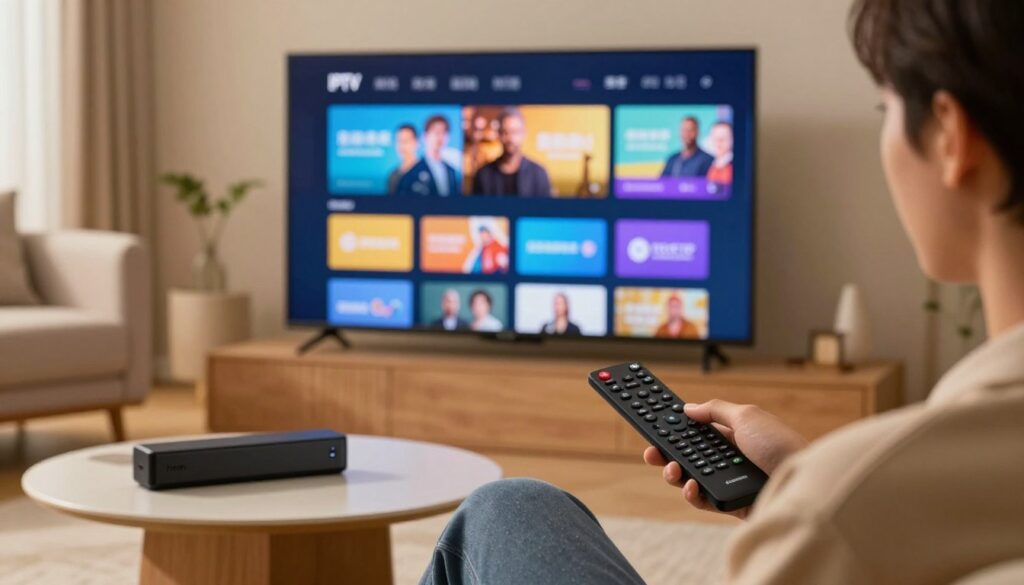
Curious whether a simple app refresh can fix buffering, restore EPG links, or unlock 4K playback for your streaming setup?
You don’t need to be a tech pro to keep players like IPTV Smarters or Smart IPTV running smoothly. Updating here means refreshing the player app—not switching your subscription—so your channel list and login stay the same.
Regular updates bring better stability, security, and compatibility with Fire OS, Android, iOS, and Smart TV firmware. Before any major change, back up M3U and Xtream credentials so you won’t lose playlists or EPG links.
For most users the fastest path is simple: check your app store update page, install the new version, then restart the device for a clean load. If you want extra tips for an Amazon Firestick, see our guide on how to optimize your Firestick 4K Max.
We’ll also show a quick checklist for internet, storage, app version, and provider status before deeper fixes. Consider a legal service like GetMaxTV when evaluating reliable providers that pair well with updated players.
Key Takeaways
- Updating means refreshing the player app, not changing your subscription.
- Back up M3U and Xtream credentials before major installs.
- Most issues clear after installing the update then restarting the device.
- Updates improve stability, security, and add features like better EPG parsing.
- Check internet, free storage, and provider status before troubleshooting.
- Choose a legal IPTV subscription for reliable streams and support.
Why updating your IPTV app matters for smooth streaming
Small updates can deliver big improvements in stability, privacy, and compatibility with new firmware.
Stability fixes translate into fewer crashes, fewer “playback error” popups, and less stuttering during busy viewing times. Newer versions often improve buffering logic and adaptive playback so streams recover faster after brief Wi‑Fi drops.
Security patches quietly fix bugs that might expose logins and improve how the player handles tokens and connections. You don’t need alarmist language—just a reminder that official updates reduce risks and keep account data safer.
Compatibility updates keep EPG parsing, codecs, and multi-device sync working when device firmware changes. EPG formats shift often; an updated guide parser prevents missing schedules or wrong program times.
- Updated versions mean better support for provider authentication methods and fewer sudden channel losses.
- Using a VPN thoughtfully can add privacy and steady performance on shared networks where allowed.
Before you update: quick prep to avoid losing channels and settings
https://www.youtube.com/watch?v=kQlYlKP1uHI
Spend a few minutes on a backup checklist and you’ll avoid the “I lost everything” panic later.
Back up playlists, EPG links, and Xtream Codes credentials
Export or copy your M3U playlist URLs and EPG links into a secure note. Locate Xtream Codes user, password, and server details in your provider welcome email or dashboard. Store these in a password manager so you can restore access fast.
Quick pre-update checklist
- Save M3U and EPG links in a secure note or password vault.
- Export app settings when the player supports an export option.
- Take screenshots of buffer, audio, and subtitle settings for a fast restore.
- Delete unused apps and clear caches to free device storage.
- Run a brief speed test or stream a known stable channel to confirm internet quality.
| Task | Why it matters | Where to find it | Done |
|---|---|---|---|
| Save playlists | Prevents losing channel lists | Provider email or dashboard | Yes / No |
| Store Xtream Codes | Keeps login and streaming access | Provider welcome message | Yes / No |
| Free device space | Avoids install failures | Device settings > Storage | Yes / No |
| Internet check | Distinguishes app issues from connection issues | Speed test site or known stream | Yes / No |
When you face major UI redesigns, moving from a sideloaded APK to a store version, or skipping many releases, a full backup is essential. If you want a reliable provider option while preparing, consider a vetted choice like GetMaxTV.
How to update IPTV apps on Firestick and Smart TV in UK
Keeping your player current makes streams more reliable and keeps new features working with your device.
Turn on automatic updates on Amazon Fire TV
From Settings, go to Applications, then Appstore settings and switch Automatic Updates ON. Menu labels can vary by Fire OS version, but the path is similar.
Automatic updates let the app store install newer versions without you opening the home screen each time. This reduces manual checks and helps ensure the latest security fixes arrive.
Manually update via the Fire TV Apps section
On the home screen open Your Apps & Channels (or App Library). Highlight the player and look for an Update button.
If the update option is missing, free up space in Settings > Storage and try again. Limited storage is a common reason installs fail.
Sideloaded APKs that won’t update through the store
If you installed iptv smarters or smart iptv via Downloader or Unknown Sources, the app store won’t handle updates. In that case:
- Download the latest installer from the official publisher or verified vendor site only.
- Install over the existing app; this often preserves settings and playlists.
- If problems persist, uninstall and reinstall, then re-enter saved M3U, EPG, or Xtream credentials.
Restart steps that help a new version load cleanly
Force close the player from Applications, then restart the Fire TV from Settings. If needed, power-cycle the device by unplugging for ~30 seconds.
Open the app after the reboot. First-run migrations or permission prompts often finish only after a clean restart.
Optional: Consider a vpn for privacy and steadier performance on shared networks, used thoughtfully rather than as a requirement.
| Action | Why it helps | Where |
|---|---|---|
| Enable Automatic Updates | Installs new versions without manual checks | Settings → Applications → Appstore |
| Manual Update | Control over timing and install confirmation | Your Apps & Channels / App Library |
| Sideload from official site | Keeps app safe and compatible | Publisher download page |
| Restart device | Completes migrations and clears cache | Settings or power-cycle |
For an easy guide on extra Firestick optimizations, see this short walkthrough to transform your Amazon Firestick.
Updating IPTV apps on Smart TVs with built-in app stores
If your television runs Tizen or webOS, the built-in store often gives the smoothest path for updating a player and keeping channels working.
Samsung TVs: using Smart Hub
Open Smart Hub → Apps. Locate your player, for example smart iptv or iptv smarters, and choose Update when prompted.
You can also update all apps from Apps settings. If an update fails, check firmware and free storage.
LG TVs: using LG Content Store
Open LG Content Store → Apps, find the installed player, then apply any available update. Confirm the TV firmware is current if installs stall.
When the player isn’t available natively
Some sets lack the exact player you want, or the version is old. In that case, adding a streaming device is a normal, long-term option.
- Choose a device with good app support, regular updates, more storage, and easy troubleshooting.
- Post-update checks: open the guide/EPG, test live channels, and confirm audio and subtitle tracks.
- Enable auto-update where possible so fixes arrive quietly and reduce breakage after firmware changes.
Updating IPTV apps on Android TV, Android boxes, and Google TV
Keeping your Android TV or Google TV player current often solves playback quirks quickly.
Via Google Play Store: open the Google Play Store, tap your profile icon, choose Manage apps & games, then look under Updates available and install the newest version of your player.
Enable auto-update per app by opening the app page in the play store, tapping the three-dot menu, and selecting Enable auto-update. For a global setting, open Play Store settings and switch on auto-updates.
If an Android box lacks Google Play services, use the vendor’s store or download the official installer from the app publisher. Only install from trusted sources for safety and support.
System updates matter: go to Settings → Device Preferences → About → System update (names vary by brand like Sony, Nvidia Shield, Chromecast with Google TV). OS updates fix HDMI audio, codec, and DRM issues that affect streaming.
Tip: install the OS update first, then update the player app, then restart the device. If a version still misbehaves, test an alternative player such as TiviMate or iptv smarters to narrow the fault.
Updating IPTV apps on iPhone and iPad

Keep your iPhone and iPad players current so playback stays smooth and simple.
Quick update flow: open the App Store, tap your profile icon, find the iptv app listed under Available Updates, then tap Update. This gets the latest fixes without fuss.
Turn on automatic installs: open Settings → App Store → App Updates and enable the switch. Your player will get new releases quietly while you use other tasks.
Before any install, save playlists, Xtream Codes, and provider logins outside the app. iOS may offload or remove an app during maintenance, which can clear local settings.
Check device storage if an install fails. Delete unused apps or offload large files, then try again.
After updating, open one live channel and confirm audio and AirPlay behavior. If a specific player is removed from the store, pick a compliant player and re-add your saved playlist.
| Step | Why it matters | Quick tip |
|---|---|---|
| App Store → Profile → Available Updates | Installs official fixes | Tap Update for the player |
| Settings → App Store → App Updates | Automatic installs | Enable the switch |
| Save playlists & Xtream Codes | Prevents lost logins | Use a password manager |
IPTV Smarters user guide is a handy reference if you use that player and want clear, device-specific steps.
Updating IPTV players on Windows and macOS
Desktop maintenance is simple when you know where to look.
Desktop players follow two main patterns: some check for new versions inside the program, while others ask you to run a fresh installer from the vendor site.
For example, open VLC and choose Help → Check for Updates. That in-app path can refresh codecs and playback libraries and often fixes black screens or missing audio.
IPTV Smarters may show an in-app prompt or provide installers on its official download page. Always close the player before running an installer so files replace cleanly.
“Download installers only from verified vendor pages to avoid bundled extras and keep your system clean.”
Before you change a version: export playlist files or copy saved URLs. A quick backup helps you revert if a release adds an issue.
- Some programs auto-patch; others need a manual installer.
- Use vendor pages or verified stores for downloads.
- Close the player before installing and keep a playlist backup.
Post-update sanity checks: test one live stream, play a VOD item, open the guide/EPG, and confirm subtitle rendering. If anything fails, roll back using your saved playlist or contact vendor support.
| Task | Why it matters | Where |
|---|---|---|
| Check in-app updater | Quick, safe installs | Help → Check for Updates (e.g., VLC) |
| Download installer | Full replacement of files and codecs | Official vendor site or verified store |
| Backup playlists | Allows fast rollback | Export file or copy URLs |
For a curated list of popular players and extra guidance, see the popular players list. If you need an official IPTV Smarters installer or tips, check the IPTV Smarters download page.
Troubleshooting common IPTV update problems
When a release doesn’t appear in your device store, start with simple checks that fix most visibility issues.
Update not showing in the app store
Start here: restart the device, free some storage, clear the app store cache, then try again. Phased rollouts and regional timing often cause delays. Wait a few hours before assuming a wider problem.
Update fails or the app won’t open after updating
If the player crashes, force stop, clear its cache, then reboot. If the issue persists, uninstall and reinstall from the official store or vendor page.
Channels stutter, black screens, or missing audio after installing
Test the same channel on another device to rule out provider problems. Switch decoder modes if your player offers that option, and verify device firmware is current. Using a vpn can reveal routing issues; it is a diagnostic tool, not a guaranteed fix.
EPG or channel list not loading after a new version installs
Confirm your EPG URL and refresh playlists or Xtream Codes credentials inside the app. Smart IPTV users should re-upload the playlist and check the correct device MAC if activation is used.
When to contact support: if multiple devices fail after a release, collect the error text, app version, device model, and steps tried, then contact your provider or the app developer for help.
After updating: quick checks to confirm everything still works
Spend five minutes running a fast check so you can enjoy shows without surprises.
Verify playlists, live channels, VOD, and EPG
Open the player and make sure your playlist count matches what you expect. Load the guide and confirm the EPG populates.
- Open the app, confirm playlist count and recent channels appear.
- Load one live channel and one VOD item for playback checks.
- Make sure the program guide loads and times match local listings.
Confirm provider login, sync, and playback settings
Re-enter provider credentials only from a trusted record. Do not type passwords from memory.
Check multi-device sync if your player supports it. Confirm favorites, parental controls, and last-watched positions match other devices.
Quickly review decoder options, buffer size, subtitle defaults, and aspect ratio after a version change. A final restart often finishes migrations on low‑RAM devices.
Need extra guidance? See a short smart IPTV guide or explore vetted iptv provider options if you suspect service issues.
Best practices to keep IPTV apps secure and up to date
A few simple routines will protect your player, preserve playlists, and cut down troubleshooting time.
Use official app stores and verified publishers
Choose signed builds from the Amazon Appstore, Google Play, or Apple App Store whenever possible. These stores give predictable update paths and reduce compatibility surprises across devices.
Enable automatic updates and routine maintenance
Turn on auto-install where available, then do a quick manual check monthly. Restart devices weekly, keep several GB of free storage, and apply system firmware updates when prompted.
Use a VPN thoughtfully
A reputable vpn can add privacy on public Wi‑Fi and sometimes improve routing. Pick a trusted provider, follow local rules, and avoid relying on a vpn as a guaranteed fix for service problems.
Keep credentials secure
Store playlists and login details in a password manager. Avoid sending URLs by casual message, limit account sharing, and rotate passwords if you suspect exposure.
| Practice | Why it matters | Quick tip |
|---|---|---|
| Official store installs | Signed updates and predictable support | Use Amazon Appstore, Google Play, or App Store |
| Auto-updates + monthly checks | Keeps features and fixes current | Enable auto-install; verify monthly |
| Routine device care | Fewer crashes and smoother playback | Restart weekly; keep 2–5 GB free |
| Credential hygiene | Protects access and limits account leaks | Use a password manager; avoid sharing |
Choose legal iptv services and keep apps current for the most reliable viewing experience. If you want a legitimate provider option that pairs well with updated players, review GetMaxTV: getmaxtv.com.
Conclusion
Keep your player current so streams stay smooth and guides show the right listings.
Make a simple routine: back up playlists and Xtream credentials, install official releases from your device store, then restart the device so changes finish cleanly.
After that, verify a live channel, the program guide, and a movie or VOD item for playback and EPG accuracy. If something fails, check free storage, network status, and your provider before reinstalling or switching to a well-known player like IPTV Smarters.
If you want a legal subscription option, check GetMaxTV’s offer at GetMaxTV, or see a brief Samsung guide at how to install IPTV Smarters Pro.
Final note: regular care protects your channels, movies, and other content so you can enjoy stress-free streaming.
FAQ
What steps should you take before upgrading a streaming player to avoid losing playlists and EPG?
Back up your M3U playlists, EPG links, and Xtream Codes login details to a cloud note or external drive. Export settings from apps like IPTV Smarters or VLC when possible. Also note any custom channel groups and parental controls so you can restore them after the new version installs.
Why do stability fixes matter for smooth playback and fewer crashes?
Stability patches address buffering, playback errors, and random app crashes. When an app receives these fixes, you get fewer interruptions during live channels and on-demand streams. That improves your overall viewing experience and reduces the need to restart devices mid-show.
How do security patches protect your viewing privacy and account data?
Security updates close vulnerabilities that attackers might exploit to access credentials or inject malicious code. They also help secure any built-in login methods and payment flows. Keeping apps current lowers the risk of account theft and protects your personal information.
What compatibility changes should you expect in a new player version?
Updates often add support for new codecs, improved EPG parsing, and compatibility with the latest device firmware. That keeps live channels and VOD working after device OS upgrades and prevents playback issues caused by deprecated libraries.
How can you enable automatic app upgrades on Amazon Fire TV for peace of mind?
From the Fire TV home screen go to Settings > Applications > Appstore and turn on Automatic Updates. That lets apps installed from Amazon update without manual intervention, so you’ll receive stability and security fixes as they’re released.
What’s the manual method to install a new version from the Fire TV Apps section?
Open Apps from the Fire TV home, find the player, and select it. If an update exists you’ll see an Update button instead of Open. Choose Update and wait for installation. If the app was sideloaded, you may need to uninstall and reinstall the newer APK.
If you sideloaded an APK and the app won’t refresh, what should you do?
Download the official APK from the provider or a trusted mirror, sideload it again using Downloader or ADB, and grant required permissions. If updating fails, uninstall the old package first (after backing up settings) and then install the new APK to avoid signature conflicts.
What restart steps help a new release take effect properly?
After installation, force-stop the app from Settings > Applications, clear cache if recommended, then restart the Fire TV or TV box. A full reboot of the device ensures new background services and codec libraries load cleanly.
How do you update native players on Samsung Smart Hub?
On Samsung TVs open Apps, select the profile icon, then Installed Apps. Find the player and choose Update if present. You can also enable Auto Update in the Apps settings so future releases install automatically.
What about updating via the LG Content Store?
Open LG Content Store, go to My Apps, and check available updates. Select Update for the player. Enabling automatic updates in the TV settings keeps store apps current without manual checks.
If a player isn’t in your TV’s native store, what are your options?
Use an external streaming device like Amazon Fire TV, Nvidia Shield, or a Chromecast with Google TV. Those offer wider app compatibility and easier sideloading. For older TVs, an Android TV box provides access to the Play Store and frequent updates.
How do you upgrade players via Google Play Store on Android TV and Google TV?
Open Play Store, go to My Apps, find the player, and tap Update. To enable auto-updates, open the app page and toggle Auto-update or enable system-wide auto-updates in Play Store settings so future releases install automatically.
Why check Android TV system updates as part of troubleshooting?
System updates include media framework and codec improvements. If the OS is outdated, newer app versions may misbehave. Installing the latest firmware helps maintain compatibility and prevents playback errors.
How do you update players on iPhone and iPad using the Apple App Store?
Open the App Store, tap your profile, scroll to Available Updates, and tap Update next to the player. For automatic installs, enable App Updates in Settings > App Store so new releases arrive without manual steps.
What’s the recommended approach for updating desktop players on Windows and macOS?
Use the app’s built-in update checker in players like VLC or IPTV Smarters, or download installers only from the vendor’s official website. Avoid third-party download sites to reduce malware risk.
Why might an update not appear in the app store?
The provider may have staged the release regionally, your device might be incompatible with the new version, or the store cache needs refreshing. Check the developer’s release notes, clear the store app cache, or wait a few hours for the rollout.
What if the new release fails or the player won’t open after installing?
Clear the app cache, reboot the device, and if the problem persists, roll back by reinstalling a previous stable version from the official source. Contact your service provider or the app publisher for additional support.
How do you fix stuttering, black screens, or audio dropouts after a release?
Test another channel or VOD to rule out source issues, reduce stream quality if your bandwidth is limited, and ensure hardware acceleration settings match your device. If problems persist, report logs to the developer and revert to the earlier version if available.
What to do when EPG or channel lists won’t load after a new version?
Re-enter your M3U, EPG links, or Xtream Codes credentials, then refresh playlists. If the format changed, check provider support pages for updated import instructions. Clearing app data and re-adding sources often restores listings.
After installing an upgrade, what quick checks confirm your setup still works?
Verify live channels, VOD catalogs, and EPG load correctly. Test provider logins, multi-device sync, and playback settings like audio tracks and subtitles. Confirm scheduled recordings or favorites remain intact.
What are best practices for keeping players secure and current?
Stick to official stores and verified publishers when possible. Enable automatic updates, perform routine cache clearing, and use a reputable VPN for privacy. Store credentials in a password manager and limit sharing of account details.
Should you use a VPN with streaming services, and what benefits does it bring?
A VPN can protect your connection and hide traffic from local networks, helping privacy. Choose a fast, reputable provider to avoid added latency. Note that some services restrict VPN use, so check terms and adjust settings accordingly.
The GetMaxTV Team is a group of cord-cutting experts and streaming technology specialists who have been testing and reviewing IPTV services since 2022. Based in North America, our team personally tests every service we recommend across 15+ devices including Fire TV Stick, Roku, Apple TV, Samsung Smart TVs, and gaming consoles. We verify channel counts, measure buffering rates, test picture quality in HD and 4K, and evaluate customer support response times. Our mission is to help viewers save money by switching from expensive cable subscriptions ($147/month average) to affordable, high-quality IPTV alternatives. Every article on GetMaxTV.com is based on hands-on testing and real-world experience — not recycled marketing claims.