
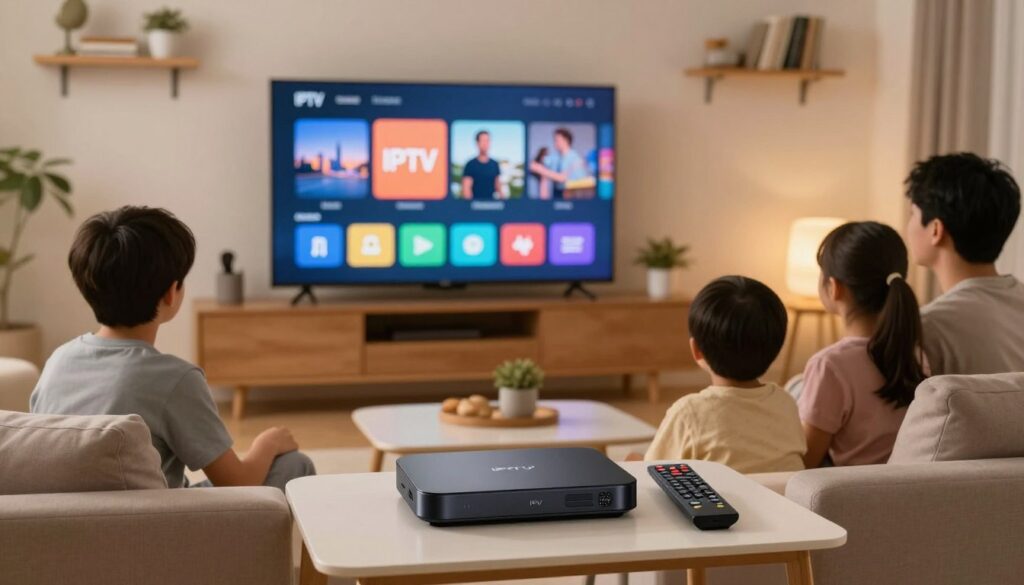
Curious whether you can move services and keep the exact viewing flow you know and trust? You can — with a little planning and a simple overlap plan that prevents downtime. Start by defining your goal: preserve devices, apps, favorites, and guide behavior while moving services.
Common reasons users change service include buffering, missing channels, and price changes. The smooth result looks like minimal downtime, the same channels you watch, and steady evening streaming quality. Audit your current setup, back up playlists or settings, then add the new service without removing the old one.
Test the new provider across devices — Smart TV, Fire Stick, Android box, phone or tablet — before you cancel the old subscription. Choosing legal, authorized services is a good stability move. For a quick reference, see an organized guide at this walkthrough and consider examples like GetMaxTV as authorized options that focus on uptime and support.
Key Takeaways
- Plan an overlap so you never lose access during the move.
- Back up playlists and settings before adding the new service.
- Test across your devices before canceling the old subscription.
- Pick licensed services for better reliability and support.
- Focus on preserving workflows, not copying every internal setting.
What “not losing your setup” really means when you switch IPTV
Think of your viewing setup as three linked layers that define what you watch and how it behaves.
Your channels, favorites, and EPG in plain terms
Your content layer covers channels and VOD. These are the streams you pick from each provider.
The organization layer is where favorites, groups, and the program guide live. Note: many favorites are stored inside the app, not at the provider. That means you may need to recreate or import them when you add a new playlist.
Your apps, devices, and logins you rely on every day
Your playback layer includes player choices, buffering settings, and quality targets like HD and 4K.
Playlist URLs and login credentials usually move easily. App-specific favorites and groups often do not, unless the app supports an export or cloud backup. Keeping the same app and adding a second playlist first is the least risky path.
Your streaming quality targets like HD and 4K
Remember that HD and 4K depend on more than the service. Internet speed, Wi‑Fi strength, and device decoding make a real difference in your viewing experience.
- Quick checklist: inventory devices, save playlist URLs, export any app backups if available.
- Tip: Test a new service inside the app you already use before removing the old one.
| Layer | What it holds | Typical transfer ease |
|---|---|---|
| Content | Channels, VOD, stream URLs | Easy — playlist URLs and logins move well |
| Organization | Favorites, groups, EPG | Mixed — EPG may change; favorites often need re-import |
| Playback | Quality settings, player choice, buffering tweaks | Manual — adjust settings per device for best results |
Later you’ll build a simple inventory and a backup so the change feels reversible. For a troubleshooting checklist that covers buffering, guide accuracy, and quality targets, see the troubleshooting checklist.
Common reasons Canadians switch IPTV providers
Most people change services for simple, practical reasons. You want steady streaming when it matters — evenings, live sports, or news. Repeated buffering or sudden downtime is the top “push” factor that makes users start looking at other options.
Buffering, downtime, and inconsistent service quality
Freezes and lag often appear exactly when demand is highest. That can mean overloaded servers, poor routing, or slow support, not just a weak home connection.
Better channel selection and content variety
You might move because a different lineup offers regional Canadian channels, international feeds, or a stronger VOD library that matches your tastes.
Pricing changes and looking for better value
Renewal hikes, shrinking features, or extra fees for multiple streams are valid reasons to look at other services.
“Pick the top 10 channels you actually watch and the 2–3 categories you use most. That keeps choices practical and focused.”
Quick checklist: test during peak hours, list must-have channels, and prefer predictable support and clear policies.
| Reason | What it looks like | What to check |
|---|---|---|
| Buffering | Freezes during evenings or live events | Test peak-hour streams and server response |
| Channel gaps | Missing regional or specialty channels | Scan lineups and VOD catalogs |
| Pricing | Rising renewals or limited streams | Compare subscription value and device limits |
Next: a short overlap plan will help you move without trading one problem for another. For local hardware options, see local IPTV box options.
Quick pre-switch checklist to avoid downtime
Before you make any account changes, run a quick checklist so streaming never skips a beat.
Confirm billing and renewal info
Log into your current account or the app and note the subscription end date. Check whether auto-renew is on or off so you don’t pay an extra month during overlap.
Review cancellation rules
Read the provider terms for notice periods and refund policies. Some services don’t prorate, which affects how long you should overlap subscriptions.
Plan a short overlap and test access
Best practice: keep both services active for a few days. Add the new playlist or app, then test during peak evening hours.
- Complete this checklist in 10–15 minutes before touching app settings.
- Have your router/modem login handy for quick reboots if connection issues appear.
- Confirm your internet connection is stable enough for streaming while you test.
Next step: you’ll audit devices, apps, and connection methods so you can recreate your setup quickly. For advanced settings that help stability, see advanced settings and tips.
Audit your current IPTV setup before you touch anything
Start by making a clear inventory of every screen and gadget you use for streaming at home.
Create a simple “IPTV inventory” note on your phone or a spreadsheet. This prevents guessing during the change and speeds any rollback if needed.
List every device you watch on
Record brand and model for Smart TVs, Fire TV / Firestick, Android TV boxes, Apple TV, phones, tablets, and any spare televisions.
Write down apps and versions
Note each app name and its version. Some apps add export or restore features only in specific releases, so versions matter for migrating favorites and groups.
Note your login method and connection type
Write the exact method you use: M3U URL, Xtream Codes credentials (server, username, password), or portal/MAC. This detail speeds re-entry and testing.
Document organization, playback, and multi‑device rules
List favorites, custom groups, parental controls, and buffering or player tweaks you made. Also note how many simultaneous streams you use so you can compare with a new provider later.
| Item | Why record it | Sample entry |
|---|---|---|
| Device list | Limits and compatibility checks | LG OLED55 (living room), Firestick 4K (bedroom) |
| App & version | Export/restore options, bug differences | TiviMate v5.2.1, IPTV Smarters v2.0 |
| Login method | Fast re-entry for testing | M3U URL + Xtream server creds |
| Organization notes | Recreate favorites and parental rules | Kids list, Sports group, EPG: EST |
Why this matters: a clear audit makes the change low‑risk. If the new service fails expectations, your records let you restore the old one fast and with minimal disruption. Keep the note handy for support chats and comparisons.
Back up your playlists and settings the right way
A quick backup of playlists and app preferences will save hours of reconfiguration later. Take a few clear steps now so the move is reversible and the main parts of your viewing flow remain intact.
Exporting or saving your M3U playlist and URL
Save the M3U file or copy the playlist URL. Treat the URL like a password: store it in a password manager or a secure note. Label each entry with date and provider name so you avoid restoring an old file by mistake.
Saving Xtream Codes details safely
Record server, username, and password in the same secure place. Avoid sharing screenshots that show credentials. If someone asks for details, use a support channel that verifies identity.
Backing up app data (example: TiviMate)
TiviMate supports Settings > General > Backup/Restore. Export the backup to local storage, USB, or a network share, then label it with date and device name.
Manual options when export isn’t available
Take screenshots of favorites, write a short list of must-have channels, and note EPG or guide URLs if given separately. Keep these notes with your dated backups so the guide works on day one.
| Backup type | What it saves | Best place |
|---|---|---|
| Playlist | M3U URL / file | Password manager |
| App settings | Favorites, layout | USB / network share |
| Manual | Screenshots, lists | Secure note with date |
Result: you’ll pick a new option with confidence because the parts you can protect are already saved and easy to restore. If you need help, support will ask for specific files and labels — you’ll be ready.
Make sure your internet connection can support the new IPTV service
A strong home connection matters as much as the chosen streaming plan when aiming for consistent playback.
Speed guidelines: plan for about 10 Mbps per stream for HD and roughly 25 Mbps for 4K. Add headroom if multiple devices stream at once so quality stays steady.
Wired Ethernet vs. Wi‑Fi
Wired Ethernet usually wins for stability. It cuts interference and keeps live sports and high‑bitrate streams smoother.
Wi‑Fi works fine for casual viewing, but signal drops or congestion can cause buffering and other problems.
Device testing matters
Run tests on the exact device you use: Smart TV, streaming stick, or phone. Reception and decoding differ by device and affect the streaming experience.
Peak‑hour reality and quick wins
Even with solid speed test results, evenings and major events can stress routes and servers and cause buffering.
Quick fixes: reboot the router, move the device closer to the router, or use an Ethernet adapter for sticks. Once your home network is solid, you can judge any service fairly.
How to choose an IPTV provider in Canada that fits your viewing habits
Pick a service that matches what you actually watch each week, not the biggest channel list. Write down the channels and categories you use most. Include local and regional stations you rely on for news and sports.
Channel lineup checks: must-have channels and regional availability
Create a short “must-have” list: top 8–10 channels and two VOD categories you use often. Check that the provider carries those exact feeds and regional variants.
Tip: confirm EPG labeling and time zone settings for Canadian regions so guide entries match program times.
Uptime, reliability, and what reviews can (and can’t) tell you
Uptime means consistent access during evenings and live events. A provider that works well at peak times matters more than occasional perfect streams.
Reviews reveal patterns: billing problems, slow support, or repeated downtime. They do not guarantee performance on your specific internet route or device.
“Look for repeat complaints about uptime or support — a single bad review is rarely decisive.”
Free trials and money-back windows to test service quality
Use a 24–48 hour trial or a short money-back window to test your most-used channels, live sports, and multi-device limits.
Test during peak hours and on the exact devices you watch daily. Confirm simultaneous stream rules before you buy a longer subscription.
- Pick by habits, not headline counts.
- List must-have channels, including regional needs.
- Read reviews for patterns, not promises.
- Use a trial to test uptime and your internet path.
- Verify device limits and support options before subscribing.
For a practical guide on choosing a reliable option, see this short walkthrough: choose a reliable provider. Trustworthy choices also mean authorized services, clear payment policies, and responsive customer support.
| Check | Why it matters | What to confirm |
|---|---|---|
| Channel fit | Ensures daily viewing needs | Exact channels, regional feeds, VOD categories |
| Uptime | Stable access during peak use | Reports of evening performance, lag during live events |
| Trials | Real testing on your devices | Trial length, refund terms, simultaneous streams |
Legal and trustworthy IPTV in Canada: what to look for
Choosing a lawful streaming option gives you clearer rules and fewer sudden interruptions.
Licensed and authorized services mean the distributor has rights to the content and clearer policies for customers. This often translates to better uptime, predictable lineups, and fewer surprise shutdowns.
Why licensed services matter for long-term stability
Authorized distribution supports consistent channel feeds and long-term contracts with rights holders. That stability helps keep guide data accurate and high-quality streams available for users.
Payment security, clear policies, and responsive support
Look for secure checkout, transparent pricing, and a simple cancellation or refund policy. Test support with a short pre-sales question and note response time.
- Trust checklist: transparent pricing, clear refund rules, secure payments, and a reachable support channel.
- Confirm subscription terms, simultaneous stream limits, and regional channel notes.
- Read policy pages the same way you would for any long-term online subscription.
“Clarity and consistent support matter far more than grand claims about every channel.”
When you’ve found a provider you can trust, move on to hands-on steps for adding the new option and testing it alongside your current service.
How to switch IPTV providers in Canada without losing your setup

Start the move with a short overlap. Subscribe to the new service first and keep the old subscription active for a few days. That prevents downtime while you configure and test.
Choose your setup path
You have two clear options. Keep the current app and add a second playlist, or install the provider’s dedicated app if required. Keeping the same app is the least risky choice.
Enter credentials carefully and label everything
Use exact server URLs, Xtream login fields, M3U links, or portal/MAC entries. One typo breaks access, so copy/paste when possible. Label playlists like “Old Provider” and “New Provider” so you don’t test the wrong feed.
Configure EPG and verify time zone
Add the new guide source, refresh the EPG, and confirm the device time zone is set to your Canadian region. Accurate guide data keeps program times and recordings correct.
Final sanity checks before canceling
Open 5–10 channels you watch most. Check audio/video sync, channel availability, and peak-hour performance. Don’t remove the old playlist until you confirm channel lineups, uptime, and the support response during any issues.
“Overlap first, test thoroughly, then cancel — that sequence saves time and preserves your evening viewing.”
Set up your new IPTV service on the devices you already use
Start on the TV you use most, confirm channels and guide accuracy, then roll the rest out.
What usually stays the same: your home network, player preferences, and remote habits. These keep the viewing flow familiar across smart tvs and streaming devices.
What usually changes: credentials, playlist entries, and the EPG source. Copy server details carefully and label each new playlist so you can swap back if needed.
Smart TVs and streaming sticks: practical notes
Install the app from the TV store or sideload the provider’s apk on Android sticks when needed. Navigation differs: use the TV remote for menus, and a stick may feel faster for updates.
Ethernet helps. For the main TV, a wired connection reduces buffering during live events and keeps high bitrate content steady.
Mobile and tablet setup for Android and iOS viewing
Android often gives more installation flexibility and file imports. iOS may require an app from the App Store and sign-in with exact credentials.
Keep login details secure in a password manager. If the app supports cloud sync or backup, enable it so favorites carry across devices.
Multi-device limits and rollout order
Confirm simultaneous stream limits before full rollout. One device working while another is blocked is an easy frustration for users.
- Set up a primary device and verify channels, EPG, and playback.
- Use the same labeled playlist for secondary devices.
- If issues arise, consult the provider’s device-specific support docs or the quick tutorial at this guide.
Tip: Validate peak-hour access on the primary screen before you remove the old subscription.
| Device type | Typical change | Quick win |
|---|---|---|
| Smart TVs | Install official app, set EPG | Use Ethernet for main TV |
| Streaming sticks | May need APK or store app | Prefer USB power and wired adapter |
| Phones & tablets | App login, possible in-app sync | Enable cloud backup for favorites |
Test the new provider before you cancel the old one
Before canceling anything, run a short live test that mirrors your normal viewing routine. Use the trial window as your safety net so you can confirm access and performance under real conditions.
Check favorite channels and top categories
Start by opening the handful of channels you watch most. Verify picture, audio, and guide labels for each one.
Next, sample the categories you use: sports, news, movies, or kids content. That shows whether the content lineup fits your week.
Test during peak times like evenings and live sports
Peak-hour testing reveals uptime issues and server strain. Run tests during evening shows or a live game to spot buffering and slow channel loads.
Try the same checks on more than one device and confirm simultaneous streams work as promised.
Verify VOD availability and basic quality checks
Search a few on-demand titles, start playback, and scrub forward and back. Confirm listed items actually play and match expected quality.
Note any problems with HD or 4K playback, audio sync, or long load times. Record channel names and timestamps if you need support.
“Use the trial to stress your real viewing habits. If issues show up, you can ask support with exact examples.”
| Check | What to do | Why it matters |
|---|---|---|
| Favorite channels | Open 8–10 main channels | Confirms lineup and guide accuracy |
| Peak‑hour test | Stream during evening or live event | Reveals uptime and buffering |
| VOD | Play, scrub, confirm titles | Ensures content listed actually streams |
| Multi‑device | Test simultaneous streams | Validates subscription limits |
Verify channel availability and rebuild your favorites list
Tackle availability by group: sports, news, movies, kids — one category at a time. This keeps the work focused and helps you spot gaps fast instead of flipping randomly through menus.
Spot-checking by category so you don’t miss gaps
Pick the categories you use most and test 3–5 channels in each. Include at least one live-event channel for sports or news during peak hours.
Tip: note any missing feeds or hidden groups; some channels live inside subfolders or require a playlist refresh.
Recreating favorites and custom groups for faster access
Rebuild favorite channels and groups with speed in mind. Name groups by routine — “Evening News,” “Kids,” or “Prime Sports” — so navigation feels familiar quickly.
Use app backup features when available, or take a few screenshots for manual re-creation.
EPG accuracy checks and how to refresh guide data
Open the guide and confirm listings match what’s playing. If times look off, check device time zone and refresh the guide source or EPG URL in settings.
Final check before canceling: must-have channels present, favorites rebuilt, guide loaded, and stable playback on your primary device.
| Action | What to test | Why it matters |
|---|---|---|
| Category spot-check | 3–5 channels per category | Find gaps quickly |
| Favorites rebuild | Create 3–5 named groups | Faster navigation |
| EPG refresh | Verify times and listings | Correct guide and recordings |
For a quick reference on reliable options and plans, see a short list of best Canadian subscriptions that match common viewing needs.
Quick reminder: channel numbering often changes between services, so rebuild for speed rather than exact placement.
How to fix common issues after switching IPTV providers
When streams stutter or channels vanish, a few simple steps often restore normal viewing. Start with quick checks that take under five minutes and save frustration.
Buffering and freezing: the fastest fixes to try first
First step: pause and resume, switch channel, then restart the app. This refreshes the stream without touching settings.
Next, check your internet speed and try Ethernet if available. Moving the device closer to the router can rule out Wi‑Fi interference.
Login and authorization errors: what to re-check
Verify exact username, password, and server URL. Confirm the subscription is active. If the app is stuck, clear its cache or update the iptv app and try again.
Missing channels: hidden groups, playlist refresh, and provider-side limits
Look for hidden groups, refresh the playlist and EPG, and remember some providers restrict certain channels by plan or region.
When a reboot helps: modem, router, and device restart order
- Power off modem, wait 30 seconds, power it on.
- Restart router after modem is online.
- Finally reboot the streaming device or TV.
Note: if problems happen only during peak hours, the issue may be provider capacity rather than your home setup. Keep channel names, timestamps, and error messages handy when you contact support — it speeds resolution.
When to contact support and what to send to get help faster
When issues keep repeating across devices, it’s time to reach out for help. Good teams respond faster when you give clear, compact information. That saves time and avoids frustrating back-and-forth messages.
When you should contact support
Contact support for repeated outages, persistent buffering across screens, account authorization failures, or many missing channels at once.
If a single channel glitches briefly, wait and test. If problems persist, open a ticket with details.
Details that speed up resolution
Send one clear message with everything below. A single well-formed request cuts reply time and helps technicians match logs.
| What to include | Example | Why it helps |
|---|---|---|
| Device model | LG OLED55 / Fire TV Stick 4K | Shows platform limits and decoding issues |
| App name & version | TiviMate v5.2.1 | Helps reproduce bugs in specific builds |
| Connection method | M3U URL / Xtream / portal | Identifies auth path and routing |
| Error text + channel | “403 auth failed” — CBC News | Pinpoints server-side or credential faults |
| Local time | 2025-12-25 20:15 EST | Allows log correlation with incidents |
How to evaluate responsiveness before committing long-term
Ask a short pre-sales question and time the reply. Note clarity, tone, and whether the agent explains device limits or setup steps.
Good signs: multiple contact channels, clear troubleshooting steps, and polite, helpful replies. Treat customer support quality as part of the product.
Tip: if support asks for a single combined report rather than many messages, send that report. It speeds problem resolution.
| Channel | Typical use | What to expect |
|---|---|---|
| Detailed reports and attachments | Slower but good for logs | |
| Live chat | Quick triage and immediate steps | Faster replies, shorter detail depth |
| Phone | Complex or urgent issues | Best for real-time troubleshooting |
After support resolves issues, you can tune settings for stability and picture quality. This step completes the move and helps you enjoy the new service and content with confidence.
When to contact support and what to send to get help faster
Repeated buffering, failed authorizations, or many missing channels are signs you should reach out for help. These problems often affect multiple devices or users and need provider intervention.
Details that speed up resolutions
Send one clear message with concise facts. That helps support find logs and give a faster answer.
- Device model and operating system.
- App name and version you use for streaming.
- Connection method (M3U / Xtream / portal) and whether you used Ethernet or Wi‑Fi.
- Error text and the exact channel name(s).
- Date and local time when the problem happened (use your Canadian time zone).
- Subscription or trial status if relevant.
How to evaluate support responsiveness before committing long-term
Ask a short pre‑sales question during a trial and time the reply. Good teams give step-by-step checks, not just scripted lines.
“Clear, timely support and strong uptime are part of service value — treat them like channel selection and quality.”
Pro tip: send one combined report rather than many small messages. That reduces back‑and‑forth and gets issues resolved faster. Once support helps, you can move on to simple optimizations for better day‑to‑day stability.
Optimize your streaming experience with the new IPTV provider
A few final tweaks make the new service feel familiar and smooth on every screen. Treat this step as polish: small changes that improve stability and picture quality for daily viewing.
Video quality settings: balancing resolution and stability
If buffering appears, lower resolution first. If your connection holds steady, raise quality for sharper content and better color.
Test one change at a time during peak hours so you know what helps.
Keep apps and device firmware updated for performance improvements
Keep your apps and device firmware current. Updates often fix playback bugs, improve codec support, and stabilize EPG handling.
Update the main TV or stick first, then roll updates to other devices.
Using a VPN for specific performance cases like throttling (and when not to)
VPNs can help if your ISP throttles streaming or routing causes poor paths. They can also slow speeds if the VPN server is distant or busy.
Test VPN on and off for the same channel and time window. That comparison shows real benefit or harm.
“Lower resolution when needed, keep software current, and test VPN effects — that final polish keeps viewing smooth.”
| Area | Quick action | Why it helps |
|---|---|---|
| Resolution | Lower if buffering, raise if stable | Balance clarity and smooth playback |
| Apps & firmware | Update regularly | Fixes bugs and improves decoding |
| VPN | Test on/off during peak hours | Detects throttling or routing issues |
| Settings to revisit | Buffer size, player choice, EPG refresh | Fine-tunes the viewing experience |
For a detailed guide on safe VPN use with streaming, see a practical walkthrough at a VPN and streaming guide.
Conclusion
Close the move with backups, a short overlap, and peak-hour tests so you confirm real-world performance before ending an old subscription.
Audit devices, save playlist files or credentials, then run the new service alongside the old one for a few days. Test favorite channels, guide timing, and playback quality during evening hours.
Pick licensed, legal services that match the channels and content you watch most. Clear policies and responsive support cut risk over time and help when access or streaming issues appear.
If you’re comparing options and want a straightforward, legal subscription, check GetMaxTV for plans and details at https://getmaxtv.com. If you want a legal IPTV subscription, check GetMaxTV’s offer on https://getmaxtv.com.
FAQ
What does “not losing your setup” really mean when you change providers?
It means keeping your device choices, saved channels, favorite lists, EPG settings, and playback preferences intact so your viewing experience stays familiar. You won’t transfer licensed content or account-specific purchases, but you can recreate playlists, import EPGs, and restore app settings to match what you had.
How do you preserve channels, favorites, and the program guide?
Export your M3U playlist or save the playlist URL and EPG XML/URL from the current service. If your app supports backups (like TiviMate), export the app data. Keep a manual list of favorite channels and custom groups so you can quickly rebuild them on the new subscription.
Which devices and apps should you document before making changes?
List every Smart TV, streaming stick (Roku, Fire TV, Chromecast), Android box, phone, and tablet you use. Note the IPTV apps and their versions—TiviMate, IPTV Smarters, Kodi add-ons, etc.—and any device-specific settings like DNS or custom portals.
What streaming quality targets should you check before switching?
Decide whether you need HD or 4K. Aim for about 10 Mbps minimum per HD stream and 25 Mbps per 4K stream. Verify the new service supports the resolutions and codecs your devices use to avoid playback or buffering problems.
Why do many people in Canada change IPTV services?
Common reasons include frequent buffering or downtime, a better channel lineup or local content availability, and price or package changes. Users also switch for improved customer support and faster uptime.
What should you confirm about your current subscription before switching?
Check your renewal date, cancellation terms, and any notice periods. Confirm whether there are penalties or pro-rated refunds. Planning a short overlap prevents gaps in access while you test the new service.
How should you back up playlists and app settings properly?
Export M3U playlists and save URLs in a secure note. Record Xtream Codes or portal/MAC details offline. Use app-export features where available and take screenshots of settings and favorite lists to speed reconstruction.
What if an app has no export option—how do you back up manually?
Copy playlist URLs, channel names, and group structures into a text file. Screenshot channel lists and EPG views. Note parental control PINs and playback preferences so you can reapply them on the new service.
How can you ensure your internet can handle the new service?
Run a speed test during peak hours. For stable viewing, prefer wired Ethernet over Wi‑Fi when possible. If multiple viewers use the network, add bandwidth for each concurrent HD or 4K stream you expect to run.
What should you look for when choosing a new provider that matches your habits?
Check channel lineups for regional and must-have channels, confirm simultaneous stream limits, and read uptime and support reviews. Trials or money-back windows let you test quality during peak viewing times before committing.
How do you pick a legal and reliable service in Canada?
Prefer licensed, authorized platforms with clear payment policies and customer support. Verify payment security, transparent terms of use, and service responsiveness to avoid instability and sudden shutdowns.
What are the step-by-step actions to start the new subscription without downtime?
Keep the old subscription active briefly. Sign up for the new account, add its playlist or portal to your current app or install the new app on devices. Enter credentials carefully and label playlists so you don’t mix sources.
How do you set up the new service on Smart TVs and streaming sticks?
Install the provider’s app or add the playlist to your existing IPTV app. For smart TVs, use the native app store; for sticks and boxes, sideload only trusted apps. Confirm playback settings and EPG time zone is set for Canada.
What should you test before cancelling the old provider?
Watch your top favorite channels and test live sports or high-bitrate content during evening peak times. Check VOD access if included, and verify that multi-device streaming limits match your household needs.
How do you rebuild favorites and custom channel groups quickly?
Use your exported playlist or screenshots as a reference. Recreate groups by category—news, sports, regional—then add favorites. Refresh the EPG after importing and confirm guide time alignment for accurate listings.
What fixes work fastest for buffering or freezing after switching?
Try wired connections, reduce stream resolution, clear app cache, and restart modem, router, then device. If problems persist, test during different hours and contact support with speed test results and timestamps.
What should you check when you get login or authorization errors?
Re-enter Xtream Codes or portal credentials carefully, verify device MAC addresses if used, and ensure your account is active. Check for app updates and confirm the provider hasn’t changed URLs or access methods.
Why might channels be missing after a move and how do you restore them?
Missing channels can be hidden in groups, removed by the provider, or require a refreshed playlist/EPG. Search by channel name, refresh your playlist, and contact support with channel names and timestamps if issues persist.
When should you contact support and what information speeds up help?
Contact support when problems persist after basic troubleshooting. Provide device model, app name and version, exact error messages, channel name or stream URL, and recent speed test results to get faster resolution.
How can you evaluate support responsiveness before committing long-term?
Use trial periods to test support response times. Send a test ticket about a known issue and note reply speed and solution quality. Good providers will offer clear SLAs, multiple contact channels, and helpful troubleshooting steps.
How do you optimize video quality with the new service?
Balance resolution and stability by lowering bitrate if buffering occurs. Keep apps and firmware updated, use wired connections, and configure video limits on devices. Consider a VPN only if you face ISP throttling and the provider allows it.
The GetMaxTV Team is a group of cord-cutting experts and streaming technology specialists who have been testing and reviewing IPTV services since 2022. Based in North America, our team personally tests every service we recommend across 15+ devices including Fire TV Stick, Roku, Apple TV, Samsung Smart TVs, and gaming consoles. We verify channel counts, measure buffering rates, test picture quality in HD and 4K, and evaluate customer support response times. Our mission is to help viewers save money by switching from expensive cable subscriptions ($147/month average) to affordable, high-quality IPTV alternatives. Every article on GetMaxTV.com is based on hands-on testing and real-world experience — not recycled marketing claims.