
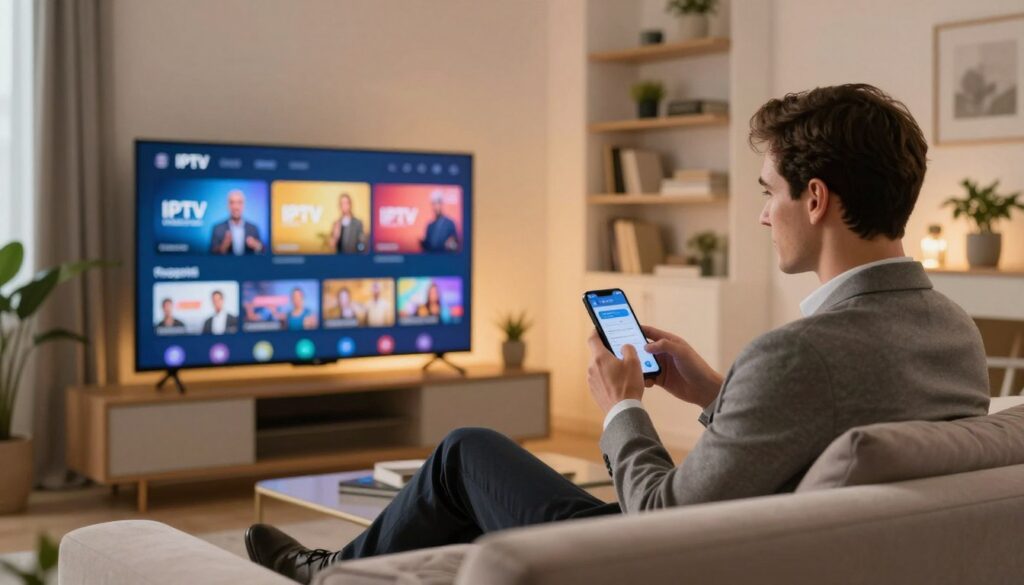
Curious whether a short test run can reveal if an internet TV service fits your home setup? You’re in the right place. In 2025, streaming services deliver live channels and on-demand shows over your internet, and a brief test period is the fastest way to judge real performance.
This guide walks you through requesting temporary access, activating the service, and testing peak-hour stability on Smart TVs, phones, tablets, and streaming boxes in Canada.
Expect a clear checklist: request access, get activation details (M3U link or Xtream login), install the app, and run practical checks like channel zapping, EPG usability, and buffering under real-world ISP conditions.
Along the way you’ll see providers worth comparing, including a light mention of GetMaxTV, and useful resources like a 24-hour diagnostic walkthrough at risk-free streaming guide. If you want specific signup info, check a provider example here: trial details.
Key Takeaways
- Use the short test window to confirm streaming quality and channel coverage on your devices.
- Look for clear activation formats: M3U playlist links or portal/Xtream credentials.
- Test at peak hours and on multiple devices to mimic your household load.
- Focus on practical checks: sports reliability, EPG, catch-up, and buffering.
- Compare providers carefully and consider Canada-specific ISP limits and congestion.
IPTV free trial basics for Canada in 2025
Begin with a clear idea of which channels and features will be available during a short test. A typical trial gives you live channels, a VOD library of movies and series, and often premium sports or PPV categories so you can validate real-world performance.
What you can realistically check: picture quality on your screen, buffering and playback stability, channel switching speed, and whether key categories (sports, movies, series) load correctly. Trials also show EPG accuracy and whether catch-up works for recent broadcasts.
Most providers limit trials to 12–24 hours; some extend up to a few days. Short windows help measure peak-hour stability and reduce abuse. Expect one-device streams or limited simultaneous connections, and occasional missing EPG entries.
What you need before you start
- Compatible device: Smart TVs, Firestick, Android box, phone, tablet, or computer.
- Player app such as IPTV Smarters Pro or TiviMate.
- Stable internet: aim for ~15–16 Mbps minimum, and ~30 Mbps for HD/4K tests during evening hours.
Plan your test around real viewing habits — for example, hockey night or weekend sports — so the short trial reflects actual household demand. For specific offer options, check a curated list of trial offers here: trial offers.
How to get iptv free trial without wasting time

Start by shortlisting providers that clearly offer a genuine trial period and reliable uptime. Look for obvious setup guides, visible uptime claims, and a clear contact method rather than vague “DM for details.”
Quick checks save time:
- Prefer trials with no credit card and minimal personal info; an email is often enough.
- Request access via a provider form, an email, or a WhatsApp message and include your device type and preferred format (M3U or Xtream Codes).
- Expect activation credentials by email within minutes (commonly 5–30 minutes): an M3U URL or a server + username + password set.
Install a player app such as IPTV Smarters Pro or TiviMate, then enter the activation details carefully. Smart TVs and Android boxes use TV-optimized apps; Firestick needs a compatible player installed. Phones, tablets, and computers work well for quick checks.
Mini checklist before you judge quality: verify EPG loads, test catch-up (if included), and confirm multi-device rules so you do not lock your account. Run a short peak-hour test (evenings/weekend sports) and note buffering patterns and channel stability.
If trials are paused because of high demand or server maintenance, ask when access reopens or consider a short paid plan. When you want to compare offers after testing, check options at GetMaxTV player page for current 2025 choices.
What to test during your IPTV trial before you buy a subscription
Turn the temporary access into a targeted exam of picture fidelity, channel uptime, and support response. Use brief, measurable checks so you can judge whether a subscription fits your Canadian household.
Stream quality targets
Confirm HD on one device first. Then test Full HD and 4K where offered. Note frame drops during fast sports and whether the app lets you switch resolution.
Channel stability and sports reliability
Measure latency against a known live feed and watch for downtime during peak events. Treat “anti-freeze” claims as unproven until they hold during a major sports moment.
Content fit and EPG usability
Check local Canadian channels and the international lineup you actually watch. Sample the movies and series library for recent titles and accurate metadata.
Verify the EPG matches live content and is easy to navigate with a remote.
Support responsiveness
Contact support with a real issue and time the reply. Fast, actionable help is a key sign of reliable services.
| Test | Good | Acceptable | Fail |
|---|---|---|---|
| HD/FHD/4K playback | Stable, no drops | Occasional buffering | Frequent rebuffering |
| Sports latency | <5s delay | 5–15s delay | >15s or outages |
| EPG accuracy | 90%+ channels match | 60–90% match | <60% or missing guide |
| Support response | <30 min, fix provided | 1–6 hours, partial help | Slow or no response |
Buy/not buy rule: If quality, channel stability, content fit, and support all meet the good or acceptable rows during your iptv trial, you can choose a subscription with more confidence.
For a practical test checklist, see a short diagnostic walkthrough at 24-hour streaming guide and an example server test at IPTV test page.
Common IPTV free trial mistakes and quick troubleshooting
Don’t skip a simple internet speed check; it often explains most streaming issues. Run tests at peak hours and again when the house is quiet. Aim for ~15–16 Mbps minimum, and ~30 Mbps for HD or 4K.
Buffering may not be the provider’s fault. Wi‑Fi interference, an overloaded router, ISP congestion, or an underpowered device can cut playback. Test on the wired port when possible for a clear baseline.
Account overload is another common pitfall. If your plan limits simultaneous streams, logging in on several devices can trigger errors. Test one device at a time unless multi-device access is stated.
Quick troubleshooting ladder
- Switch channels and back to force a refresh.
- Reboot your device, then the router.
- Close and reopen the app, then re-login with your credentials.
- If problems persist, note device type, app, and whether you use M3U or Xtream Codes before contacting support.
Red flags and escalation
Avoid offers promising “lifetime” trials or that ask for excessive personal data or odd payment methods. Reputable services rarely require a credit card for short trials. If a category fails repeatedly (sports, news), escalate with clear details so support can test server-side issues.
| Issue | Quick fix | When to contact support |
|---|---|---|
| Buffering | Switch channel → reboot router → test wired | After quick fixes fail or recurring peak-hour drops |
| Dead channel | Refresh list → re-login → try another device | If channel stays dead across devices |
| Account locked | Log out other devices, check simultaneous limits | Persistent lockouts or unexpected payment requests |
If trials are paused during demand spikes, consider a short paid plan or trial another provider. For related local options, see kostenlose IPTV. Most issues clear in minutes when you separate internet, device, app, and server variables.
Conclusion
Close the iptv trial window by checking activation emails and real playback notes.
Use the final hours to confirm channels, streaming stability, EPG usability, and support response. Match what worked with the type of subscription or plan your household needs and note any buffering or device limits.
Think of this as an evidence-based step before you buy a longer plan. Trials show whether a service is a practical satellite alternative for Canadian homes when your internet and devices meet minimum performance needs.
If you’re ready to compare plans and find a subscription today, see a curated list here: top trial offers, or check a real server test at GetMaxTV’s test page. When you want a plan, review GetMaxTV’s current offer at GetMaxTV.
FAQ
What does an IPTV trial usually include?
A trial typically gives you access to live channels, on-demand movies and series, sports feeds, and basic streaming quality checks so you can evaluate picture clarity, channel lineup, and app compatibility.
How long do most trials last?
Most trials run from 12 to 24 hours, though some providers extend access for a few days. Longer tests are rarer and often reserved for paid plans or special promotions.
What do you need before starting a trial?
Prepare a compatible device (Smart TV, Fire TV Stick, Android box, phone, tablet, or PC), an IPTV player app, a stable internet connection, and any minimal info the provider requests for activation.
How can you find a provider that offers a real trial and reliable uptime?
Look for providers with clear trial terms, visible uptime or server status, recent user reviews, and responsive support channels like email, live chat, or WhatsApp before you request access.
What are common activation methods for a trial?
Providers usually send an M3U link, an Xtream Codes login, or direct app credentials via email, form response, or messaging apps. Follow the provider’s activation steps closely.
Which IPTV apps work best for trials?
Popular players include IPTV Smarters Pro and TiviMate. Choose an app that supports EPG, playlists, and the login method your provider uses.
Which devices are supported during a trial?
Trials commonly support Smart TVs (Android, Samsung, LG), Firestick/Fire TV, Android TV boxes, phones, tablets, and desktop players. Confirm device limits before activating.
What features should you confirm during setup?
Check EPG accuracy, catch-up availability, multi-device rules, channel categories, and whether video quality adapts properly to your connection.
When should you run quality tests during the trial?
Test during peak hours to see real-world performance. Run streams for several minutes on multiple channels, including live sports, to check buffering and stability.
Why might a trial be unavailable at times?
High demand, server maintenance, or provider-imposed limits can pause trials. If access is denied, contact support for alternative windows or a short reactivation.
What stream quality targets should you expect?
Aim for consistent HD or Full HD playback; 4K is available only with higher bandwidth and specific channel support. Verify resolution and bitrate on your device.
How do you assess channel stability and sports reliability?
Watch live sports and fast-action channels for latency, buffering, and frame drops. Reliable providers will deliver low latency and minimal downtime during live events.
How do you judge content fit for your household?
Browse channel lists and VOD libraries for local networks, international channels, movies, and series that match your preferences before buying a plan.
What should you look for in EPG usability?
Check event accuracy, program descriptions, time zones, and how easy it is to navigate and schedule recordings or reminders if the service supports them.
How important is support responsiveness during a trial?
Very important. Fast support via chat or email helps when streams fail, so test response times and the quality of troubleshooting before subscribing.
What internet speed should you have before testing?
Aim for at least 15–16 Mbps for stable HD streams and around 30 Mbps for multiple HD streams or 4K playback. Run a speed test if you notice buffering.
What happens if you overload your trial account?
Providers often limit simultaneous streams. Exceeding device limits can cause logouts or blocked streams, so confirm allowed connections before sharing access.
How can you fix buffering or a dead channel during a trial?
Try switching channels, rebooting your device or router, clearing the app cache, or re-entering your login. If problems persist, contact support with logs or screenshots.
What red flags should you avoid when requesting access?
Avoid offers that promise “lifetime” zero-cost access, ask for excessive personal data, or require unsupported payment methods. Those are common scams or unstable services.
Can providers request payment or credit card details for a trial?
Some ask for payment info to auto-renew after a trial. Prefer providers that offer no-credit-card trials or clearly state how billing is handled and how to cancel.
What formats will you receive for activation?
Expect M3U playlists, Xtream Codes credentials, or direct app links. Ensure your chosen player supports the provided format and follow setup guides carefully.
Where can you ask more questions during a trial?
Use the provider’s email, live chat, or WhatsApp. Responsive channels make troubleshooting faster and show commitment to customer experience.
The GetMaxTV Team is a group of cord-cutting experts and streaming technology specialists who have been testing and reviewing IPTV services since 2022. Based in North America, our team personally tests every service we recommend across 15+ devices including Fire TV Stick, Roku, Apple TV, Samsung Smart TVs, and gaming consoles. We verify channel counts, measure buffering rates, test picture quality in HD and 4K, and evaluate customer support response times. Our mission is to help viewers save money by switching from expensive cable subscriptions ($147/month average) to affordable, high-quality IPTV alternatives. Every article on GetMaxTV.com is based on hands-on testing and real-world experience — not recycled marketing claims.