
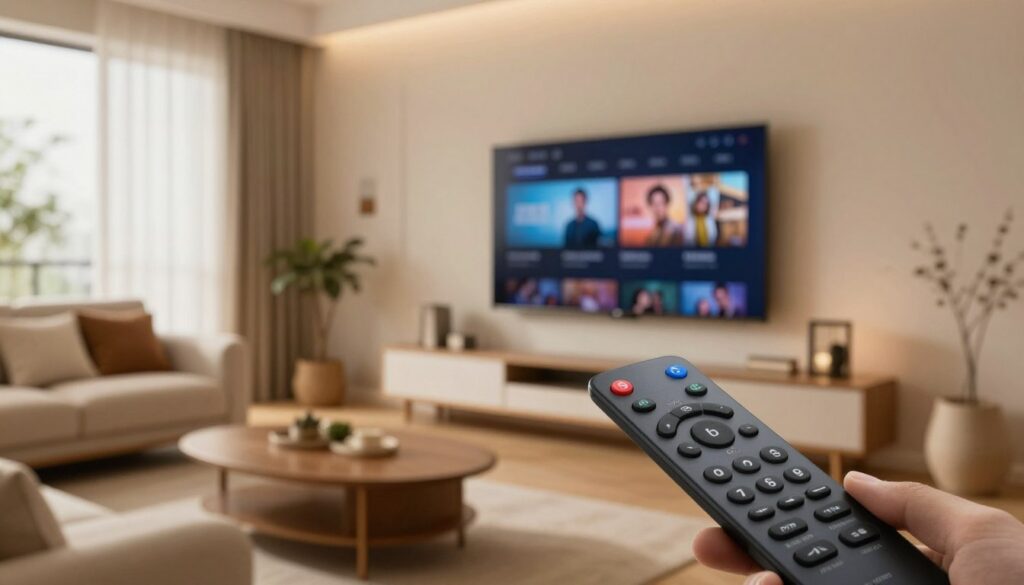
Have you ever wondered why a simple press feels slow or why volume jumps the wrong device during a show?
This short guide shows you how to make your remote feel fast and predictable when watching live channels, VOD, or checking the EPG on a Smart TV in Canada.
First, learn what “IPTV remote control” often means at home: you might be using the TV’s own remote, a streaming device clicker, or a universal model depending on your setup.
Next, we’ll tackle common pain points: too many clicks, accidental exits to Home, laggy menus, and volume that controls the wrong device. You’ll get a clear framework: identify devices, simplify the setup, map essential buttons, then tweak app features like Favorites and Recent.
We’ll also cover connection choices—Ethernet vs Wi‑Fi—because many perceived remote problems are actually buffering or UI slowdowns. Expect practical steps and a brief note about GetMaxTV as an example of a legal service option.
Stay tuned to optimize your setup and enjoy smoother streaming without guesswork. Choose a legal subscription to keep your viewing reliable and secure.
Key Takeaways
- Understand which device is acting as your primary remote and simplify that setup.
- Map the few buttons you use most to reduce clicks and accidental exits.
- Check Ethernet vs Wi‑Fi when navigation feels slow—network lag often masquerades as a remote issue.
- Use app features like Favorites and Recent to speed up access to channels and shows.
- Consider legal services such as GetMaxTV to ensure a stable, supported streaming experience.
Why your IPTV remote setup matters for a better Smart TV experience in Canada
Small button habits can change how smooth your living-room streaming feels every day.
Think of this as a short guide to create lasting improvements without new hardware. A clear setup can make menus snappier and reduce accidental exits to home.
How habits affect speed, comfort, and everyday streaming
When you use Back consistently and rely on Favorites, you cut clicks and keep the flow going. Minimizing presses that jump to the main screen avoids lost time and confusion for other users in the room.
What good control looks like
- Live channels: quick channel changes, an easy EPG toggle, and reliable Info/Audio/Subtitles access.
- VOD: fast search, clear playback buttons, simple subtitle toggles, and consistent Back behavior.
- EPG: smooth scrolling, day/time jumps if available, and a fast return to the currently playing channel.
In Canadian living rooms you often have mixed apps and different skill levels. Aim for a simple, repeatable approach that any user can follow.
“A little setup work now saves frustration every night.”
Next, you’ll learn how to identify which handheld you use, simplify devices, and add shortcuts or macros if needed.
Know your remote: TV remote vs streaming device remote vs universal remote
A quick check of what type of remote you hold often solves odd behavior fast.
Start by classifying the gadget: is it the TV’s original handset, a streaming device clicker (Apple TV/Chromecast style), or a universal unit meant to replace several devices? That helps you plan a single, predictable control path.
Infrared vs Bluetooth: what actually changes
IR (infrared) needs line-of-sight. Pointing matters and a cushion or coffee table can block commands.
Bluetooth does not require direct aiming and can operate through furniture, but it usually needs pairing steps on-screen. It can offer deeper integration with some streaming players.
Spotting line-of-sight problems
If buttons only work when you point precisely, fail when you recline, or stop when someone walks between you and the screen, that’s IR at work.
“Many budget universal remotes under $50 only use IR; newer models add Bluetooth for wider device coverage.”
Keep it simple: aim for one device to handle channel and volume, one predictable source button to open the guide, and avoid juggling multiple programming processes at once.
| Remote Type | Works Through Obstacles | Typical Setup |
|---|---|---|
| TV original | No (IR) | Plug and play, no pairing |
| Streaming clicker | Often yes (Bluetooth) | On-screen pairing may be required |
| Universal (budget) | Usually no (IR) — some models add Bluetooth | Programming or learning mode |
If you want guidance on choosing a remote based on how many devices you actually use, see this short guide on picking the right source and setup: how to choose the right direct sports.
Choose a remote that works with your Smart TV and IPTV devices
Pick a handheld that matches how you actually watch and switch sources at home.
What to look for in layout and navigation
Look for a clear D-pad, a distinct Back key, and dedicated Play/Pause. Easy access to Info and Subtitles saves time when you need them.
Universal remote basics and the Sofabaton U2
The Sofabaton U2 controls many devices via IR and Bluetooth and can manage up to 15 gadgets. Its OLED screen and scroll wheel make device selection intuitive.
Programming is done through an iOS/Android app, so expect a phone-based setup process and some time to customize buttons to your habits.
Common limitations to expect
At this price tier you may not get backlighting or activity buttons. Macros and advanced programming work, but they can be slow to build and test.
“Customization is powerful but patience helps when creating volume-lock or multi-step sequences.”
How many devices do you really need?
Most homes only need the television, a soundbar, and one streaming box. Adding more devices increases complexity and cost without always improving daily use.
- Buying checklist: D-pad, Back, Play/Pause, Info/Subtitles.
- If your app runs on the TV, you may not switch inputs often—so keep the setup simple.
- Don’t overbuy: fewer devices mean fewer failures and a smoother routine.
Set up IPTV on a Smart TV without a box (and keep remote control simple)
Skipping extra hardware makes daily viewing easier. The simplest path is to run a compatible app on your TV, so one handheld handles power, volume, and navigation.
Install an app from your TV’s app store and verify compatibility
Open your TV’s app store and search the marketplace for a verified iptv app. Check ratings and recent reviews to confirm the app works on your model of smart tvs.
Follow the installation step and keep the app updated to avoid sudden changes in button behavior.
Add your provider playlist and enable EPG
In the app add the M3U URL or file your provider supplies. Only use playlists from a legitimate, current source. That keeps channels legal and stable.
If the app supports EPG, add the EPG source so the guide fills with program times and details.
Choose the right network connection method
A steady internet connection makes menus feel snappier. Use Ethernet when possible for the most reliable playback.
Wi‑Fi is fine for many rooms; try Ethernet if you see buffering or slow UI response.
“If the TV app works reliably, avoid adding a box just to fix a navigation problem.”
best iptv remote control tips for smart tv in canada: optimize your buttons and shortcuts
Set up your most-used keys so the things you do every night are one press away. Focus on reducing clicks and keeping actions predictable across users.
Map your top actions
Prioritize: Guide/EPG, Back/Return, Info, Subtitles/Audio, Favorites, and Search. These cover roughly 90% of navigation needs.
Use your TV or box settings, or a universal app, to reassign seldom-used buttons to these functions. Keep the layout consistent so anyone can use it.
Use long-press and quick-access menus
Where supported, long-press can replace multiple taps. Try long-press Back to exit playback, long-press OK to open context menus, or long-press Guide for filters.
Quick-access menus cut steps and make switching less disruptive during live shows.
Make volume consistent
Pick one device as the volume owner: TV, soundbar, or receiver. Keep volume and mute tied to that device only.
If HDMI-CEC causes source jumps, disable the feature or lock volume control to the chosen device.
Prevent accidental exits
Home and Return behave differently across brands. Some apps treat Back as exit; others treat it as previous menu. Test behavior and adjust Smart TV button settings when possible.
Disable HDMI-CEC quirks, retrain household habits to avoid Home unless needed, and use the programming guide or your universal app to lock key assignments.
“A simple, repeatable setup saves time and reduces frustration for everyone watching.”
Make the most of IPTV app features that improve remote navigation

Make app features your ally so navigation feels faster and less frustrating every night.
EPG navigation tips for faster channel browsing
Use the guide’s day and time jumps when they exist. Jumping by day or hour keeps you from scrolling past dozens of channels.
Look for a “current channel” shortcut to snap back to live play. That avoids getting lost in the schedule.
Favorites, recently watched, and search: your fastest shortcuts
Create a clean Favorites list and keep it short. Fewer entries mean fewer presses and a calmer interface for everyone at home.
Rely on Recently Watched for channels you use daily. Use Search to find shows or VOD rather than endless D‑pad browsing.
Parental controls and profiles for a cleaner home interface
Set PINs and separate profiles to hide adult content and stop accidental purchases. Profiles also let users keep their own Favorites and history.
Monthly cleanup: refresh Favorites, remove dead entries, and tidy the home screen. Fewer menus mean fewer clicks and more comfort with your remote and app features.
Improve streaming quality by pairing remote control habits with better connection settings
A weak home network can turn crisp menus into laggy menus and make every press feel delayed.
Buffering and dropped frames often feel like a slow handheld. In reality, poor connection or congested Wi‑Fi is usually to blame.
When to use Ethernet vs Wi‑Fi
Use Ethernet when you can — it gives steady throughput and fewer hiccups. Choose strong 5 GHz Wi‑Fi when wiring isn’t practical and your router sits near the set.
Match video quality to your bandwidth
If your app lets you pick quality, pick a stable setting instead of max resolution. Adaptive streaming helps, but some apps need manual changes.
- Quick test: play the same channel at different times to spot congestion.
- Reboot your router when issues start and keep firmware up to date.
- Avoid heavy uploads or large downloads during evening viewing.
Note: App support varies. Some offer adaptive streams and built‑in diagnostics, others require manual tweaks or provider support.
“Aim for stable playback first, then fine‑tune shortcuts — stability makes every click feel better.”
For legal subscription choices and further setup guidance, see legal subscription options to improve your viewing experience.
Voice control on Smart TVs: when it helps and when it’s slower than buttons
Voice assistants shine when you need to find content, not when you need frame‑perfect control. Use speech to jump to shows, open apps, or find a channel by name. That can be much faster than pecking with arrows.
Using built-in voice search and assistants like Amazon Alexa
Many smart tvs include native voice search. Some also work with Amazon Alexa or other assistants. When the assistant links to the TV OS, commands like “Open Netflix” or “Launch [app name]” usually work well.
When voice helps — and when it slows you down
Where it shines: finding shows, opening an app, or asking “Find hockey highlights” saves time. Voice is great for discovery and quick access.
Where it lags: precise playback tasks — skip 10 seconds, toggle subtitles, or fine seek — often need repeated phrases. A single button press is usually faster.
Practical commands and a fallback plan
Try commands such as “Open [app name],” “Search for tonight’s news,” or “Find comedy channels” where the assistant supports the service.
If voice fails, keep a simple button path like Guide → Search or Favorites → OK so anyone can reach content reliably.
“Treat voice as part of your control toolkit, not a full replacement.”
| Task | Voice | Button |
|---|---|---|
| Find a show by name | Fast — one command | Slow — many presses |
| Open an app | Fast if integrated | Moderate — navigate Home |
| Precise skip or subtitle toggle | Often unreliable | Reliable — single button |
| Search channels or live events | Very helpful | Time consuming |
Privacy and regional differences matter. Some assistants send audio to cloud services and some apps in Canada may not accept voice commands. You can keep voice enabled for search and still use the remote for daily playback.
Bottom line: use voice control and Amazon Alexa where it speeds discovery, but keep mapped buttons and a simple fallback path for fast, dependable navigation.
Universal remote setup guide for IPTV-friendly home entertainment
Before you program a single button, map out which gadget handles power, volume, and source switching.
This short setup guide walks you through the realistic process so your living room works the way you want.
Programming with an app (what to expect)
Pair the handheld to the phone app, then add each device from the database. Test power, volume, and navigation right away.
The Sofabaton U2 supports up to 15 devices and uses an OLED list and scroll wheel. Programming is flexible but takes patience.
Teaching commands when codes are missing
If a code is not found, use the teach mode. Aim the original remote and send power, volume, input, and OK commands one at a time.
Name devices and plan inputs
- Name clearly: “Living Room TV,” “Soundbar,” “IPTV Box”.
- Make an input checklist: HDMI1 = Box, HDMI2 = Game, HDMI3 = Player.
- Decide your single volume owner to avoid conflicts.
Macro-style sequences for a single press
Assign a spare key to a “Watch TV” macro that powers devices, sets the right source, and opens your app or box.
Realistic time estimate: basic control takes minutes; a polished setup may take an hour or more.
When you’re done, test with everyone who watches and refine button assignments. If you need playlist guidance, see finding the right playlist.
Common remote-control issues with IPTV on Smart TVs and how to fix them
When buttons act up or your set jumps inputs, there’s a clear troubleshooting path you can follow. Start calm and work top to bottom so you don’t miss a simple fix.
Remote lag, missed clicks, or double presses
Try fresh batteries first. Weak cells cause delayed or repeated signals.
Next, check line-of-sight and remove shiny surfaces that cause IR reflections. If your device offers a “button repeat” option, disable it.
Inputs switching to the wrong source during setup
HDMI-CEC lets devices talk and can auto-switch inputs. If your screen jumps when another box powers on, turn HDMI-CEC off or limit which device owns power commands.
Bluetooth pairing frustrations during configuration
Expect pairing screens and, in some cases, to unpair then re-pair. Note: the Sofabaton U2 pairs one Bluetooth device at a time during setup, so you may need to remove a previous pairing in the phone app to test.
App updates and Smart TV software that change button behavior
After an update, open the app and check settings or button mapping. Revisit programming or re-add the device if behavior changed.
“When basic steps fail, a clean re-pair or re-add often saves time.”
Simple troubleshooting order:
- Batteries → line-of-sight → Bluetooth pairing
- App performance → network connection → software version updates
If problems persist, contact vendor or app support and keep your setup minimal to reduce breakage after updates.
Build a clean, legal IPTV setup you can actually enjoy long-term
Design your living-room system around steady updates and easy navigation. A simple, maintainable setup keeps playback stable and reduces surprises.
Keep your app updated and playlists current
Update the app and check playlist/EPG sources after any firmware or version change. Small updates often fix flaky guides and playback issues.
Smart TV-only vs adding a dedicated device later
Using only your TV cuts clutter and cost today. But TV OS updates may slow over time, while a separate set-top box or streaming device is easier to replace.
Practical maintenance routine
- Check app updates monthly.
- Verify playlist and EPG URLs after provider changes.
- Re-test key buttons after a TV firmware update.
“Choose reliability over channel counts.”
| Option | Clutter | Upgrade path | Reliability |
|---|---|---|---|
| Smart TV app | Low | Hard (TV replacement) | Good if updated |
| Dedicated device/box | Moderate | Easy (swap box) | High |
| Traditional cable/satellite | High | Provider-dependent | Very high with support |
If you want a reputable legal subscription option, review GetMaxTV. For device choices, see this guide on devices and set-top box options and a short list of streaming devices.
Conclusion
Finish with a one-step-at-a-time routine and your living room will feel more predictable and calm. Start by choosing the right remote and reduce device complexity so daily use is simple.
Map the few buttons you use most — Guide, Back, Info, Subtitles, and Favorites — and rely on app features like EPG, Recent, and Search. These often give bigger navigation wins than new hardware.
Also check connection stability: Ethernet or strong Wi‑Fi and sensible video quality settings make menus and channels respond faster.
Make one change, test it for a day, then move to the next step. If you want a legal subscription, check GetMaxTV’s offer at https://getmaxtv.com to simplify programming and improve your streaming experience.
FAQ
How do I set up an IPTV app on my Smart TV without using a set-top box?
Open your TV’s app store (Samsung Smart Hub, LG Content Store, Google Play on Android TV, or Amazon Appstore on Fire TV). Search for the IPTV app recommended by your provider or a trusted third-party client, install it, then sign in or add your provider playlist (M3U or URL) in the app’s settings. Verify EPG (program guide) support and test playback. Use Ethernet if possible for a stable connection.
What’s the difference between a TV remote, a streaming-device remote, and a universal remote?
A TV remote controls the television’s core functions (power, volume, inputs). A streaming-device remote (Roku, Fire TV, Apple TV) adds navigation optimized for that platform and may use Bluetooth. A universal remote can learn or be programmed to operate multiple devices, including TVs, set-top boxes, and soundbars, often via IR codes, Bluetooth, or Wi‑Fi. Choose based on what devices you actually need to control.
Why does line-of-sight matter and how do I know if it’s causing problems?
Infrared (IR) remotes require an unobstructed path to the device’s IR receiver. If you need to point directly at a box or you see missed commands when a device is behind furniture, IR is the likely cause. Bluetooth and RF remotes don’t need line-of-sight and solve that limitation.
Which connection should I use — Ethernet or Wi‑Fi — for the best streaming experience?
Use Ethernet when possible; it gives lower latency and fewer dropouts. If you must use Wi‑Fi, connect to the 5 GHz band for higher throughput and place your router close to the TV or use a mesh system. Match video quality in the app to your available bandwidth to avoid buffering.
How can I map frequently used actions like guide, subtitles, or favorites to speed up navigation?
Many remotes and apps let you assign long-press functions or quick-access buttons. In the TV’s settings or the universal-remote app, map Guide, Back, Info, Subtitles, and a Favorites shortcut to easy-to-reach keys. Keep volume control consistent by linking the TV and any soundbar or AVR to the same device profile.
Are voice assistants like Amazon Alexa or Google Assistant helpful for streaming and discovery?
Yes for discovery and quick searches — you can find shows, change channels, and launch apps hands-free. However, voice can be slower for precise playback actions (skipping or fine scrubbing). Use voice for search and high-level commands, and buttons for fast playback control.
What should I look for when choosing a remote based on button layout and device switching?
Look for clear, tactile buttons for Play/Pause, Guide, Back, and Home. Dedicated input or device-switch keys speed switching between a TV, streaming stick, and set-top box. Backlighting helps in low light. If you need advanced macros, pick a model with app-based programming or activity buttons.
How do I program a universal remote when device codes aren’t available?
Use the learning feature available in many universal remotes or the companion app. Point the original remote at the universal remote and follow the on-screen prompts to teach each key. For devices without remotes, use device-specific codes or an IP/Wi‑Fi control option if the universal remote supports it.
What causes remote lag or double presses and how do I fix them?
Lag can come from low batteries, wireless interference, or slow app response. Replace batteries, restart your TV and router, and ensure the app is updated. For Bluetooth pairing delays, remove the device from the TV’s Bluetooth list and re-pair it. If double presses persist, check remote settings for repeat rate or try a factory reset.
How many devices should I expect to control in an average living room setup?
Typical setups include the TV, one streaming device (Roku, Apple TV, Fire TV), a soundbar or AVR, and sometimes a Blu-ray player or game console — usually three to five devices. A universal remote can consolidate these into one workflow if it supports the required connections and activity macros.
What are the common limitations of universal remotes I should be aware of?
Expect limited support for some advanced smart-TV features like voice assistants or app-specific gestures. Backlighting, advanced activity buttons, and custom macros vary by model. Always check compatibility lists and reviews (for example, Wirecutter or Sofabaton testing) before buying.
How can I avoid accidentally exiting apps or changing inputs during playback?
Reassign or disable the most error-prone keys (Home, Back) when possible. Lock down input switching in the TV settings and use the streaming device’s home screen for app switching. Train household members on consistent button use and consider removing seldom-used device profiles from your universal remote.
How do EPG (electronic program guide) and favorite lists make navigation faster?
EPG gives a timeline view of channels and upcoming shows so you can jump directly to live programming. Favorites let you filter the channel list to only what you watch most. Use search and recently watched lists to quickly return to content without scanning many channels.
What steps help keep my streaming setup legal and reliable long-term?
Use reputable providers and official apps, keep software and apps updated, and maintain a current playlist when applicable. If you plan to add hardware later, choose a popular streaming device that receives regular firmware updates. For paid services, use providers known in Canada and North America to ensure support and lawful access.
The GetMaxTV Team is a group of cord-cutting experts and streaming technology specialists who have been testing and reviewing IPTV services since 2022. Based in North America, our team personally tests every service we recommend across 15+ devices including Fire TV Stick, Roku, Apple TV, Samsung Smart TVs, and gaming consoles. We verify channel counts, measure buffering rates, test picture quality in HD and 4K, and evaluate customer support response times. Our mission is to help viewers save money by switching from expensive cable subscriptions ($147/month average) to affordable, high-quality IPTV alternatives. Every article on GetMaxTV.com is based on hands-on testing and real-world experience — not recycled marketing claims.