The landscape of home entertainment is shifting dramatically. In 2026, a staggering 80 million Americans have cut the cord on traditional cable. With average monthly bills hitting $147, it’s no wonder. Streaming now represents 47.5% of all television viewing.
This mass migration opens the door for better alternatives. Internet Protocol Television delivers content directly through your internet connection. It uses modern streaming protocols like HTTP Live Streaming for a smooth, on-demand experience.
For many, text overlays are not just a convenience but a necessity. They unlock international films and aid viewers who are hard of hearing. Following complex dialogue becomes effortless.
Learning the right configuration for your streaming service ensures you never miss a plot point. The best platforms integrate this feature seamlessly into their interface.
Key Takeaways
- Over 80 million U.S. households have abandoned traditional cable TV due to high costs.
- Streaming services now account for nearly half of all television consumption.
- Internet Protocol Television (IPTV) provides a flexible and often more affordable viewing solution.
- Text overlays are crucial for accessibility and enjoying foreign-language content.
- A reliable streaming service makes enabling closed captions a simple process.
- Proper setup ensures compatibility with the latest display standards.
- Enhancing your viewing experience with clear dialogue is a key benefit.
IPTV subtitles setup: Step-by-Step Instructions
Activating closed captions for your favorite shows requires just a few simple steps. Most modern streaming platforms, like IPTV Smarters, have intuitive menus designed for quick customization. You can adjust these options before or during playback.
Navigating to the Settings Menu
First, launch the IPTV Smarters app on your device. Whether you’re using a set-top box or a mobile phone, the process is similar. Look for the gear icon, usually found on the main screen.
Tapping it opens the comprehensive configuration panel.
Selecting Subtitles or Closed Captions
Inside, find the playback options. Look for the subtitle settings menu. You’ll see a switch to turn subtitles on or off.
This toggle gives you instant control over text overlays during any stream. To turn subtitles on your stream, simply flip the switch while your content is playing. You can also turn subtitles iptv off from the same menu. Adjust these subtitle settings to your liking.
Choosing Your Preferred Language
Your content provider typically offers multiple language options. Scroll through the list and pick the one you understand best.
After making your choice, save the changes. The app will remember this setting for all future viewing sessions. This app ensures a personalized experience every time you use the player.
Device-Specific Subtitle Activation
From your living room TV to your smartphone, each platform has its own path to caption settings. The process isn’t one-size-fits-all. Your specific hardware dictates the exact menu you need to find.
Knowing where to look saves you time and frustration. Let’s break it down by the most common types of equipment.
Smart TVs and Streaming Boxes
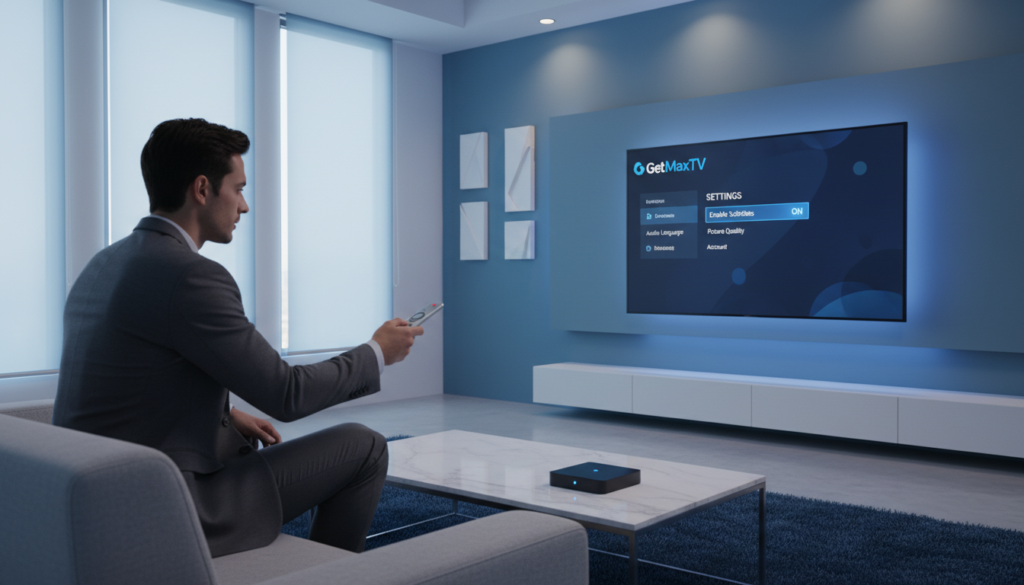
On a smart TV, grab your remote. Press the settings or menu button. Navigate to the accessibility or display options section.
Look for a menu labeled “Captions” or “Subtitles.” Flip the switch to “On.” For a dedicated streaming box, the steps are similar.
Open the system settings from the main home screen. Find the playback or language preferences. An Android box will have these options in its own settings panel.
Enable text overlays here to ensure they appear on every channel.
Mobile Devices and Web Browsers
Watching on a phone or tablet is different. Simply tap the screen while your video is playing. A control overlay will appear.
Look for the CC icon—it’s usually in a corner. Tap it to select your preferred language and turn captions on.
Using a web browser on a computer? Right-click directly on the video player. A context menu will pop up.
Choose “Subtitles” or “CC” from the list. This method works for most modern streaming sites.
If you hit a snag, your device’s manual is the best resource for specific guidance.
Fine-Tuning Subtitle Appearance

Beyond simply turning captions on, modern streaming software offers deep customization for visual comfort. You can tailor the text to match your screen and personal taste. This makes every show easier and more enjoyable to watch.
Most players provide a dedicated menu for these visual options. You’ll find controls for several key elements.
Adjusting Font Size and Color
Changing the font size is crucial for clear viewing from across the room. A setting that’s too small strains the eyes, while one that’s too large can block the picture.
You can also select a new font color. This is a popular choice for better contrast. Try a yellow or cyan text against bright scenes where white text fades.
Customizing Background Transparency
Another useful feature controls the background box behind the text. You can adjust its opacity from solid to nearly invisible.
A semi-transparent background helps the words stand out without hiding the action. It’s the perfect balance for keeping the story clear.
High-quality streaming apps let you preview changes instantly. Remember, you may need to set these options in each app you use. Fine-tuning these details personalizes your entire viewing experience.
Troubleshooting Subtitle Sync and Performance
Smooth playback is essential, but sometimes captions fall out of sync with the audio. This can be frustrating when the text appears too early or too late. Don’t worry—most delays have simple fixes.
You’ll find that these timing problems are often due to streaming protocol delays. They are more common with internet-based television than old cable. The good news is you can usually correct them yourself.
Identifying Common Synchronization Issues
To fix a timing delay, you’ll need to access your player’s settings. Look for an option called “subtitle offset” or “sync adjustment.” A small manual tweak here can align the text perfectly with the dialogue.
The table below breaks down frequent problems and their solutions.
| Issue | Likely Cause | Quick Solution |
|---|---|---|
| Text is ahead of audio | Stream buffering or source feed error | Add a positive delay (+1 to +3 seconds) in player settings |
| Text lags behind speech | Local network congestion or device processing | Apply a negative offset (-1 to -3 seconds) to sync up |
| Captions disappear during HD video | Insufficient bandwidth for full stream | Check your connection speed and contact your provider |
Optimizing Bandwidth and Playback Performance
For the best experience, you’ll need a stable internet connection. High-definition video requires at least 8 to 25 Mbps. Reliable providers implement smart traffic policies to keep your stream smooth.
If problems persist, you’ll find it helpful to contact your service provider. They can check if the issue is with their broadcast feed or your local network. A good provider offers consistent support for these technical matters.
Exploring Additional Subtitle Options and Formats
For viewers seeking ultimate control over their text overlays, external files open up a world of customization. Your primary streaming app might not always have the language or style you want.
Knowing how to add your own tracks gives you the power to watch anything.
Using External Subtitle Files with VLC Player
The VLC player is a versatile tool for this job. If your main app lacks support, you can use the VLC player to load external subtitle files.
Simply open your video in this media player. Then, drag and drop the text file into the window. The player will sync it with your stream automatically.
Understanding Formats Like SRT and Others
Not all text files are the same. It helps to understand common subtitle formats like SRT.
These are simple, text-based documents. Formats like SRT are widely compatible with almost every modern media player.
When you use subtitle files, streams can be enhanced with better translations. The table below shows popular options.
| Format | Best For | Key Feature |
|---|---|---|
| SRT (.srt) | Basic compatibility | Plain text, easy to edit |
| WebVTT (.vtt) | Web video & streaming | Supports styling & positioning |
| ASS/SSA (.ass/.ssa) | Advanced styling | Allows fonts, colors, animations |
Some apps, like Mytvonline, connect to sites like opensubtitles.org. This lets you download files instantly.
Always check that your chosen player supports the file extension. Formats like SRT are often the most stable choice.
Why Choose GetMaxTV
A premium streaming service should offer both vast content and unwavering reliability. GetMaxTV delivers on this promise, standing out as a leading choice for modern viewers.
Premium Features and 24/7 Support
This platform provides an enormous library with over 21,000 live channels and 97,000 video-on-demand titles. Everything streams in crisp HD and 4K quality for a cinematic experience at home.
You get industry-leading 99.9% uptime, ensuring your favorite shows are always available. Their dedicated team offers 24/7 support via WhatsApp for any questions.
Compatibility is seamless across all your devices. Whether you use a Fire TV, Roku, Apple TV, or gaming console, the app works perfectly. There’s no complex setup required to start watching.
Start Your Free Trial Today - Visit GetMaxTV
You can test the service risk-free with a 24-hour trial that needs no credit card. This lets you explore all the options before committing.
If you decide to continue, premium plans begin at just $6.95 per month. Every subscription is backed by a 30-day money-back guarantee for your peace of mind.
Visit GetMaxTV.com today to find the best streaming solution for your needs. Thousands of users already trust this provider for daily entertainment.
Conclusion
With the right knowledge, personalizing your entertainment becomes a simple and rewarding process. Mastering these controls lets you enjoy a vast library of content on your chosen streaming service.
A reliable provider makes managing your preferences easy. This ensures you get high-quality video without constant interruptions. Your viewing app should work seamlessly to support this.
We hope this guide helps you navigate your settings with confidence. Always keep your software updated for the best compatibility. Now you can focus on what truly matters: a fantastic viewing experience.
FAQ
How do I turn on closed captions for my streaming service?
You can usually enable them directly in your video player’s settings. Look for a ‘CC’ icon or a menu option labeled ‘Subtitles’ or ‘Closed Captions’ while your show is playing. From there, you can switch them on and pick your preferred language.
Does the process differ between my smart TV and my phone?
Yes, the steps can vary slightly by device and the app you’re using. On a Smart TV or streaming box like an Android TV, you often access settings through the remote’s menu button. On mobile apps or web players, the subtitle option is typically a tapable on-screen button.
Can I change how the text looks on my screen?
A> Absolutely! Most modern players and apps offer customization. You can usually adjust the font size, color, and even the background box’s opacity to make the text comfortable for you to read against any video.
What should I do if the text is out of sync with the audio?
First, try a simple restart of your stream or app. If that doesn’t work, check your internet connection, as low bandwidth can cause delays. Some advanced players, like VLC, have manual sync adjustment tools in their subtitle settings to fix this precisely.
Can I use my own caption files with a service?
Many standalone media players support this. For instance, VLC Player allows you to load external files in formats like.SRT. However, most dedicated streaming service apps do not offer this feature and use their own integrated caption systems.
The GetMaxTV Team is a group of cord-cutting experts and streaming technology specialists who have been testing and reviewing IPTV services since 2022. Based in North America, our team personally tests every service we recommend across 15+ devices including Fire TV Stick, Roku, Apple TV, Samsung Smart TVs, and gaming consoles. We verify channel counts, measure buffering rates, test picture quality in HD and 4K, and evaluate customer support response times. Our mission is to help viewers save money by switching from expensive cable subscriptions ($147/month average) to affordable, high-quality IPTV alternatives. Every article on GetMaxTV.com is based on hands-on testing and real-world experience — not recycled marketing claims.