
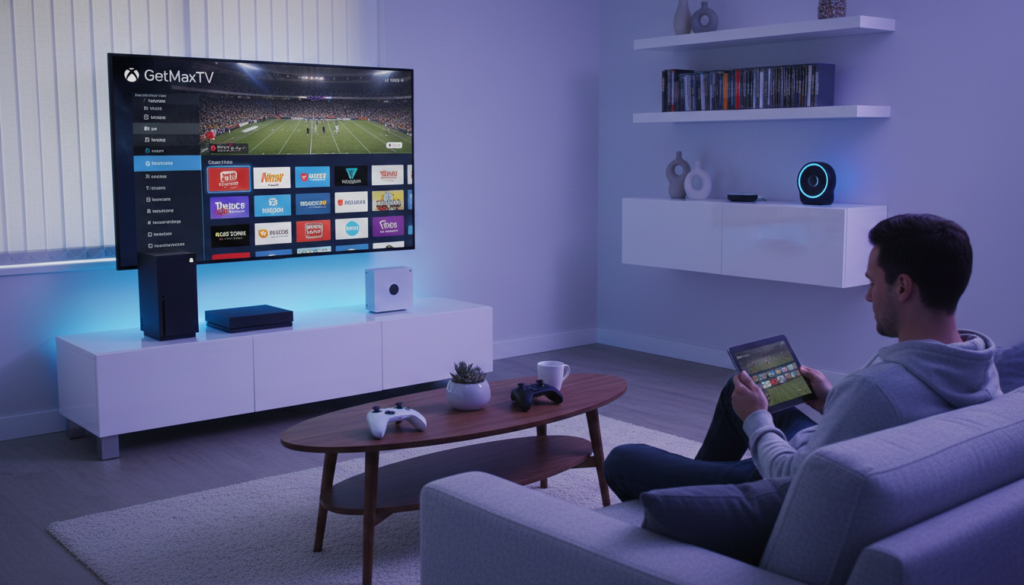
A shocking shift is reshaping American living rooms. By 2026, over 80 million people will have cut the cord on traditional cable.
The average monthly cable bill has soared to $147. Meanwhile, streaming services now account for nearly half of all TV viewing at 47.5%. It’s clear where the future is headed.
This move opens the door to better, more flexible alternatives. Internet Protocol Television, or IPTV, represents the modern answer to expensive and bloated cable packages.
Your entertainment center is more powerful than you think. Modern gaming consoles, like the Xbox Series X and S, are perfectly capable of delivering this premium streaming experience.
By using the right software and a reliable service, you can transform your gaming hardware into a complete media hub. This eliminates the need for extra boxes and simplifies your setup.
Choosing a high-quality provider is key. Services like GetMaxTV ensure your streams are consistent, high-definition, and free from frustrating buffering. Your console has the processing power to handle it all seamlessly.
Key Takeaways
- Cord-cutting is a massive trend, with millions abandoning expensive cable TV.
- Streaming services now dominate almost half of all television viewing time.
- Modern gaming consoles have the hardware to act as powerful streaming devices.
- A reliable service provider is essential for a smooth, buffer-free experience.
- Integrating streaming into your console setup is a straightforward process.
- This approach turns your gaming station into a versatile home entertainment center.
- Premium streaming offers significant cost savings compared to traditional cable bills.
Getting Started with Watching IPTV on Xbox Series X and S
Transforming your gaming hardware into a streaming powerhouse is easier than you might imagine. This guide walks you through the simple setup steps. You will turn your living room into a modern media center.
Understanding the Basics of IPTV Streaming
Streaming live television over the internet is straightforward. A media player app acts as your gateway. It organizes and plays your favorite live channels.
Your experience depends on a reliable service and good software. This combination delivers smooth, high-definition video. It prevents annoying buffering during your shows.
Supported Devices and Compatibility
Both the Xbox One and the newer Series X/S models are fully compatible. They can run various media applications from the digital marketplace. First, ensure your console has the latest system update.
This guarantees full performance with every available streaming application. An updated console avoids technical glitches.
Next, visit the official Microsoft Store on your device. Here, you can search for and download a capable media player. The store offers several trusted options.
| Step | Task | Key Detail |
|---|---|---|
| 1 | Connect & Log In | Ensure your Xbox One is online and your account is active. |
| 2 | System Update | Check for firmware updates in the console settings for optimal compatibility. |
| 3 | Open the Store | Launch the Microsoft Store from your home screen. |
| 4 | Find an App | Search for terms like “media player” to browse available software. |
| 5 | Install & Organize | Download your chosen app and use it to sort your live channels. |
IPTV on Xbox: Installation and Setup with Kodi and Other Apps

Popular applications like Kodi provide powerful tools for organizing your content. These programs turn your system into a versatile entertainment center.
Installing Kodi and Configuring the IPTV Simple Client
Kodi has a long history, originally launched as the Xbox Media Player. To get started, download it directly from the Microsoft Store.
Once installed, navigate to the add-ons menu. Here, you will find the PVR IPTV Simple Client. This add-on is essential for managing your channel list.
Configuring this client is a simple process:
- Locate the settings menu for the simple client.
- Enter the remote URL for your M3U playlist.
- Save the settings to load your stream.
Using Open IPTV and Alternative Media Players
MyIPTV Player is another robust option. It allows you to add a remote playlist and use advanced features like an electronic program guide.
You can also install the Open IPTV app from the store. It offers a clean interface for streaming via M3U8 links.
Always ensure your M3U list is correctly formatted. This prevents errors when you load it into your chosen media player.
Why Choose GetMaxTV
Imagine having access to a world of entertainment without the usual headaches of buffering or limited selection. GetMaxTV delivers exactly that. It turns your living room into a premium media hub with incredible ease.
This service is built for viewers who demand the best. It combines massive content libraries with rock-solid performance.
Premium Content and Superior Streaming Quality
GetMaxTV provides over 21,000 live channels and 97,000 video-on-demand titles. You will never run out of things to watch. The streaming experience is smooth in high definition.
Reliability is a cornerstone. The service boasts 99.9% uptime to minimize interruptions. Coupled with 24/7 WhatsApp support, help is always available if you need it.
Exclusive Offers, Free Trial, and 30-Day Guarantee
You can test everything risk-free. A 24-hour free trial requires no credit card. This lets you verify the quality on your own system.
If you decide to subscribe, plans start at an affordable $6.95 per month. Every new purchase is backed by a robust 30-day money-back guarantee. Your investment is fully protected.
| Feature | GetMaxTV Offer | Your Benefit |
|---|---|---|
| Content Library | 21,000+ channels, 97,000+ VOD | Endless entertainment options |
| Service Reliability | 99.9% uptime | Consistent, buffer-free viewing |
| Customer Support | 24/7 via WhatsApp | Instant help for any issue |
The setup process is straightforward. You just add your playlist to a media player from the Microsoft Store. Follow a few simple steps to integrate your channel list.
Your preferred media app on the store will work seamlessly. Explore all the advanced features for a superior stream. This IPTV service transforms your Xbox One console into a powerful entertainment center.
Conclusion
With the right tools, your console becomes more than just a gaming machine. Selecting a capable media player is crucial for a seamless streaming experience. Keep your chosen app updated to enjoy uninterrupted access to all your favorite live channels.
The Xbox One proves to be a robust device for this purpose. Following the correct installation steps ensures everything runs smoothly. Always opt for services known for high reliability and strong customer support.
By applying this guide, you successfully turn your gaming hardware into a versatile entertainment center. Your iptv xbox setup is now ready to deliver premium content right to your living room.
FAQ
Is this method compatible with the Xbox Series X and Series S consoles?
Yes, absolutely. The installation process for apps like Kodi or MyIPTV Player from the Microsoft Store works identically on both the Series X and Series S models. You can enjoy your favorite channels on either console.
What internet speed do I need for a smooth streaming experience?
For standard definition streams, a stable connection of at least 10 Mbps is recommended. For high-definition and 4K content, you should aim for 25 Mbps or higher to prevent buffering and ensure a reliable stream.
Can I use other media players besides Kodi for this setup?
A> Certainly. While Kodi with its IPTV Simple Client add-on is very popular, you can also use dedicated apps available in the store, such as MyIPTV Player or Open IPTV. These provide a straightforward way to load your channel list and start watching.
How do I get my channel list or M3U URL for the setup?
You obtain your personalized M3U playlist link from your IPTV service provider, such as GetMaxTV. After signing up, they will give you this URL, which you then enter into your chosen media player or simple client on your console to load all your channels.
Does GetMaxTV offer a free trial for new users?
Yes, GetMaxTV provides an exclusive free trial for new customers. This lets you test their premium content and superior streaming quality on your device before committing to a subscription plan.
What happens if I’m not satisfied with the service after signing up?
GetMaxTV backs its service with a strong 30-day money-back guarantee. If you’re not happy with the channel selection or stream reliability within the first month, you can request a full refund.
The GetMaxTV Team is a group of cord-cutting experts and streaming technology specialists who have been testing and reviewing IPTV services since 2022. Based in North America, our team personally tests every service we recommend across 15+ devices including Fire TV Stick, Roku, Apple TV, Samsung Smart TVs, and gaming consoles. We verify channel counts, measure buffering rates, test picture quality in HD and 4K, and evaluate customer support response times. Our mission is to help viewers save money by switching from expensive cable subscriptions ($147/month average) to affordable, high-quality IPTV alternatives. Every article on GetMaxTV.com is based on hands-on testing and real-world experience — not recycled marketing claims.