
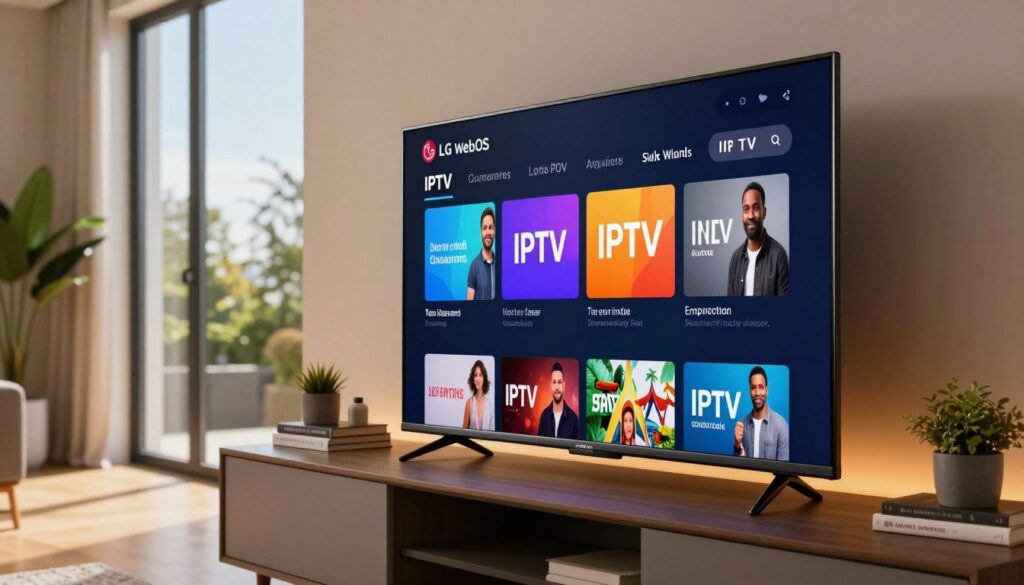
Ready to turn your TV into a modern streaming hub? This short guide explains, in plain terms, how to set up streaming TV over your internet connection on an LG webOS television in the UK in 2025.
You’ll get a calm, realistic walkthrough that covers choosing an app, installing it from the LG Content Store, adding playlist or login details, and tuning playback for smooth viewing.
This guide is specific to LG webOS TVs used in the UK and notes that menus and app availability can differ by model, region, and firmware. You will not find hype or promises that every app works on every TV.
We’ll also mention GetMaxTV as an example you can compare while evaluating subscriptions, and link to setup details at GetMaxTV setup info. Expect streaming stability to depend on your network, your TV’s webOS version, and the app you choose.
Key Takeaways
- Streaming means watching TV channels over your internet connection, not through aerial or cable.
- This guide targets LG webOS TVs in the UK for 2025 while noting regional app differences.
- You’ll learn app selection, installation from the Content Store, adding playlists, and basic fixes.
- No overblown claims: availability and performance vary by model, app, and network.
- Stable playback relies on a solid network, current firmware, and a compatible IPTV app.
Who this iptv lg webos uk setup guide is for in 2025
This section is for you if you own an LG webOS TV and want a simple, stable streaming setup that prioritizes ease of use.
What you’ll be able to do after setup:
- Watch live channels and organized access channels from one home screen.
- Browse on‑demand content (VOD) and use EPG data to see schedules.
- Enjoy a smoother viewing experience with faster app launch and less buffering when your network is tuned.
Keep in mind that apps, channel lists, and built‑in options may vary by country, product, and region. Availability in the Content Store and what services or subscriptions deliver is not identical everywhere, so what you see on another TV may not match yours.
Formats like M3U and Xtream Codes affect how you add subscriptions. This guide focuses on platform setup (webOS + app + credentials), not promises about channel counts. Verify app availability on your exact model before buying long subscriptions and consult a quick setup checklist when you’re ready.
| Area | Typical Difference | What to Check | Quick Tip |
|---|---|---|---|
| Content libraries | Regional rights limit titles | App store listing per country | Confirm on your TV model |
| Apps | App count may vary | Search the LG Content Store | Try a trial before subscribing |
| Access & delivery | Formats differ (M3U vs Xtream) | Ask your provider which format they use | Keep credentials handy |
Quick checklist before you start on LG webOS
Taking a few minutes to prepare helps avoid common setup errors.
Confirm model and system version
Start by checking the exact model year and system build — app availability depends on what your set actually runs.
Why this matters: some apps appear only for newer models or later firmware. Check Settings → Support → About this TV to find the details.
Gather your subscription details
Have these credentials ready before you open an app:
- M3U playlist URL or file
- Xtream Codes: server URL, username, and password
- EPG URL if provided separately
Tip: Mistyped URLs, missing http/https, or expired links cause most “playlist failed” errors.
Plan your internet connection
Wi‑Fi works for casual viewing, but Ethernet gives steadier bandwidth and less buffering.
4K needs higher sustained throughput than HD. Reliability matters more than peak speed for live channels.
Quick network sanity check
Check router location, reduce heavy downloads on other devices, and test a short video before a long stream.
| Check | Why it matters | Action |
|---|---|---|
| Model & firmware | Determines app compatibility and features | Note model number and update OS if available |
| Subscription credentials | Needed to load channels and guides | Collect M3U, Xtream details, and EPG URL |
| Connection type | Impacts buffering and stream quality | Use Ethernet for best stability; Wi‑Fi for convenience |
Some app features, like catch-up or subtitles, depend on both the app and your subscription. Confirm support and legal use before you subscribe. For a worked example and setup steps, see the GetMaxTV setup info.
Understanding IPTV on LG webOS without the hype
Rather than using satellite dishes or cable lines, your service sends live and on‑demand streams straight to your TV over the internet.
How it works in plain terms:
- Your provider delivers channel lists, playback URLs, and guide data over the web so your player app can show live channels and on‑demand content.
- The app you install is the player; the service is the company that gives you credentials, playlists, and EPG feeds.
Common formats you’ll meet include M3U playlists, Xtream Codes‑style APIs, and EPG XML. Apps rely on these to populate channel lists and schedules.
Your experience depends on three practical things: provider reliability, your home network stability, and how well the app runs on webOS. Don’t expect marketing claims to carry you if one of these is weak.
Why webOS matters
webOS is built for quick access from the home screen, so you often get a “tap to play” path to launch apps and jump straight into entertainment.
If an app is missing in your region, it’s usually a store availability issue, not something you did wrong. The rest of this guide walks you through the practical steps—correct credentials, a steady network, and tidy organization—to improve your viewing experience.
For community discussion about good player apps, see a recommended resource at best player options.
Choosing an IPTV app that works well on LG Content Store
Picking the right player makes your live and on‑demand channels easier to navigate and more reliable. Start with an app that focuses on steady playback and clear program guides rather than flashy extras.
What to look for
Must‑have features you should check before you install:
- Reliable EPG display so schedules appear correctly.
- Channel search, favorites, and grouping for fast access.
- Subtitle support and stable playback with low crashes.
- Catch‑up support—only useful if your service supplies catch‑up streams.
Why some apps may not appear
Availability depends on the TV model, OS build, and regional publishing rules. Developers may not publish for every software version or country. That means two identical TVs can show different app lists.
Names you’ll see online
Forums mention iptv smarters, smart iptv, and smart iptv samsung a lot. Those names span devices and stores, so they are not a guarantee they exist in the LG Content Store.
Note: References to Samsung Smart Hub or Smart Hub relate to Samsung sets and their store. Follow LG‑specific steps and pick apps shown in your Content Store.
Practical tips
- Prioritize stability and regular updates over flashy menus.
- Screenshot the exact app name after install so you can find it later.
- If you want another example service to compare, see a guide for smart TV options at compare services.
Install IPTV on LG webOS from the LG Content Store
You can add a streaming app to your TV in a few taps using the Content Store on the home screen.
Open the Content Store from your home screen
Press the home button on your remote to reach the launcher. Select the Content Store tile and open it. This is where you find official apps for your TV.
Search, download, and launch your chosen app
Use the search box and type the exact app name. Verify the developer and icon so you pick the correct listing. Tap Install and wait for the download to finish.
When you first open the app, follow the on‑screen setup prompts. Expect playlist loading to take longer with large lists or a slow internet connection.
Grant permissions and confirm your network connection
Allow basic permissions the app requests so it can stream and load guides. Confirm your TV has a stable Ethernet or Wi‑Fi connection before troubleshooting.
Keep firmware and app updates current to improve stability and user experience. If the app is missing, it may be a regional or software limitation — try an alternative app or see how to install iptv on your TV.
| Step | Why it matters | Quick check |
|---|---|---|
| Open Content Store | Find official player apps | Home → Content Store |
| Verify app listing | Avoid wrong download | Check developer & icon |
| Permissions & network | Enables streaming and guides | Allow access; test a short video |
Add your subscription to the player (M3U, Xtream Codes, and EPG)

Prepare before you start. Gather the playlist URL, any server login details, and the EPG link so you can enter everything in one go.
How to enter an M3U playlist URL safely and correctly
Open the app and choose the playlist or URL option. Paste the full link including http or https to avoid errors.
Treat the playlist like a password: copy/paste when possible, and do not post the link publicly. Only enter it into apps you trust.
How to log in with Xtream Codes
When prompted, type the server URL, username, and password exactly as provided. The player will fetch your channels and VOD automatically.
If a field fails, recheck for extra spaces or missing characters before contacting support.
How to connect EPG and refresh guides
Link the EPG XML URL so schedules and program titles appear beside each channel. Coverage varies by provider, so some gaps are normal.
If channels don’t load, refresh the playlist, refresh the EPG, fully close and reopen the app, then reboot the TV or router if needed.
Test a few channels — local, sports, and movies — to confirm streams, audio, and guides work. For more on playlist setup, see the detailed playlist how-to.
Optimize your LG webOS viewing experience
A clean home screen and simple channel groups make daily viewing faster and less cluttered.
Use profiles and tailored recommendations
Create personal accounts so each person sees their own apps and suggestions. This keeps the home page tidy and makes recommendations more relevant to who is watching.
Profiles also keep watchlists and settings separate. That means fewer accidental app launches and a smoother experience for everyone.
Organize channels, groups, and favorites
Inside most player apps you can mark favorites, reorder groups, and hide categories you never use.
Start with a short favorites list of your top channels. Next, group similar channels (news, sports, movies) so you can jump straight to the type of content you want.
Picture and motion settings for sports and movies
For live sports, avoid aggressive motion smoothing. If motion looks unnatural, turn the smoothing down and prioritize stable frame handling.
For films, enable FILMMAKER MODE™ when available. It turns off motion smoothing and preserves the director’s intended frame rate and colors.
If FILMMAKER MODE™ is not listed on your model or in your country, pick a picture mode that disables motion processing and keeps accurate color.
Audio basics for clearer dialog
Use dialog enhancement or a simple equalizer to lift speech without boosting background noise.
Turn on volume leveling to avoid jumps between adverts and programs. If you use a soundbar or AVR, pick a neutral preset for streaming sources.
| Area | Quick action | Why it helps |
|---|---|---|
| Profiles | Create individual accounts | Personalized recommendations and cleaner home |
| Channels | Favorites & groups | Faster navigation to live channel or movie |
| Picture & audio | Turn off motion smoothing; enable dialog enhance | Natural motion for sports; clearer speech for streaming |
Tip: For sports calibration, run a quick picture check using the manufacturer’s sports calibration guide and tweak motion settings for steadier action. See a recommended sports calibration walkthrough calibrate for sports.
Once you organize channels and set picture and sound, streaming will feel like a native TV experience rather than a clunky app. If you want a subscription example to compare when you tidy your lists, consider a trusted option such as GetMaxTV.
Troubleshooting common IPTV issues on LG webOS TVs
Begin by isolating whether an issue is coming from your TV, your network, or the service itself.
Buffering and lag
Quick checklist:
- Run a short speed test and note results for upload/download.
- Reboot your router and then your TV to refresh the connection.
- Reduce other household downloads or switch from Wi‑Fi to Ethernet.
Some buffering is server‑side, so test different channels and times of day to see if the problem repeats.
Black screen or app crashes
Update the app and your TV firmware first. Close other open apps and free storage by deleting unused apps.
If crashes continue, uninstall and reinstall the app to clear corrupted data.
EPG and playlist errors
Confirm your TV time zone and that EPG URLs have no extra spaces or missing prefixes.
For playlist failures, recheck every character, confirm your subscription is active, and ask your provider for a fresh link if needed.
When available apps may vary
App availability may vary by country, product, and region. If the app you want isn’t in your store, try an alternative app that supports the same formats or consider a separate streaming device.
For step‑by‑step help and vendor support, see troubleshooting and support.
Built-in options on LG TVs that can complement IPTV
Built-in live services can fill small gaps in your viewing plan. They give quick access to free channels and some movies without extra playlists or logins.
LG Channels: a free alternative for casual viewing
LG Channels is a built-in service offering hundreds of free live channels and select movies. It’s useful when you want background news or a quick show and don’t want to manage playlist links.
Keep in mind the exact lineup and channel count may vary by country, product, and region. Content and availability change over time, so what you see today may not match another model tomorrow.
Use webOS to keep all your streaming apps in one place
webOS groups your favorite apps and saved channels on the home screen so you can jump from one service to another fast.
Treat your TV as a hub: use your main subscription player for premium content, built-in channels for free live picks, and other apps for on‑demand libraries.
| Option | Best for | Limitations |
|---|---|---|
| Built-in channels | Casual viewing, news, background entertainment | Lineup and availability may vary by region |
| Subscription player | Full channel lists, EPG depth, sport/movie coverage | Requires credentials and possible fees |
| On-demand apps | Movies and series libraries | Some content locked behind subscriptions |
Smart TV apps vs streaming devices for IPTV (when to add a Fire TV or Android box)
If your app launches fast and playback is stable, you may not need extra hardware. But if your player is slow, crashes, or the app you need isn’t available, a small streaming device can fix those limits without replacing the TV.
When a dedicated device improves performance, storage, and updates
- A streaming stick or Android box gives more storage and often faster processors than older TV firmware.
- Devices tied to Google Play or similar stores typically have a wider app catalogue and more frequent updates.
- They close the “update gap”: TVs can stop receiving app or OS updates sooner than active streaming devices.
When sticking with webOS apps is the simplest, cleanest setup
Keep the built‑in player if your chosen app runs well, launches quickly, and streams reliably. A single remote and tidy cables make the user experience smoother for everyday viewing.
Simple decision test:
- If the app opens fast, plays without buffering, and the guide works, stay on the TV.
- If you see frequent crashes, low storage warnings, or the app is missing from the store, consider a dedicated smart device.
| Use case | Best option | Why |
|---|---|---|
| Missing app or larger app library | Streaming device (Google Play) | Broader app availability and updates |
| Fast, clutter‑free setup | Built‑in TV app | One remote, fewer boxes, cleaner look |
| Old TV with low storage | Streaming device | More storage, better performance |
For a compatible app example and setup tips, check the GetMaxTV app guide. Your goal is the best, most predictable viewing experience—choose the path that gives stable playback and easy navigation without unnecessary boxes.
Conclusion
To conclude, make sure your device, chosen app, and connection form a stable setup you can rely on.
Recap the path: confirm compatibility, pick a webOS‑friendly smart iptv player, install from the Content Store, add M3U or Xtream Codes credentials, connect EPG, and refresh when needed.
Make it reliable: use Ethernet when possible, enter credentials exactly, and keep your app and TV updated for stability and fewer crashes. Test a few channels to check audio and picture.
Remember availability and channel lineups may vary by country, product, and region, so the best setup is the one that works consistently on your exact model. Organize favorites and picture/audio presets for a better viewing experience.
If you want a straightforward subscription option with help and support, review GetMaxTV’s offer at https://getmaxtv.com. Choose the plan that fits your home entertainment needs and enjoy thousands of channels with reliable playback.
FAQ
What will this IPTV setup guide help you do on your LG webOS TV in 2025?
You’ll be able to add a subscription, stream live channels and video‑on‑demand, sync an electronic program guide (EPG), and tidy your home screen for faster access. Expect a smoother viewing experience across live TV, catch‑up, and VOD when you follow the steps.
Who is this setup guide for?
This guide is for people in the UK who own a webOS smart TV and want to use an internet‑based TV service. It’s written for everyday users, not technicians—so you can follow simple steps to get channels, EPG, and playlists working.
What varies by country, product, and region on webOS?
App availability, supported codecs, channel lineups, and store listings can differ by region and TV model. Some apps appear only in certain markets or on specific webOS versions, so your exact experience may vary depending on model and location.
How do I confirm my TV model and webOS version for app compatibility?
Check Settings > All Settings > General > About This TV to find the model number and software version. Match that info against the app’s requirements in the content store or the developer’s support page to confirm compatibility.
What subscription details should I have ready before setup?
Have your playlist (M3U) URL, Xtream‑style login (server URL, username, password) if provided, and any EPG links. Keep your account email and payment info handy in case you need to reauthorize.
Should I use Wi‑Fi or Ethernet for streaming?
Ethernet gives the most stable performance, especially for HD and 4K streams. Use dual‑band Wi‑Fi (5 GHz) as a good wireless option, but be prepared to switch to wired if you see buffering or drops.
How do IPTV services deliver content to my TV?
They send live and on‑demand video over your internet connection using playlist files, streaming protocols, and servers. Your app decodes those streams and shows channels or VOD inside the player.
How does webOS make access easier?
webOS lets you pin apps to the home screen, use profiles, and quickly switch between services. That reduces the time spent hunting for channels and brings recommended apps to the front.
What should you look for in a compatible app from the Content Store?
Prioritize apps with EPG support, catch‑up, favorites, subtitle options, and reliable updates. Also check reviews and developer notes about playlist formats and login methods.
Why might an app not appear in the content store?
Regional restrictions, model limitations, or the app developer not submitting a webOS build can prevent listing. In that case, look for alternative apps or consider a dedicated streaming device.
What are common alternatives you’ll hear about and what do they mean for webOS?
Names like IPTV Smarters or Smart IPTV often reference apps on other platforms. Some solutions popular on Samsung or Android boxes may not have official webOS versions, so you’ll need webOS‑compatible options or a separate device.
How do I install a streaming app from the LG Content Store?
Open the Content Store from the home screen, search the app name, then download and launch it. Grant network permissions and sign in with your subscription details when prompted.
How do I safely enter an M3U playlist URL?
Copy the exact URL provided by your service, paste it into the app’s playlist field, and double‑check for typos. Avoid public or insecure playlists; only use trusted providers to protect your data and viewing.
How do I log in using Xtream Codes style credentials?
Open the app’s login area, select server login or Xtream method, then enter server URL, username, and password exactly as given. Save and test the connection; many apps offer a test or sample channel list.
How do I connect an EPG so channel schedules show correctly?
Add the EPG URL in the app’s guide settings and ensure time zone and channel mapping are correct. Some providers include mapping files; if not, you may need to assign channels manually.
What do I do when playlists or guides don’t load?
Refresh the playlist, check for typos or expired links, restart the app, and confirm your internet connection. If problems persist, contact your provider to verify the playlist status or server uptime.
How can you organize channels and favorites for easier access?
Use the app’s grouping features to create favorites, reorder channels, and build custom lists. Keep frequently watched channels at the top for quicker launching from the home screen.
What picture and motion settings help with sports or movies?
For sports, increase motion smoothing and frame enhancement. For movies, enable FILMMAKER MODE™ when available to preserve the director’s intent. Adjust backlight and contrast to match room lighting.
How do I improve audio clarity for streaming content?
Enable dialogue enhancement or surround sound passthrough in settings, use external soundbars for better clarity, and confirm audio format compatibility between the TV and your receiver.
What should you try first when you see buffering or lag?
Check your internet speed, restart your router, switch to Ethernet, and close other devices using bandwidth. Lower the stream bitrate in the app if your connection can’t sustain higher resolutions.
How do you fix black screens or app crashes?
Update the app and webOS, clear the app cache or storage, and reinstall the app. If the problem continues, test another app to narrow down whether the issue is app‑specific or system‑wide.
Why might the EPG not load correctly?
Common causes include wrong time zone settings, malformed EPG URLs, or provider limits. Confirm the EPG link, set the TV clock correctly, and ask your provider about guide coverage.
How can you validate a playlist if channels show errors?
Test the M3U link in a separate device or desktop player, check for expiration or typos, and ensure your subscription is active. Your provider can reissue links or troubleshoot server blocks.
What does “available apps may vary” mean and what can you do?
It means the Content Store shows different apps by region and model. If an app is missing, try searching exact app names, update your TV firmware, or use a compatible streaming device to access the needed app.
What built‑in LG options can complement a streaming subscription?
Built‑in services like LG Channels offer free curated content and can fill gaps when your subscription lacks certain shows. Use webOS to keep all apps and free options in one convenient place.
When should you add a streaming device like Fire TV or an Android box?
Consider a dedicated device if you need better app selection, faster updates, extra storage, or improved playback performance. A separate box can bypass content store restrictions and run alternative apps more reliably.
When is it best to stick with webOS apps?
If you prefer a clean setup, fewer devices, and simple app access, using webOS apps keeps things tidy. It’s the simplest route for most users unless you need features or apps not available on webOS.
The GetMaxTV Team is a group of cord-cutting experts and streaming technology specialists who have been testing and reviewing IPTV services since 2022. Based in North America, our team personally tests every service we recommend across 15+ devices including Fire TV Stick, Roku, Apple TV, Samsung Smart TVs, and gaming consoles. We verify channel counts, measure buffering rates, test picture quality in HD and 4K, and evaluate customer support response times. Our mission is to help viewers save money by switching from expensive cable subscriptions ($147/month average) to affordable, high-quality IPTV alternatives. Every article on GetMaxTV.com is based on hands-on testing and real-world experience — not recycled marketing claims.