
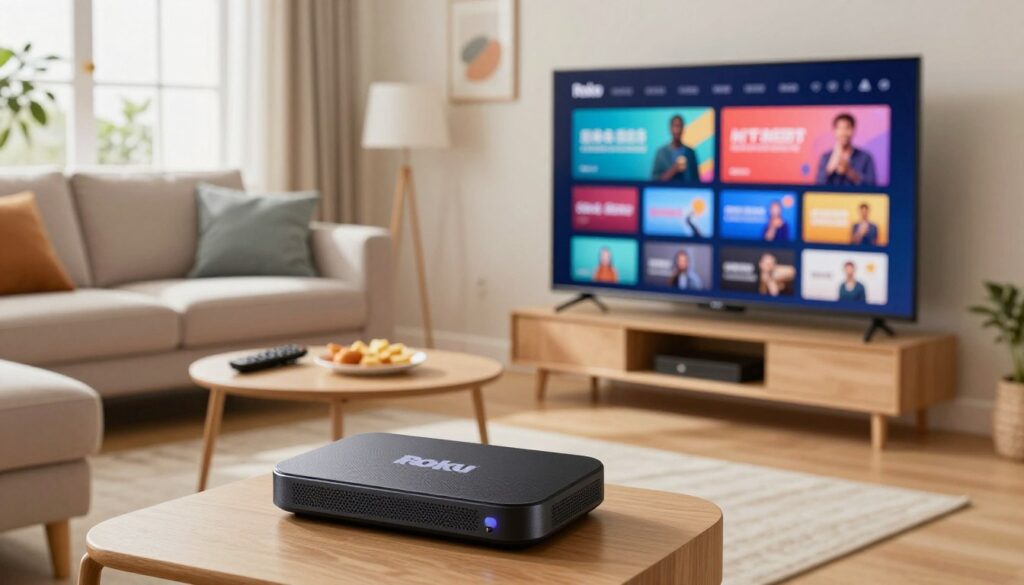
Curious whether you can stream your favorite live channels on a Roku device without cable? This practical 2025 guide shows you the simple steps to make it happen, with clear options and the tools you need.
You will learn what streaming over the internet means, what your device supports, and the two realistic methods people use today: screen mirroring or a developer-mode install. Each method suits different skill levels and home setups, so you can pick the best fit for your household.
Before you start, have your Roku model, network type, and playlist or portal credentials ready. Streaming quality depends on internet stability and Wi‑Fi placement, so many buffering issues are fixable without switching providers.
This guide stays practical and legal — it explains setup steps and avoids promoting unauthorized streams. If you want a legitimate subscription option later, consider checking GetMaxTV’s Roku offering and its trial. Ready to get set up? Keep reading for step-by-step instructions and troubleshooting tips.
Key Takeaways
- You’ll learn what streaming via internet playlists means and what your Roku supports.
- Two main options: simple screen mirroring or a developer-mode app install.
- Have your Roku model, network, and portal credentials ready before starting.
- Streaming quality often improves with better Wi‑Fi placement and settings.
- This guide focuses on legitimate setup steps, not piracy.
- For a legal subscription option, check GetMaxTV’s Roku page.
What IPTV is and what Roku does (and doesn’t) support
Live channels and on-demand libraries travel to your home over the internet instead of through cable or antenna. In plain language, a service provides the streams while an iptv player organizes playlists, the program guide, and playback controls for that content.
That split matters because Roku’s platform is stricter than some competitors. Many popular players never appear in the Roku Channel Store due to app rules, codecs, or developer policies. So while the device can play video streams, it often won’t let you install the exact app your provider recommends.
Two practical routes you can use
You have two realistic options on Roku. First, screen mirroring or casting from your phone or tablet. This is quick and low-risk but can use battery and sometimes stutters during sports.
Second, developer-mode install (sideloading a channel package). This needs a computer and more steps, and it can be less “set and forget,” but it gives a fuller app-like experience.
- Mirroring: easy, minimal setup, best for short sessions.
- Developer mode: technical, more stable playback, requires maintenance.
Decide early which tradeoff you prefer: convenience or a closer app experience. That choice shapes the rest of your setup and what services you can use reliably on your device.
Before you start: what you need for a smooth Roku IPTV setup
A little prep goes a long way: check your hardware, network, and account details before you begin. This saves time and cuts down on buffering later.
Roku device basics: stick vs box, HD vs 4K, Wi‑Fi vs Ethernet
Identify whether your Roku device is a stick or a box. Sticks mostly use Wi‑Fi and are compact. Boxes often include Ethernet and slightly faster menus.
If your TV is 1080p, 4K features won’t change picture quality. Still, a 4K device can feel snappier and is more future-proof for new video formats.
Ethernet matters for live channels. A wired connection cuts interference and keeps streams steady. If you have a Wi‑Fi‑only device, move your router closer or use a mesh node.
Internet and subscription details
Stable internet beats peak speed. Aim for consistent bandwidth matching your streaming plan—higher resolutions need more data and steadier throughput.
Collect your subscription inputs now: an M3U URL, a portal/Xtream login, or a provider dashboard link. Which one you use depends on the player you choose.
“Prepare your device, network, and login info first — setup will be far simpler.”
Keep login information private. Many providers limit simultaneous connections, so avoid sharing playlists or credentials.
Is IPTV legal in the UK, Canada, and the US?
Not all internet-delivered channels carry the same rights — and that difference matters.
How you view content is separate from whether the underlying streams are licensed for your country. The delivery method can be legal, but the streams must have proper rights in Canada, the US, or the UK.
Licensed vs unlicensed streams: how to think about legality without guessing
Look for clear business details, transparent pricing, and working customer support. A legitimate service will show partner or rights-holder info and list what channels it carries.
- Signals of legitimacy: public terms, stable apps, and verifiable partners.
- Red flags: vague offers, very low cost, or anonymous operators.
What platform policies mean for apps, channels, and content rights
App stores enforce content rules. The roku channel store or other channel store listings can be limited because platforms require rights documentation. That is why some players don’t appear openly.
Smart privacy baseline: when a VPN may help on your home network
A vpn can protect privacy on shared or public Wi‑Fi and reduce tracking, but it does not make unlicensed content legal. At home, strong Wi‑Fi security and updates often matter more than a VPN.
“Choosing a licensed service and official apps is the simplest, most reliable choice.”
iptv roku uk: the easiest method using screen mirroring

If you want a quick, no-install option, casting your mobile screen is the fastest route to watch live channels on the big TV. This method uses an iptv player on your phone or tablet and mirrors its output to your roku device over the same Wi‑Fi.
Turn on screen mirroring in Roku settings
Open Settings > System > Screen mirroring on your device and set the mode to Prompt or Always allow. This prevents connection prompts from blocking playback later.
Install a player on your phone, add your service, then cast
Install the mobile app that supports your M3U or portal credentials and add those details inside the app before casting.
- Confirm phone/tablet and roku device are on the same Wi‑Fi (not a guest network).
- Start playback in the mobile app.
- Use your phone’s Cast or Screen Mirroring feature to connect to the roku device.
Common mirroring limitations: latency, resolution, and battery
Mirroring can add a small delay and may cap resolution or drop frames during busy live channels like sports. Your phone also works harder, which raises heat and drains battery faster.
Best use cases and quick checkpoints
Mirroring is great for short live events and sports where setup speed matters. For long movies or marathon sessions, the battery and occasional dropouts make this option less comfortable.
- Make sure volume is set correctly and Do Not Disturb is on.
- Keep the phone plugged in and use landscape orientation for TV playback.
- If you want a fuller install method later, see the step-by-step installation guide.
“For fast access to live channels, screen mirroring is the low-friction option; tradeoffs are mainly quality and battery life.”
Alternative method: installing an IPTV player via Roku developer mode
Using the developer menu, you can push a packaged app from your computer to the device for fuller playback control.
What developer mode does: it lets you install a channel outside the roku channel store. This gives a more app-like experience but can feel less stable and may need more maintenance.
Enable developer options and record the address
Enter the sequence slowly on your remote: Home x3, Up x2, then alternate Right, Left, Right, Left, Right, Left, Right, Left. The developer menu appears and shows an IP address.
Accept the license and set a web server password. Write down the IP and password — you will need them on your computer.
Upload, install, and sign in
- Add a channel code at my.roku.com via “Add channel with a code” — warnings may appear because this is outside normal channels.
- On your PC, browse to the device IP, log in as rokudev, upload the package, then click Install.
- Once the app is on the roku device, open it and sign in with your provider or playlist credentials like any other app.
Make sure and final notes
Make sure both gadgets are on the same LAN, avoid VPNs during the upload, and don’t interrupt power mid-install.
“Sideloaded apps may not get the same support after a platform update; choose this option only if you are comfortable troubleshooting.”
For a step-by-step developer-mode walkthrough to install iptv roku, see this install iptv roku.
How to choose an IPTV player and features that matter on Roku
Not all players are built the same—your choice affects navigation, stream start time, and reliability.
Choosing an iptv player is mostly about usability and reliability. The same iptv service can feel very different depending on the program guide, channel ordering, and search tools the player provides.
What to prioritize
- Reliable EPG: an accurate electronic program guide makes live viewing simple.
- Favorites & recent: quick access to channels you watch most reduces menu hunting.
- Search & catch-up: search that finds shows and a catch-up feature add real convenience for movies and series.
- Profiles & parental controls: useful when multiple people share one device.
Playback and format reality
HD streams are easier to keep stable than 4K. HDR and surround sound only work if your TV, soundbar or receiver, and the player all support them.
HDR means better contrast and brighter highlights. Pass-through audio lets your receiver decode Dolby formats like Atmos instead of the player doing it itself.
Usability tips that matter
- Test channel zapping speed and how fast streams start — snappiness matters for live channels.
- Sort channels by country or genre, hide blocks you don’t want, and check subtitle controls.
- Confirm how the subscription is added (M3U URL vs portal/Xtream login) before you buy a plan.
“A smooth guide and quick channel change often matter more than a long feature list.”
For further reading on which players work best for different needs, see a guide on choosing a player and check a recommended subscription option if you need a ready-made service.
Optimizing streaming quality on Roku for live channels and on-demand content
Small home changes often stop buffering and make live channels feel smoother. Start with easy fixes before you chase complex settings. Most playback problems are network consistency issues, not a permanent limit of your device.
Reduce buffering: router placement, band selection, and device restarts
Move your router toward the room with the TV and reduce obstacles like thick walls. If possible, place it higher and avoid corners.
Prefer 5 GHz when your streaming device is close; switch to 2.4 GHz if the signal must travel far. For the steadiest connection, use wired Ethernet when available.
Restart your router and the streaming device if you see stutters. Keep your device software updated to get bug fixes and network improvements.
Match settings to your plan: resolution caps and bandwidth controls
Check your internet speed and set the player to a realistic resolution. Capping at 720p or 1080p often gives steadier live playback than forcing 4K.
Remember: live channels have no big pre-buffer window. That makes short drops show up fast during sports or breaking news. Lowering resolution can reduce those interruptions.
Audio/video improvements: HDR, Dolby formats, and TV picture mode basics
Enable HDR only when both the content and the TV support it. If audio passes through a soundbar, confirm the pass-through setting to avoid silence or downmixing.
Set your TV picture mode to a natural or standard profile. Turn off extra sharpening or motion filters that can make streams look worse.
“Change one setting at a time and test; this keeps troubleshooting clear and effective.”
Troubleshooting Roku IPTV problems without the guesswork
Start troubleshooting calmly: a simple checklist will help you isolate the root cause quickly. Follow the same short process each time and document what you change.
If the stream buffers or freezes
Check your network first. Switch less-used devices off, or move the router closer to the device.
Try Ethernet if you can, or lower the player resolution to 720p or 1080p.
If casting won’t connect or keeps dropping
Verify both gadgets are on the same Wi‑Fi network (not a guest SSID). Re-authorize screen mirroring in Settings and toggle Wi‑Fi on both devices.
Restart Bluetooth if discovery relies on it, then retry mirroring.
If a channel loads but shows a blank screen
Test the same channel in another app or on a phone to confirm stream compatibility. Some channels use codecs the player can’t handle.
Also check time/date and playlist or EPG URLs—expired credentials often look like a technical fault.
If the app crashes or won’t install
For mobile apps, update or reinstall the app. For developer-mode installs, recheck the device IP, web password, and package file, then reboot the device before retrying.
“Check network → try another channel → restart devices → review app settings → contact provider support.”
| Symptom | Likely Cause | Quick Fix | When to Contact Support |
|---|---|---|---|
| Buffering/Freezes | Network congestion | Lower resolution; use Ethernet | If all channels buffer after checks |
| Casting drops | Wi‑Fi mis-match or discovery issue | Same network; toggle Wi‑Fi/Bluetooth | If only mirroring fails repeatedly |
| Blank screen | Codec or playlist problem | Test channel on another app/device | If only one channel is blank |
| App won’t install | Package or dev-mode error | Verify IP/password; reboot and retry | If install fails after retries |
If you still need help, gather what changed recently—a firmware update, new router, or playlist swap—then contact your provider for targeted support. For extra resources on setup codes or an app option, see a streaming guide and an official setup codes guide and the GetMaxTV app.
Roku and IPTV alternatives if you want a more flexible setup
For a smoother viewing experience, look at how device upgrades change startup times, app responsiveness, and picture handling.
If your current device is slow or you want native apps for live channels, an upgraded stick or a small box can help. Focus on outcomes: faster startup, quicker channel switching, and steadier Wi‑Fi beats raw specs.
When a streaming stick upgrade makes sense
Upgrade within the same platform if you want 4K, better HDR support, or snappier menus for mainstream services. Higher-end sticks often add Dolby Vision or HDR10+ and improved wireless radios.
They keep the same app ecosystem and require little change to your setup.
When an Android TV or dedicated box may be the better choice
Consider Android TV devices (Chromecast with Google TV, NVIDIA Shield) if you want broader native app support and deeper playback controls. Official boxes tend to get timely updates and offer Ethernet on many models.
Be cautious with cheap “fully loaded” boxes; they often use outdated apps and can carry legal and reliability risks.
“Pick the hardware that gives the experience you want, not the fanciest specs.”
| Option | Pros | Cons | Best if you want |
|---|---|---|---|
| Upgraded stick | 4K/HDR, easy setup, same platform | Limited ports, wireless only on some | Smooth menus and better picture |
| Official Android TV box | Native apps, Ethernet, regular updates | Higher cost | Native playback control and app choice |
| Budget Android box | Low price | Unreliable updates, inconsistent apps | Short-term testing only |
| Dedicated media box | Strong performance, many formats | Can need advanced setup | Power users with many sources |
Legal note: Avoid devices marketed as a way to get free copyrighted channels. They create legal and support problems.
Privacy note: A vpn can help on public networks, but it does not legalize unlicensed content. Choose licensed services for reliable access.
Conclusion
iptv roku users today pick between two clear paths: quick screen mirroring for simplicity or a developer-mode install for a native app feel. Each option has tradeoffs, so match the choice to your comfort level and how often you watch live channels.
For the smoothest results, start with basics: steady internet, good Wi‑Fi placement, and correct playlist or portal credentials. Those steps often fix most playback problems fast.
Remember: using iptv can be legal when the content is licensed. Choose a reputable iptv service and a proper subscription to stay on the right side of rights and enjoy reliable access.
If you want a legal, ready option to review, see this GetMaxTV overview: GetMaxTV subscription details. If you want a legal IPTV subscription you can use confidently, check GetMaxTV’s offer on https://getmaxtv.com.
FAQ
What are the simplest ways to watch live channels and on-demand content on a Roku device?
You have two practical routes: use screen mirroring from a phone or tablet that runs a media player app, or enable developer-mode to sideload a compatible player package. Mirroring is faster to set up and works for most casual viewing. Developer-mode lets you install a third-party player directly on the device but requires a computer and a tech-savvy approach.
Why aren’t many third-party players available in the Roku Channel Store?
The store enforces app and content-rights policies. Many media players rely on playlist formats or streaming methods that don’t meet those rules, or they don’t complete Roku’s certification. That’s why some options only work via casting or sideloading.
What hardware and network setup gives you the most reliable streaming experience?
Choose a device that matches your TV (HD vs 4K) and prefer Ethernet when possible. Use a dual-band router and place it near the player to reduce Wi‑Fi interference. Aim for consistent internet speed — at least 10–25 Mbps for high-quality live channels — and use a wired connection for the most stable results.
How do I prepare my playlist or subscription details before setting up a player?
Verify you have the correct playlist type (M3U or provider portal credentials), and note any usernames, passwords, or PINs. Keep the playlist URL and EPG (electronic program guide) info handy so you can paste them into the player during setup.
Is watching streams this way legal where I live?
Legality depends on the source. Licensed streams from official providers are lawful. Unlicensed feeds infringe copyright and can cause legal and security risks. Always confirm the provider’s rights and check local rules in your country before subscribing or sharing content.
Should I use a VPN when streaming on a home device?
A VPN can improve privacy and help with geo-restrictions, but it may reduce speed and add latency. If you choose a VPN, use a reputable provider, test speeds, and avoid providers that break streaming service terms of use.
How do I turn on screen mirroring on the device?
Open Settings > System > Screen Mirroring and enable the option. Then use your phone or tablet’s cast function to connect. Ensure both devices are on the same local network and that the sending device supports the casting protocol in use.
What limitations should I expect when mirroring from a mobile device?
Expect possible latency, lower resolution than native playback, occasional stutter, and battery drain on the sending device. Mirroring works best for live sports and short clips; long UHD movies may not perform as well.
How does developer-mode sideloading work and what risks should you know?
You enable Developer Options, note the device IP, create a developer password, then upload a channel package from your computer. Sideloading can bypass store limits but may void warranties and expose you to unstable or unsecured software. Only install packages from trusted sources.
What features should you prioritize when choosing a player?
Look for EPG support, favorites, catch-up/recording, multi-screen or multi-stream, profile management, and reliable playback formats (HD/4K support). Also check subtitle support and an intuitive channel sorting or search function.
How can you reduce buffering and improve stream stability?
Move your router closer, switch to the 5 GHz band for less interference, restart your device regularly, and limit other heavy network use during viewing. If possible, use Ethernet and adjust player bitrate settings to match your internet plan.
What should you do if a stream buffers, freezes, or drops frequently?
Restart the player and router, test connection speed, lower the player’s resolution setting, and try a wired connection. If problems persist, contact the service provider for server-side checks or try a different playlist source.
Why does a channel sometimes load but show a blank screen?
Blank screens often mean codec or DRM issues, missing EPG data, or a broken stream link. Try restarting the app, reloading the playlist, or switching to another channel. If the issue affects many channels, check the playlist source and player compatibility.
What if the app crashes or won’t install via developer mode?
Verify the package is compatible with your device model and OS version, check the developer-mode log for errors, and repackage if necessary. If sideloading repeatedly fails, consider mirroring instead or use a different platform like an Android TV box for wider app support.
When should you consider upgrading your streaming device or switching platforms?
Upgrade if you need better performance for 4K/HDR, faster menus, or native app support for more services. Consider an Android TV device or a dedicated media box when you want full app freedom, easier sideloading, and broader codec support.
The GetMaxTV Team is a group of cord-cutting experts and streaming technology specialists who have been testing and reviewing IPTV services since 2022. Based in North America, our team personally tests every service we recommend across 15+ devices including Fire TV Stick, Roku, Apple TV, Samsung Smart TVs, and gaming consoles. We verify channel counts, measure buffering rates, test picture quality in HD and 4K, and evaluate customer support response times. Our mission is to help viewers save money by switching from expensive cable subscriptions ($147/month average) to affordable, high-quality IPTV alternatives. Every article on GetMaxTV.com is based on hands-on testing and real-world experience — not recycled marketing claims.