
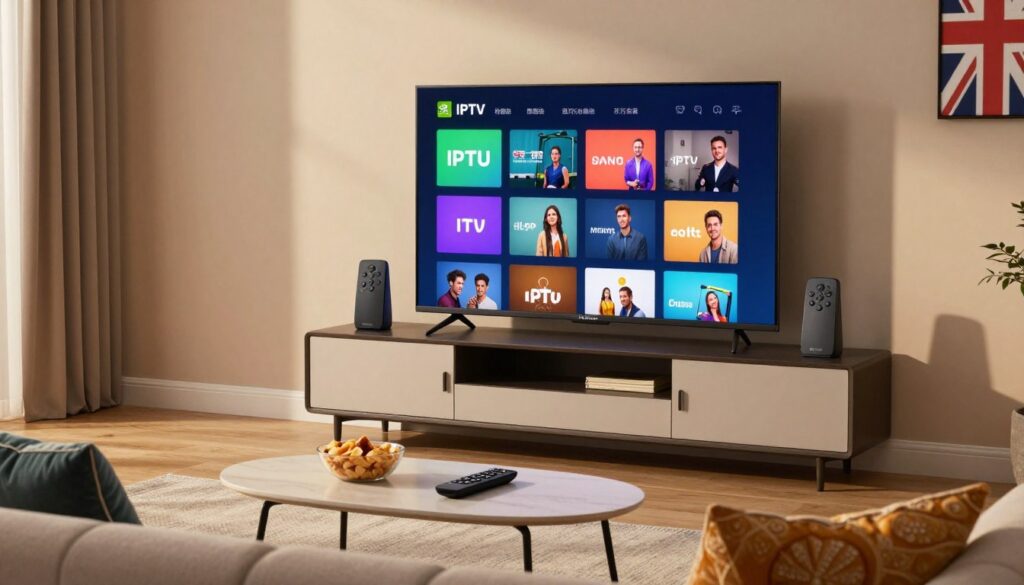
Can a single living-room box really turn your TV into a reliable streaming hub without hacks?
You’re using your Nvidia Shield as a streaming device to play IPTV through a player app with playlist details from your provider. This guide is focused on the UK but the steps work in Canada and the US.
Shield TV Pro is popular because it supports 4K, has fast Wi‑Fi, Gigabit Ethernet, HDMI 2.0b and USB 3.0 ports. That hardware makes clear picture and smooth playback easier when your network and playlist are correct.
You don’t need tricks: get the right app, enter the playlist URL and EPG, and use a solid network. Later sections cover install paths (Google Play or sideload), playback tuning, buffering fixes, and how to choose a legal subscription.
For a practical community take on reliable setups, see this user thread for tips on players and network choices: best setup discussion.
Key Takeaways
- Use the right player app and your provider’s playlist/EPG for best results.
- Shield TV Pro’s hardware helps deliver 4K and stable playback.
- Wired networks reduce buffering; Wi‑Fi can work with 5 GHz and good signal.
- Quality means clear picture, smooth play, reliable EPG, and fast channel changes.
- Follow legal checks when choosing a subscription for the UK, Canada, or the US.
What you need before you start streaming IPTV on Nvidia Shield TV
Begin with a quick check: identify your Shield model, verify network options, and have your provider URL and credentials ready.
Confirm your model and why Pro is preferred
Check the label or system settings to see if you have the Shield TV or the Shield TV Pro. The Pro has extra RAM, two USB 3.0 ports, and Gigabit Ethernet, which helps with sustained 4K streaming and added storage.
Internet connection checklist
Run a two-minute test: confirm your router supports 5 GHz (802.11ac), check signal where the device sits, and note if a wired drop is available. Wi‑Fi (802.11ac) is fine for short distance and low interference.
Use Ethernet when you need steady 4K performance in busy homes or through thick walls.
Accounts, access, and playlist URL
You need access to the Google Play store on your device to install and update a player app. Have your playlist URL (M3U), any login credentials, and EPG details ready before installing.
On Android TV, apps will ask for permissions for network or storage; only grant what the app needs for functionality and safety.
Optional gear that helps
- USB drive for local media or sideloading.
- A reliable remote or controller for navigation.
- An HDMI 2.0b input on your TV to get proper 4K with HDCP support.
Before you start: app installed from the store, playlist URL added, channels loaded, and shortcuts pinned on your home screen for quick access. For a legal, straightforward option to explore, see GetMaxTV setup guide.
| Checklist item | Why it matters | Time to verify |
|---|---|---|
| Model (Shield vs Pro) | Determines ports, RAM, and Ethernet | 1–2 min |
| Network type (Wi‑Fi 802.11ac or Ethernet) | Impacts buffering and 4K stability | 2 min |
| Playlist URL & credentials | Required to load channels and EPG | 1–3 min |
| Google Play store access | Needed to install and update apps | 1–2 min |
| Optional gear (USB, remote, HDMI 2.0b) | Makes installs and playback smoother | Varies |
Why Nvidia Shield is a strong IPTV device for quality, speed, and 4K
When you want consistent 4K and fast menu response, a purpose-built Android TV box can make the difference.
4K playback and home theater readiness
The Shield TV Pro’s HDMI 2.0b output with HDCP 2.2 and CEC turns specs into real benefits. This matters for 4K video: you get fewer playback errors, proper HDR handshakes, and simpler remote control across your TV and soundbar.
Connectivity that improves stability
Dual-band 802.11ac 2×2 MIMO Wi‑Fi gives flexibility when wiring isn’t possible. For steady prime-time streaming, Gigabit Ethernet delivers the most consistent bandwidth and fewer frame drops.
Bluetooth 5.0 helps you pair headphones, gamepads, or remotes without fuss, which keeps playback smooth and navigation quick.
Ports and expandability
Two USB 3.0 ports let you add storage, play local media files, or sideload apps from a drive when the store lacks support. That expandability keeps the box useful as your needs change.
- Why it feels faster: more RAM and a tuned Android TV build mean apps, EPGs, and channel switches load sooner than on many built‑in TV systems.
- Quality outcomes: more consistent 4K, fewer frame drops, and smoother in‑app navigation during busy hours.
- Practical VPN note: a vpn can help privacy or check throttling, but it won’t fix a weak server or poor Wi‑Fi.
If you want the official product details or a tested setup, see the Shield TV Pro page. For a straightforward, legal service option to explore, try the GetMaxTV setup guide.
Takeaway: A dedicated streaming box like the nvidia shield blends speed, stable networking, and expandability so your media quality improves and daily use feels snappier.
iptv nvidia shield uk setup using a player app from Google Play

Follow a short, legal-first flow to get channels working on your box using a trusted player from the store.
Begin on your home screen and open Google Play. Use the search field to find a reputable player app like “TiviMate IPTV Player” and confirm the name and icon before you install.
Install and launch the player
Install the app from the store, then open it from your home screen. The player acts as a viewer — it plays streams but usually does not include channels itself.
Add your provider playlist
Follow the in-app prompts to add your provider’s playlist URL. Copy/paste carefully: watch for http/https, any username/password fields, and give the list a clear name so you can find it later.
What to expect and quick optimizations
- Initial channel sync can take a few minutes depending on list size and connection.
- Enable the EPG, mark favorites, and test one channel before changing decoder or buffer settings.
- If a stream fails, check the URL format and credentials, then retry.
Success check: you can open a channel, it plays smoothly, and the EPG appears. If so, move on to buffering and home-screen tuning.
Alternative install methods for IPTV apps on Shield using USB or Downloader
For cases where a player isn’t in the store or you need a specific version, sideloading is a practical option when done responsibly.
When to use alternatives: use a USB install or the Downloader tool if the app is unavailable in your region, you need a compatible build, or a provider offers an official APK.
USB install flow
Download the APK to your computer, copy it to a USB drive, then plug that drive into the box. Open a file explorer on the Shield, find the APK, and run the installer.
File management on the device
If you don’t have a file explorer, install one from Google Play first. Confirm the app name, icon, and description match the publisher before you install any software.
Downloader approach
Install the Downloader app, grant file access, and type the APK url carefully. Downloader fetches the file directly on the device so you don’t move media between devices.
- If the installer is blocked, enable unknown‑apps permission only for sources you trust.
- Keep software current: update the app when a newer version appears for best streaming stability and security.
| Method | Best use | Key step |
|---|---|---|
| USB | Large APKs or offline transfer | Copy APK → plug USB → open file explorer → install |
| Downloader | Direct install from a trusted URL | Enter URL → download → install |
| File explorer | Manage local media and installs | Browse USB/local folders → verify file → open APK |
For step‑by‑step tutorials and safe tips, see GetMaxTV tutorials.
How to set up your home screen and playback settings for a smoother experience
Make your Shield home screen work for you by arranging apps and inputs so the things you use most are one click away.
Organize apps and inputs for quick access
Pin your main player to the top row and move backup apps next. Put Settings last so you reach content faster.
Living room workflow: player first, backup streaming apps second, then the settings icon.
Player settings that impact quality
Match video mode to content (auto or same-as-source). Try hardware decoder first; switch to software only if you see errors.
Increase buffer size in small steps only when you spot stutter. Change one setting at a time so you can measure improvement.
Audio, display and controller tips
Set the device to your TV’s native resolution and confirm the HDMI input supports 4K/HDCP via HDMI 2.0b if needed.
If navigation is slow, use a controller for faster typing and EPG moves. Keep local media organized on USB so apps stay responsive.
| Task | Why it helps | Quick action |
|---|---|---|
| Pin main app | Fewer clicks to launch | Long-press app → Pin to top |
| Match video mode | Better picture quality | Settings → Display → Resolution |
| Adjust buffer | Reduce stutter without over‑delaying | Increase in 0.5–1s steps |
| Enable HDMI-CEC | Use one remote | TV + device CEC on |
Goal: faster launch, fewer hiccups, and a consistent setup that feels set-and-forget for daily use and better overall experience.
Reducing buffering and improving IPTV streaming stability
When streams pause or pixelate, start by narrowing whether the fault is in your home network, the provider’s server, or the channel itself.
Speed and server considerations
Run a simple speed test from the same room as your device. Note download and upload speeds and test at peak times to spot congestion.
If only certain channels stutter or issues appear at evening hours, that signals a server-side limit or routing problem. Your device cannot fix overloaded servers.
When Ethernet helps most (and when Wi‑Fi is enough)
Use Ethernet when multiple devices stream, you want steady 4K, or your Wi‑Fi signal is weak. Wired Gigabit connections give consistent bandwidth and fewer dropouts.
Wi‑Fi is fine if you have a strong 5 GHz 802.11ac signal and low interference. Move the router closer or change channels before assuming you need a cable.
Common device-side fixes
Follow this checklist in order: update the player app, update the device software, force-close and relaunch the app, restart the device, then clear the app cache if available.
If problems continue, test other channels and players. This helps you tell support whether the issue is universal or content-specific.
How a VPN fits in
A vpn can protect privacy and sometimes reveal ISP throttling. It can also slow speeds if the VPN server is far away or overloaded.
Try a nearby VPN server as a quick test: compare buffering with the vpn on and off. Keep whichever setup gives better real-world performance.
Support checklist for faster help
- Record channel name, time, and whether other channels fail.
- Note your speed test results and whether Ethernet or Wi‑Fi was used.
- Send logs or screenshots if your provider supports them.
| Symptom | Likely cause | Quick action |
|---|---|---|
| All channels stutter | Home bandwidth or device issue | Run speed test → restart device → use Ethernet |
| Only peak-time lag | Provider server load or routing | Contact support with times and examples |
| Single channel pixelates | Stream format or source encoder | Try alternative channel or report to provider |
| Improves with VPN | Possible ISP throttling or routing issue | Test nearby VPN server → keep best setup |
Realistic expectation: the most reliable fix is solid home bandwidth plus a provider with good server uptime and fast support. For a step-by-step troubleshooting reference, see the troubleshooting guide.
Choosing a legal IPTV subscription in Canada, the US, and the UK
Choosing a legal content subscription starts with simple checks on rights, transparency, and what you actually get.
Legal services make clear who owns the shows and movies they distribute. They list licensing, refund and billing policies, and a contact path for support. That transparency helps you know the service is above board.
What legal typically means
Legal means the provider has explicit rights to deliver content, a public policy on use and refunds, and clear company details on their page. You should see account terms, regional availability, and device compatibility listed where you can read them before buying.
Practical evaluation checklist
Use this quick checklist when you review any service page.
- Content rights: is there a statement about licensing for shows, series, movies, and sports?
- Support & uptime: does the page show how to reach support and a status policy for outages?
- Devices: which devices are officially supported and tested (look for exact models)?
- Transparency: are billing, trial, and refund policies easy to find and read?
| Check | Why it matters | What to look for on the page | Quick action |
|---|---|---|---|
| Licensing | Ensures content is lawful | Clear statements about rights for shows, series, movies, sports | Confirm examples of included content |
| Support & uptime | Helps when channels fail | Support contact, status page, SLA or notice policy | Ping support with a test issue |
| Device compatibility | Ensures smooth install and playback | List of supported devices and setup guides | Confirm your model is named |
| Billing policy | Avoid unexpected charges | Trial terms, refund rules, and recurring billing details | Save policy page before subscribing |
Reality check: even licensed services can have outages. Choose a provider that publishes status updates and responds to support requests quickly.
Quick VPN note: a vpn can protect privacy, but it does not make an unlicensed service legal. Legality rests on rights and policies, not your connection method.
If you want a clear, legal option to explore, consider checking GetMaxTV and review regional offers for Canada on this subscription comparison page. Once you pick a legal service, add its details to your player and fine-tune playback for the best viewing experience.
Conclusion
Finish by confirming the basics so your setup stays reliable and legal.
Choose a trusted player, install it on your nvidia shield, add your playlist details, and confirm channels load and play smoothly.
Remember: hardware helps, but true quality comes from the full chain — device, home network, and the service you use for content and videos.
Use Google Play when possible or sideload via USB/Downloader only from sources you trust. Prefer wired Ethernet, keep player apps updated, and tune small buffer or decoder settings for the best experience.
, If you want a legal subscription to use on Shield in Canada, the US, or elsewhere, check GetMaxTV’s offer at https://getmaxtv.com for a clear, supported option.
FAQ
What do you need before you start streaming on your Shield TV?
Make sure your Shield model is up to date, you have a stable internet connection (preferably 802.11ac Wi‑Fi or gigabit Ethernet), and you’ve got access to Google Play. Have your subscription details and playlist URL ready. Optional items like a USB drive, HDMI 2.0b display, or a game controller can help with storage and navigation.
How do you confirm which Shield model you own and why Shield TV Pro is better for streaming?
Check Settings > Device Preferences > About to see the model and storage. Shield TV Pro offers more RAM, extra storage, and two USB 3.0 ports, which help with multi-tasking, server caching, and running heavier player apps for smoother 4K playback.
Which connection should you use: Wi‑Fi or Ethernet?
Use gigabit Ethernet when possible for the most stable 4K streams and lower latency. Modern dual‑band Wi‑Fi (802.11ac) can work well for HD and some 4K content if you have a strong signal and minimal interference.
How do you install a player app from Google Play on the Shield?
Open Google Play from the home screen, search for a compatible media player, select Install, then launch it from your apps row. Follow the app prompts to add your provider’s playlist URL and let the channel list populate.
Can you install player apps using USB or Downloader if Play Store isn’t an option?
Yes. For USB, download the APK on a computer, copy it to a formatted USB drive, then use a file explorer on the Shield to locate and install the APK. With Downloader, enter the direct APK URL and install it after allowing unknown sources.
How do you organize the Shield home screen for faster access to your apps and inputs?
Use the Shield home screen’s Apps row to pin frequently used players and inputs. Move apps by highlighting, holding OK, then dragging to your preferred position. Group media tools, streaming players, and utility apps for quick access.
What player settings should you tweak to improve video quality and reduce buffering?
Adjust video mode (match TV resolution and refresh rate), toggle hardware decoder options, and set reasonable buffer sizes if the app allows. Lowering bitrate or enabling adaptive streaming in the player can cut buffering on slower networks.
Why does buffering happen and how do you troubleshoot server or speed issues?
Buffering often comes from slow network speeds, congested Wi‑Fi, or overloaded streams from the provider’s server. Test your internet speed, switch to Ethernet, close background apps, and try a different server or quality setting in the player.
When will using Ethernet make the biggest difference?
Ethernet helps most for consistent 4K playback, low-latency live sports, and when you have multiple devices competing on Wi‑Fi. If your Wi‑Fi signal is strong and your router supports 802.11ac, you may not need Ethernet for HD content.
What Shield-side fixes help when playback is unstable?
Keep your apps and Shield software updated, clear app caches, reboot the device, and, if needed, reinstall the problematic player app. Check USB or external drives for errors if you use local media.
How should you use a VPN with your streaming setup?
Use a trusted VPN for privacy or to avoid ISP throttling. Choose a fast server near your region to reduce latency. Avoid unreliable VPNs that increase buffering or block streaming traffic.
What defines a legal subscription and how do you evaluate providers?
Legal services hold content licensing, offer transparent terms, and provide support. Check device compatibility, uptime history, clear pricing, and whether they list rights or studio partners. Avoid services that lack transparency or customer support.
What should you check when evaluating a provider for North America and the UK?
Confirm the provider’s licensing for the content you want, test device support on Shield and Android TV, read reviews about reliability and speed, and verify clear refund or trial policies before subscribing.
Where can you find an option that focuses on legal content and easy setup?
Look for established services with clear licensing info, a simple playlist or app setup, and good customer support. Verify compatibility with Google Play and Shield TV Pro features before committing.
The GetMaxTV Team is a group of cord-cutting experts and streaming technology specialists who have been testing and reviewing IPTV services since 2022. Based in North America, our team personally tests every service we recommend across 15+ devices including Fire TV Stick, Roku, Apple TV, Samsung Smart TVs, and gaming consoles. We verify channel counts, measure buffering rates, test picture quality in HD and 4K, and evaluate customer support response times. Our mission is to help viewers save money by switching from expensive cable subscriptions ($147/month average) to affordable, high-quality IPTV alternatives. Every article on GetMaxTV.com is based on hands-on testing and real-world experience — not recycled marketing claims.