
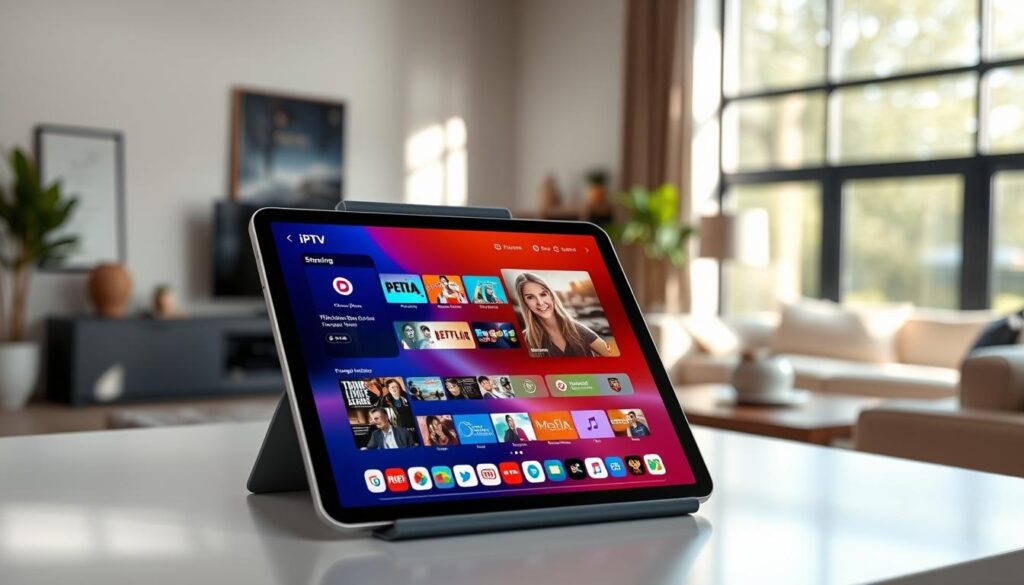
Curious how fast you can turn a tablet into a full TV experience? This guide walks you through a quick, frustration-free path from zero to live channels and on-demand shows in minutes.
You’ll use trusted App Store players like Xtream IPTV or GSE SMART IPTV to add your provider credentials (URL, username, password) and load channel groups. The steps are simple, and many players let you create favorites and organized lists for sports, movies, or series.
GetMaxTV is showcased here as the top value option in 2025: 19,000+ live channels, 97,000+ VOD, and a single plan at $6.95/month. It works across your device lineup — iPhone, Apple TV, Firestick, Smart TV, Android, Mac, and Windows — with instant two-minute activation, no contract, and 24/7 support. By the end of this guide you’ll know how to subscribe risk-free or try a free trial via WhatsApp.
Key Takeaways
- You’ll learn precise, app-based steps to get streaming fast using Xtream or GSE SMART IPTV.
- Prepare the three fields: URL, username, and password, then load channel groups.
- GetMaxTV offers huge content and universal compatibility for a low monthly price.
- Activation is instant (about two minutes) and support is available 24/7.
- Organize favorites and groups for easy access to sports, movies, and series.
Why Your iPad Is Perfect for IPTV and Why GetMaxTV Is the Best Value in 2025
Modern tablets pair strong hardware with easy players so you can be watching in minutes. The crisp screen and steady performance make shows, sports, and movies look great without complex tinkering.
From “what app do I use?” to streaming in minutes
If you’re not sure which player to pick, many users choose Xtream IPTV or GSE SMART from the App Store. Those apps accept either Xtream Codes (server URL, username, password) or an M3U playlist.
Enter your credentials once and give the source a clear name. The app loads channel groups and VOD so you can build favorites and organized lists quickly.
All the content you want for less
GetMaxTV delivers unmatched value: over 19,000+ live channels and 97,000+ VOD for just $6.95/month. That includes sports and movie packages with no extra add‑ons.
Universal compatibility and zero commitment
Your subscription works across many devices—phone, tablet, Apple TV, Firestick, Smart TV, Android, Mac, and Windows. There’s no contract, activation is instant (about two minutes), and support is available 24/7.
- The apps live in the official store, so installation and updates are quick.
- Give each playlist a clear name to manage multiple sources easily.
- If you want to try before you buy, start a free trial with GetMaxTV here.
iPad IPTV Setup: Step-by-Step Guide Using Popular App Store Players

This short guide walks you through the exact steps to load a playlist or Xtream codes into common app store players.
Quick pre-checks before you start
Update your device to iPadOS 12 or later. Connect to a stable 5 GHz Wi‑Fi network for best performance.
Have your provider credentials ready: server URL, username, and password, or the M3U playlist link.
Xtream codes flow (common app approach)
Open your chosen app, tap Add playlist, and pick Add via Xtream Codes.
Paste the server URL, enter username and password, assign a clear account name, then tap Add user and wait for channels to load.
GSE Smart IPTV route
Download GSE SMART IPTV from the App Store (~104.5 MB). Open the app and allow Bluetooth when prompted for Chromecast features.
Tap + under Remote Playlist, choose Add M3U URL, name your playlist, paste the link, and confirm channel groups populate.
Alternative app flow
Search the app store, install a smart player, open it, and sign in with your playlist URL, username, and password. Create favorites by tapping the heart or long-pressing channels.
“Instant activation often means your GetMaxTV login arrives in about two minutes — you can be watching without delay.”
- Organize groups for sports, movies, and series so your go-to channels are one tap away.
- If playback stutters, toggle hardware decoding in the app and retry on 5 GHz Wi‑Fi.
- GetMaxTV offers instant activation, 24/7 support, no contract, and a single plan at $6.95/month.
For fresh daily M3U sources, check the daily M3U lists and use the same credentials across your phone, tablet, Apple TV, and other screens.
Troubleshooting and Optimization on iPad
Small glitches happen, but most streaming problems on your tablet are easy to fix with a few quick checks. Start with the basics and you’ll often be back to watching in minutes.
Fix common issues quickly
If a playlist won’t load, first check the url for extra spaces or missing characters. Then reload the list from your iptv app’s playlist manager.
When channels appear but show no video, toggle hardware decoding in the player settings and retry on 5 GHz Wi‑Fi. For login failures, re-enter Username, Password, and server URL and confirm the account name matches the profile.
If channel groups or categories are missing, reopen the Remote Playlist in gse smart iptv and tap the source to refresh. If that fails, remove and re-add the entry to force a clean import.
Performance tips to keep streaming smooth
- Keep your app updated from the App Store and ensure your device runs the latest iPadOS.
- If video stutters during big games or movies, move closer to your router, change Wi‑Fi channels, or use Ethernet via an adapter on supported devices.
- Test multiple players — some smart iptv-style apps decode differently and switching can fix codec issues.
“If you still need help, GetMaxTV’s 24/7 support can review your setup and get you streaming smoothly again fast.”
Organize your screen with a fresh Favorites list after reloading, so sports and movies are one tap away. Remember, there’s no contract—activation is quick and support is always available to keep your viewing risk‑free.
Conclusion
To finish, follow one clean step-by-step flow and you’ll be watching sports and movies in minutes.
Use an App Store player like GSE SMART IPTV or a trusted iptv app, add your M3U or Xtream Codes playlist, and give the source a clear name. Confirm channel groups and mark favorites for fast access.
GetMaxTV remains the top value: 19,000+ live channels and 97,000+ VOD for just $6.95/month. All sports and movie packages are included, there’s no contract, and activation is instant (about two minutes). The same subscription works across your favorite devices.
If you’re ready, subscribe at https://getmaxtv.com/. Prefer a trial first? Message for a free test on WhatsApp: https://wa.me/message/OZ4NORVZQTYAC1.
Keep the app and your device current, use a strong Wi‑Fi connection, and you’ll enjoy smooth playback day after day.
FAQ
How do I start streaming on my iPad with a playlist app from the App Store?
First update your device and confirm a stable 5 GHz Wi‑Fi connection. Open the App Store, download a trusted player such as GSE Smart IPTV or IPTV Smarters, then choose the option to add a playlist. Paste the M3U URL or enter Xtream Codes (URL, username, password), give the playlist a name, and load channel groups. You should see channels appear on your screen within moments.
Which app should I use if I want easy playlist management and favorites?
GSE Smart IPTV is a solid choice for organizing groups and creating favorites for sports, movies, and series. It offers a Remote Playlist option to add M3U URLs, lets you name lists, and displays channel groups so you can quickly pin favorites to your home screen for fast access.
What details do I need before adding a playlist via Xtream Codes?
Have your playlist URL or Xtream Codes credentials ready: the server URL, username, and password. Also pick a recognizable account name. Keep your M3U file or portal link handy so you can paste it without typing errors—this prevents invalid-URL errors during setup.
Why won’t my playlist load or why do channels show “no video”?
Common causes are typos in the URL, expired credentials, server-side issues, or network congestion. Verify the URL and login details, switch to 5 GHz Wi‑Fi, and restart the app. If channels still fail, test the playlist in another player or contact your provider to confirm the playlist is active.
Can I use the same account on multiple devices like Apple TV, Firestick, and Windows?
Yes. Most providers allow multi-device access across iPadOS, Apple TV, Fire TV, Android, macOS, and Windows. Sign in with the same Xtream Codes details or load the same M3U URL on each device. Check your provider’s device limit if you hit streaming restrictions.
How do I improve playback quality and reduce buffering?
Update the streaming app from the App Store and enable hardware decoding if available. Use a stable 5 GHz Wi‑Fi or wired connection for compatible devices, close background apps, and choose a lower bitrate stream if the provider offers multiple streams for the same channel.
What’s the difference between adding an M3U URL and using Xtream Codes?
An M3U URL is a direct playlist file listing channels and VOD links. Xtream Codes (or similar portal logins) provide a server-based connection that often includes EPG and multiple stream qualities tied to username/password authentication. Xtream Codes can be simpler for account-based services and dynamic playlists.
How fast is activation when I sign up for a provider like GetMaxTV?
Providers such as GetMaxTV typically send login details by email within minutes. Once you receive the details, add them to your chosen app via Xtream Codes or paste the provided M3U URL, and you can usually start watching in about two minutes.
Are there any App Store rules I should know when choosing a player?
The App Store requires apps to follow content and copyright rules. Look for reputable players with recent updates and positive reviews. Avoid sideloaded or unofficial builds to reduce security risks and ensure compatibility with the latest iPadOS.
How do I organize channels and create groups for sports, movies, and series?
In your player app, open the playlist and use the grouping or edit tools to create folders or categories. Move channels into named groups like Sports, Movies, and Series, then mark favorites. This streamlined layout makes navigating large lists much faster.
What should I do if the app store player displays an “invalid URL” message?
Re-check the copied URL for missing characters or extra spaces, confirm your provider hasn’t changed the link, and ensure the link begins with the correct protocol (http/https). If the link is correct, try another app to rule out player-specific parsing issues or contact your provider.
Can I watch video-on-demand and live channels from the same playlist?
Yes. Many playlists include both live channels and VOD libraries. After adding the M3U URL or Xtream Codes, navigate to the VOD or Movies section in your player to find on-demand content alongside live streams.
The GetMaxTV Team is a group of cord-cutting experts and streaming technology specialists who have been testing and reviewing IPTV services since 2022. Based in North America, our team personally tests every service we recommend across 15+ devices including Fire TV Stick, Roku, Apple TV, Samsung Smart TVs, and gaming consoles. We verify channel counts, measure buffering rates, test picture quality in HD and 4K, and evaluate customer support response times. Our mission is to help viewers save money by switching from expensive cable subscriptions ($147/month average) to affordable, high-quality IPTV alternatives. Every article on GetMaxTV.com is based on hands-on testing and real-world experience — not recycled marketing claims.